114 Chapter 3 Your No. 2 Pencil
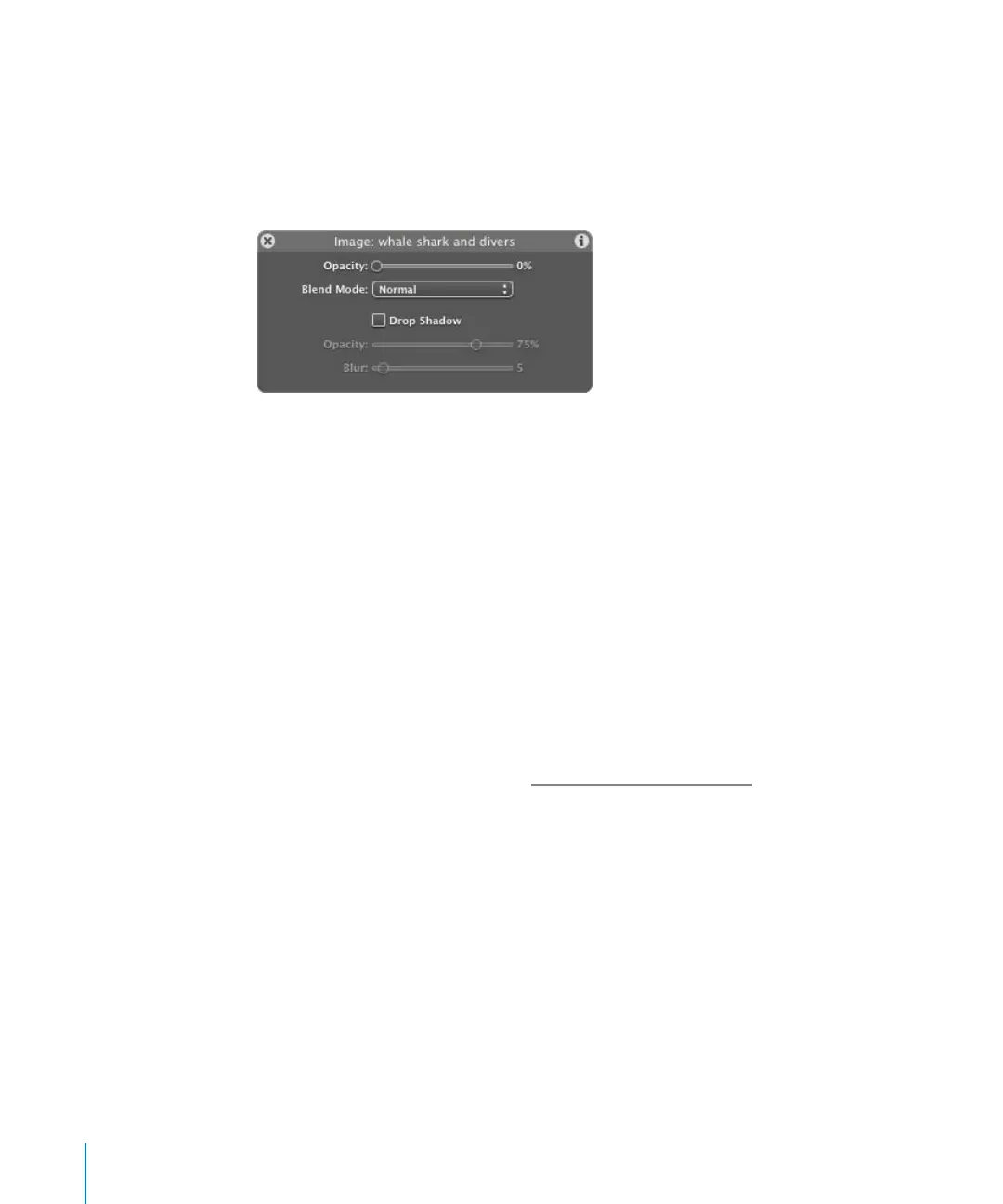
To animate the opacity of an object using the Dashboard:
1 In the transport controls, enable Record (press A).
2 Select the object that you want to animate.
3 Go to the frame in which you want to begin the fade in.
4 In the object Dashboard, drag the Opacity slider to 0.
An Opacity keyframe is created.
5 Go to the frame in which you want to end the fade in.
6 Drag the Opacity slider to 100.
A second Opacity keyframe is created.
7 Disable the Record button (press A).
Keyframing in the Inspector
Keyframes can be created in the Inspector in two ways:
• When the Record button is enabled, any change made to a parameter’s value creates
a keyframe.
• When the Record button is disabled, you can explicitly add keyframes in the
Animation menu.
The following examples use both methods to create the same fade-in animation as
discussed in the preceding section, “K
eyframing in the Dashboard.”
To animate opacity in the Inspector using Record:
1 In the transport controls, enable Record (press A).
2 Select the object that you want to animate.
3 Go to the frame where you want to begin the fade in.
4 In the Blending section of the object’s Inspector > Properties tab, drag the Opacity
slider to 0 (or enter 0 in the value field).
2505.book Page 114 Wednesday, June 30, 2004 5:58 PM



 To Next Page