116 Chapter 3 Your No. 2 Pencil
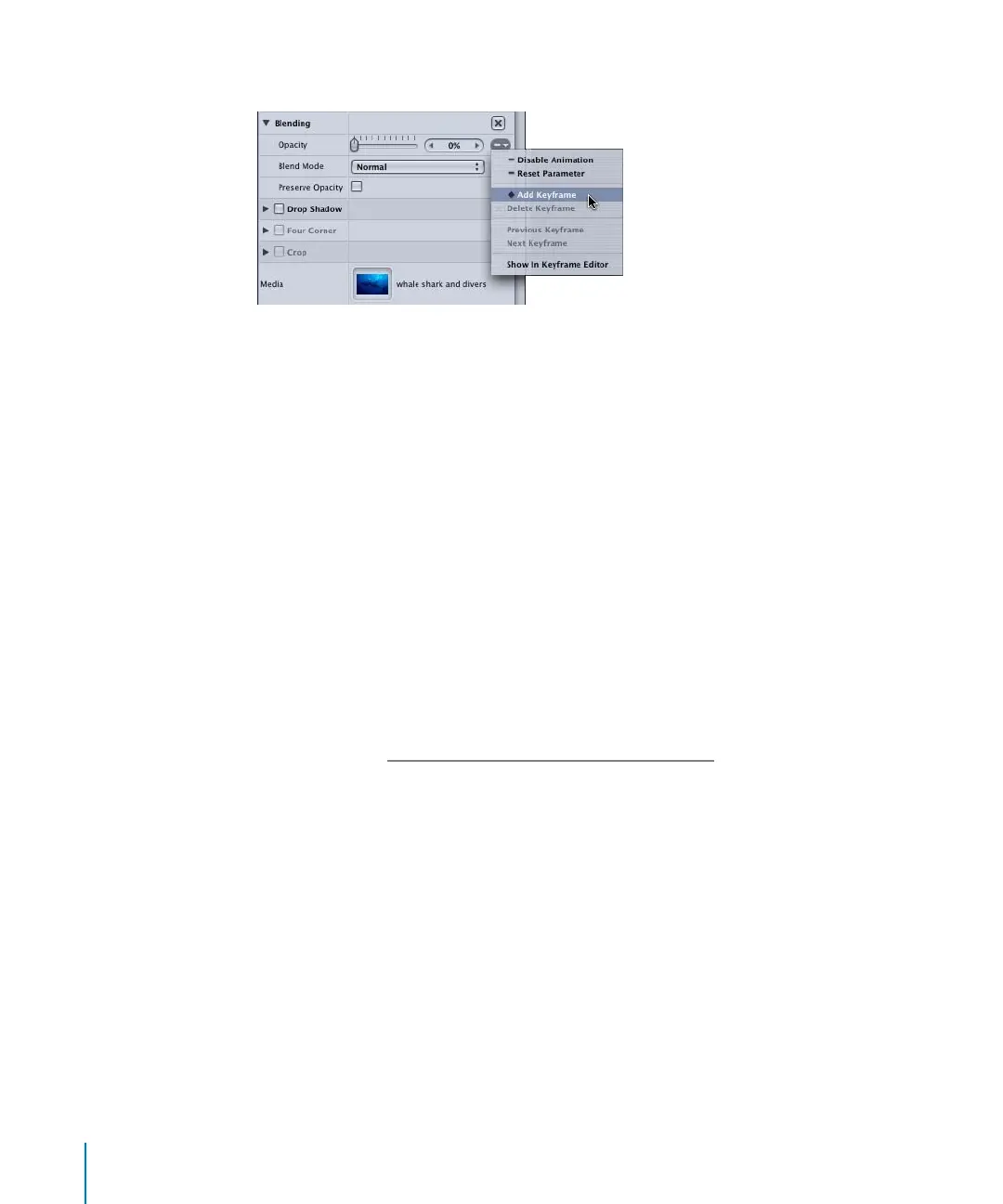
5 Click the Animation menu icon, then choose Add Keyframe.
An Opacity keyframe is created.
6 Go to the frame where you want to end the fade in.
7 Click the Animation menu icon, then choose Add Keyframe.
Important: As mentioned earlier, a second keyframe must be added before you adjust
the parameter of the object. If you adjust the parameter before adding a second
keyframe, you shift the entire curve (because Record is disabled).
8 Drag the Opacity slider to 100 (or enter 100 in the value field).
A second Opacity keyframe is created.
Keyframing Filters
In Motion, nearly all parameters can be animated. Filters, like object properties, also
contain parameters with values that can be keyframed over time. In addition to
keyframing a filter, you can apply a Parameter behavior to a filter to create unique
effects.
You can also apply Parameter behaviors to specific parameters of a filter. For more
information, see “A
nimating Filters With Parameter Behaviors” on page 92.
2505.book Page 116 Wednesday, June 30, 2004 5:58 PM



 To Next Page