130 Chapter 4 Arts and Letters
To apply a behavior to a text object, do one of the following:
m
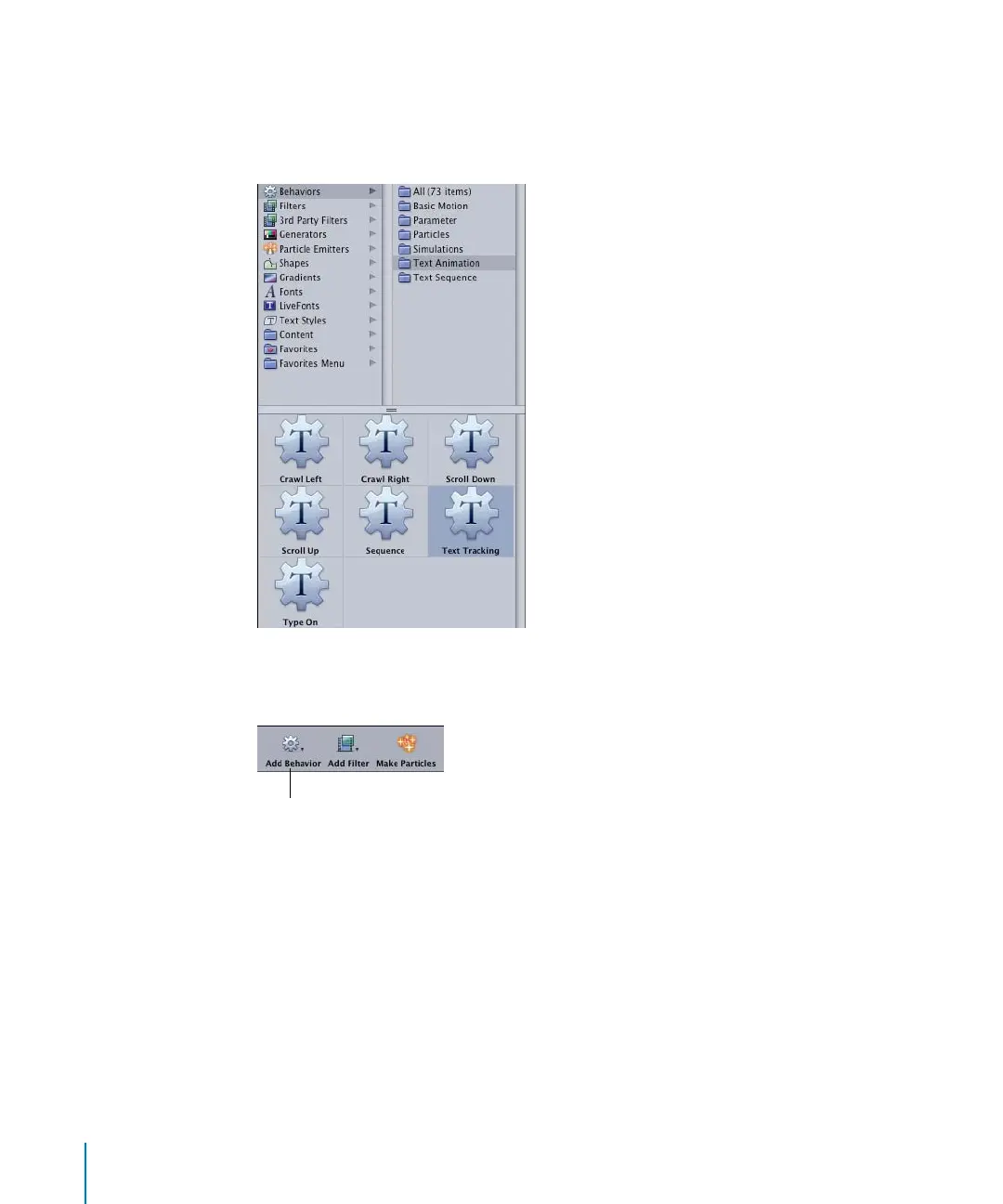
In the Library, select the Behaviors category. Click the Text Animation or Text Sequence
subcategory, then select a behavior from the stack. Drag the behavior to a text object
in the Canvas, Layers tab, or Timeline.
m
Select the text object, click the Add Behavior icon in the Toolbar, then choose a
behavior from the Text Animation or Text Sequence submenu.
The behavior is applied to the text object, and the text Dashboard is replaced with the
selected behavior Dashboard.
To apply a filter to a text object, do one of the following:
m
In the Library, select the Filters category. Select a filter subcategory, then select a filter
from the stack. Drag the filter to a text object in the Canvas, Layers tab, or Timeline.
m
Select the text object, click the Add Filter icon in the Toolbar, then choose a filter from
the pop-up menu.
The filter is applied to the text object and the filter Dashboard appears.
Add Behavior button
2505.book Page 130 Wednesday, June 30, 2004 5:58 PM



 To Next Page