Chapter 5 Extra Credit 167
Note: If you have installed Compressor, you can choose Export using Compressor.
Using Compressor allows you to batch render a project.
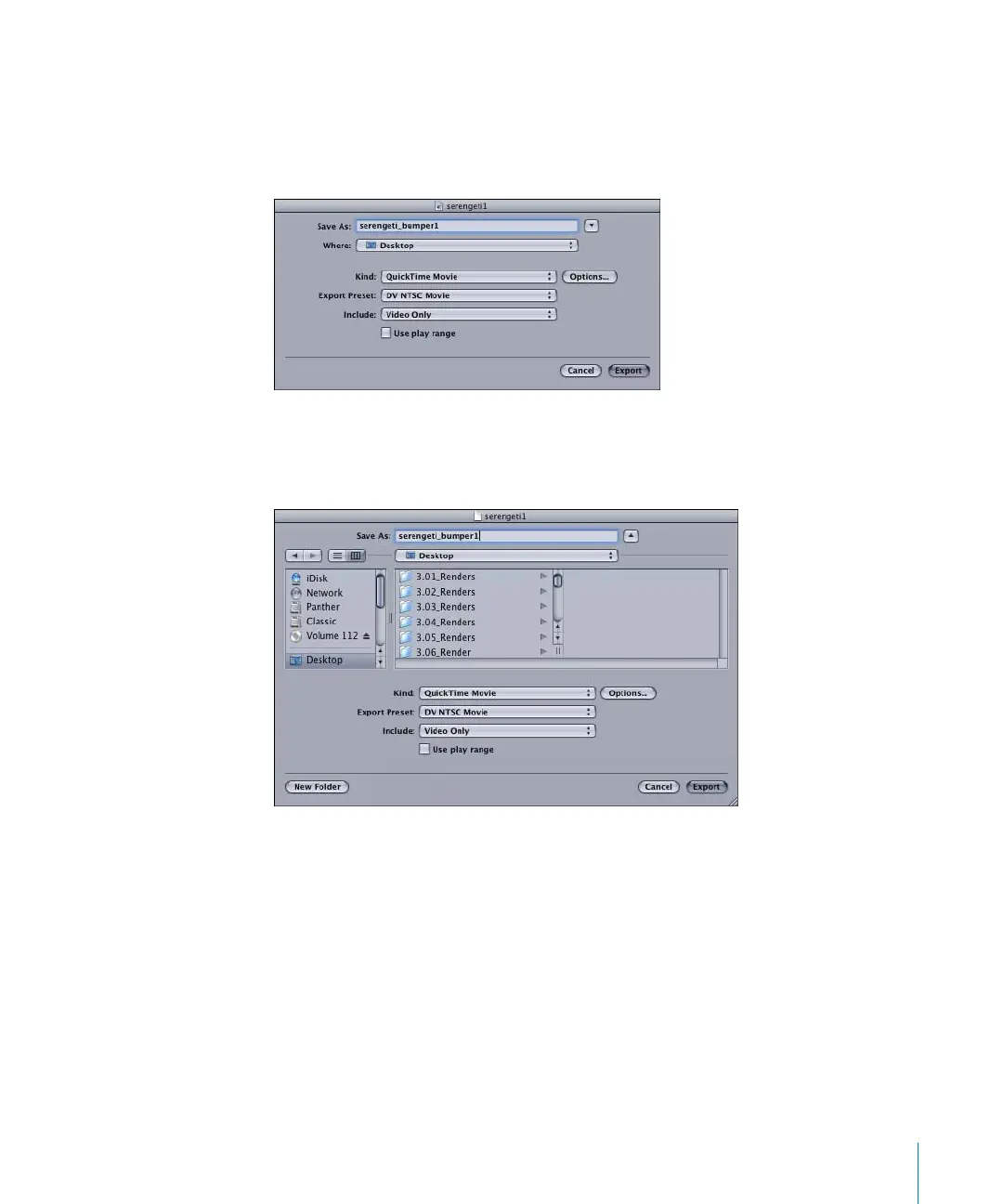
3 Use the following guidelines to assign your export settings:
• Save As: Type the filename for your output file in the Save As field.
• Where: Use the Where pop-up menu to navigate to the folder where you want to
save the file. To show the system browser, click the arrow button to the right of the
Save As text field.
Note: Keep in mind that when exporting image sequences (such as a Targa
sequence), you should have a separate folder for each project export.
• Kind: Use the Kind pop-up menu to choose an export format, such as QuickTime
Movie or Image Sequence. This example uses the default QuickTime Movie format.
• Click Options to set more options for your export format, such as compressor type
and quality. Click Advanced to set further options, such as depth and frames per
second.
• Export Preset: Use the Export Preset pop-up menu to select an export preset for
your render. You can create your own presets in the Presets pane of Motion
Preferences.
2505.book Page 167 Wednesday, June 30, 2004 5:58 PM



 To Next Page