28 Chapter 1 Orientation
In the following steps, a play range of 60 frames is set in a 300-frame project. After that,
two behaviors from the Basic Motion group are applied to an object in the Canvas. The
applied behaviors create a simple animation in which an image fades in and scales up.
Next, the speed and simplicity of filter application is demonstrated with a color
correction filter added to the object.
To set a 60-frame play range:
1 In the Current Frame field, enter 60.
The playhead moves to frame 60.
2 Choose Mark > Mark Play Range Out (or press Command+Option+O).
The play range is defined as 60 frames in the 300-frame project.
To start playback:
m
In the transport controls, click the Play button (or press the Space bar).
To apply a Basic Motion behavior from the Library:
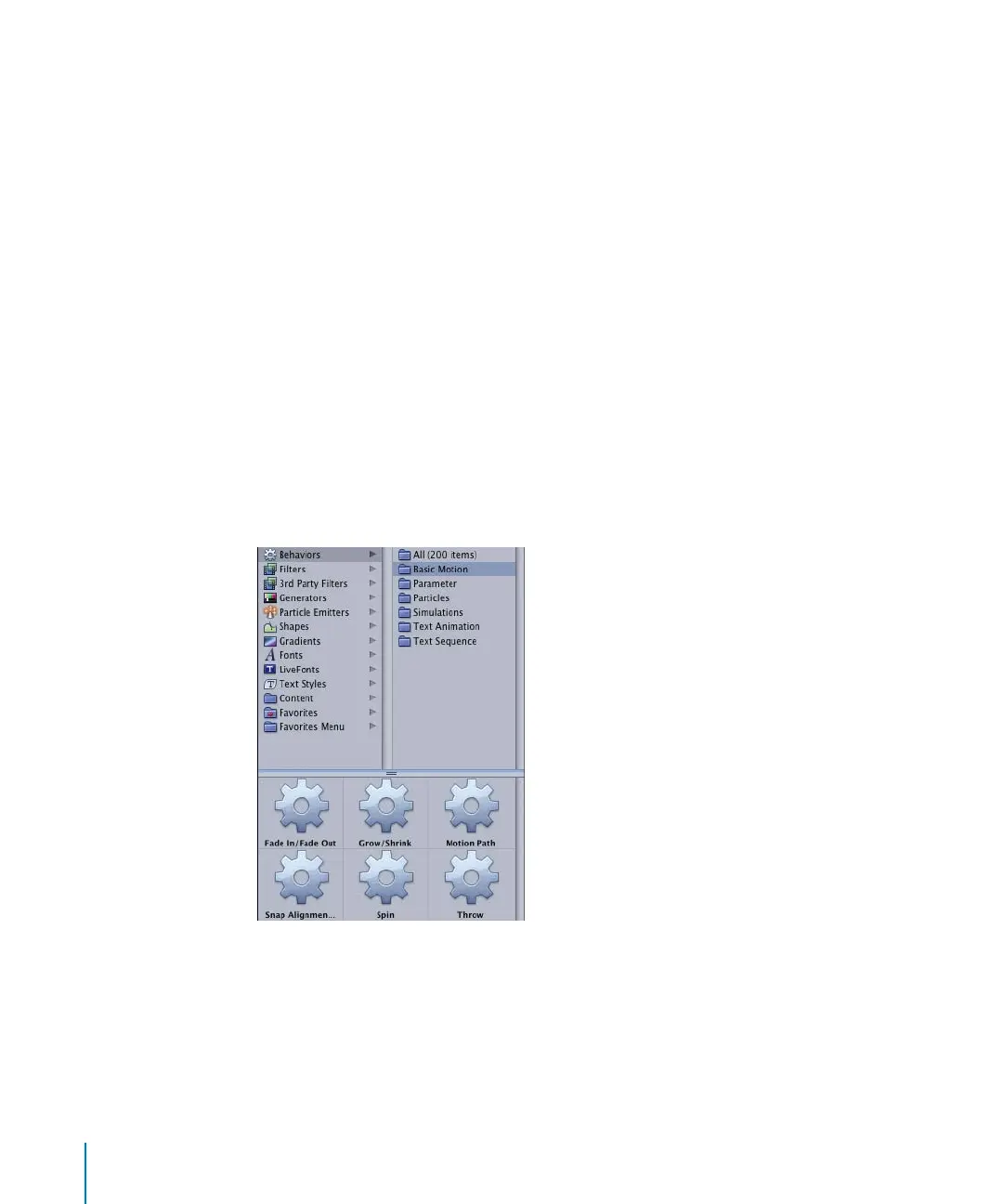
1 In the Library, click the Behaviors category.
The Behaviors subcategories appear and are listed alphabetically. The All subcategory is
selected by default, and the behaviors appear in the Library stack.
2 Click the Basic Motion subcategory.
3 From the stack, drag the Fade In/Fade Out behavior to an object in the Canvas.
Note: After selecting an item in the Library stack, you can also click the Apply button in
the Preview area to add the behavior (or filter) to a selected object.
2505.book Page 28 Wednesday, June 30, 2004 5:58 PM



 To Next Page