15
X5001 USER GUIDE - 501-3327100
CONFIGURING THE GATEWAY
Powering on the gateway
Before powering on the gateway, familiarize yourself with the safety aspects of the
connecons (see page 5).
1. Connect the cord from the supplied power supply unit to the port labeled POWER
on the rear panel of the gateway (see page 8).
WARNING: Use only the power supply unit supplied with the gateway. Using a
dierent power supply unit can damage the gateway and void the warranty.
2. Connect the other end of the power supply unit’s cord to a working power
outlet. The outlet should not be controlled by a wall switch to avoid someone
unknowingly turning o power to the outlet. The gateway powers on
automacally. The Power LED on the front panel goes ON and the other front
panel LEDs show the gateway’s status (see page 7).
Reboong or reseng the gateway
If required, you can use the RESET buon on the gateway rear panel to reboot (power
cycle) the gateway, or reset the gateway to its original factory default sengs.
Reboong the gateway
To reboot the gateway and keep any customized overrides you made to the default
sengs:
1. Leave power cord connected to the gateway.
2. Press the RESET buon on the gateway rear panel.
3. Wait for the gateway to reboot.
Restoring factory defaults
When you restore the gateway to its factory default sengs, you will remove all
overrides you made to the conguraon, including changes to the default login user
name, password, and IP address.
To restore factory default sengs using the RESET buon:
1. Leave power plugged into the gateway.
2. Press and hold the RESET buon on the gateway rear panel unl the POWER LED
starts to ash (this may take up to 15 seconds), then release the RESET buon.
3. Wait for the gateway to reboot with factory default sengs.
Conguring your wireless connecon
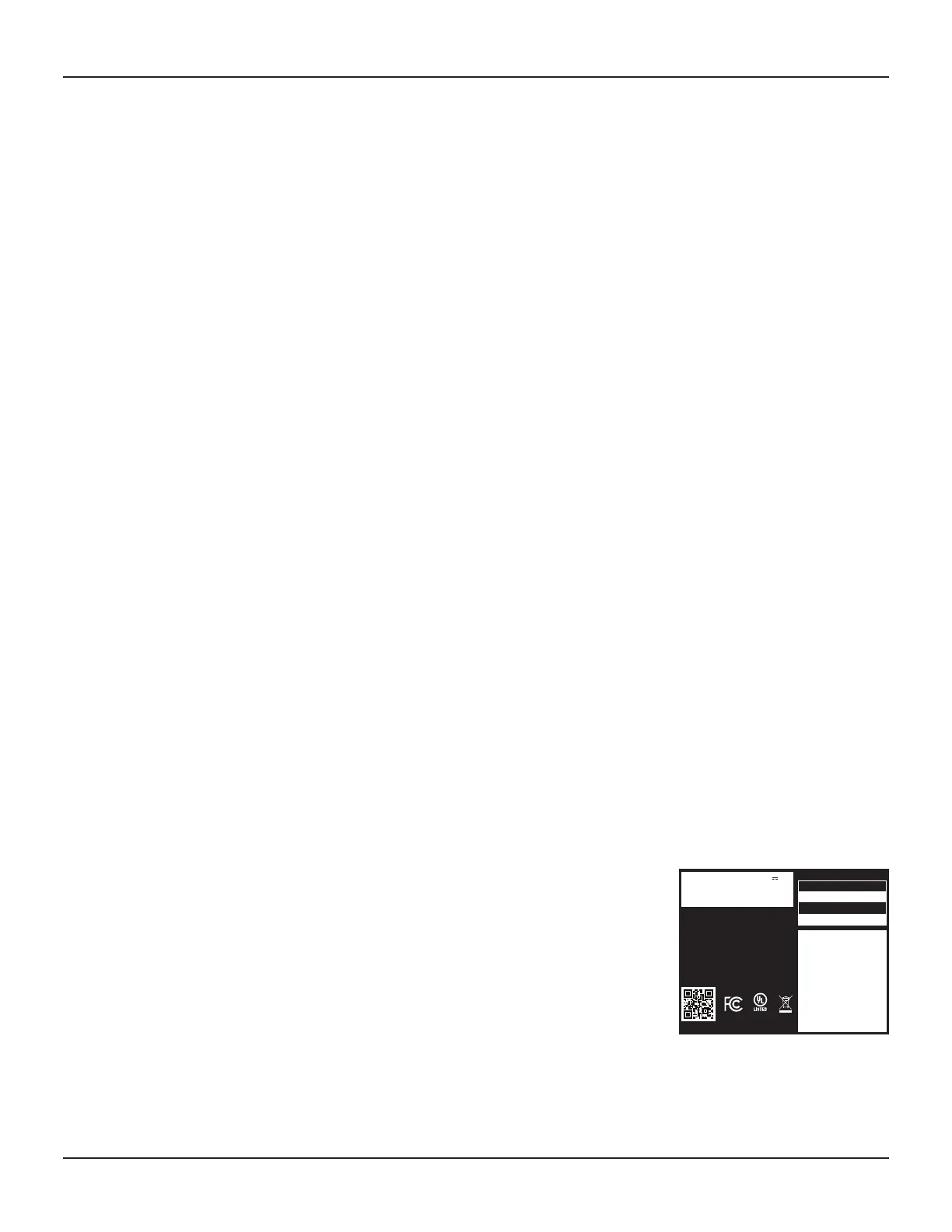
The gateway ships with wireless LAN security set by default. See the product label on
your gateway for the factory security sengs.
Note: You must set up your computer and other client devices to work with the
security sengs on the gateway. Refer to the documentaon for your client device for
instrucons on seng security. On most computer systems you only need to select
the network name (SSID) device and enter the encrypon key. If your computer or
client device supports Wi-Fi Alliance WPS (Wireless Protected Setup), acvate WPS on
your computer or client device and the gateway simultaneously to easily set up your
system security.
If you need to modify the gateway’s default wireless security sengs, or if you want
to congure any other wireless LAN sengs, refer to the following instrucons.
This device complies with part 15 of the FCC rules.
Operation is subject to the following two conditions:
(1) This device may not cause harmful interference, and
(2) This device must accept any interference received,
including interference that may cause undesired operation.
I.T.E
E222159
35ZB
Manufactured by ARRIS, 3701 FAU Boulevard,
Suite 200, Boca Raton, FL 33431 USA
Complies with 21 CFR Chapter 1, subchapter J.
Manufactured February 2016
PROPERTY OF COMCAST. NOT FOR RESALE. REMOVING
THIS STICKER OR TA MPERING WITH THIS EQUIPMENT IS A
VIOLATION OF FEDERAL AND STATE LAW. THIS EQUIPMENT
MUST BE SURRENDERED TO COMCAST UPON DEMAND OR
DISCONNECTION OF SERVICE; IF NOT, A FEE OF UP TO
$500 AND LEGAL PENALTIES CAN RESULT. FOR
INFORMATION ON HOW TO RETURN CALL 1-800-266-2278.
123456s3113
EPON MAC: 00:00:00:00:00:00
Serial No: XXXX00000000
123456s33
Mfr S/N: XXXXXXXXXXXXXXXX
123456s3113
eMTA MAC: 00:00:00:00:00:00
123456s3113
WAN MAC: 00:00:00:00:00:00
Network Name (SSID):
Password:
XFSETUP-XXXX
XXXXXXXXXXXXXXX
http://xfinity.com/internethelp
Need help?
WPS PIN: XXXXXXXXXX
Model: X5001
Part No: E8263327100
Power: 12V 5.5A
Made in China
Contains FCC WiFi modules:
2.4GHz - FCC ID: PGR2G4360M / 5GHz - FCC ID: PGR5G4360M



 To Next Page