5.4. Voice/control mode buttons
The four buttons near the wheels allow instant configuration of the voice engine and two of
the most-used performance controls. The top two buttons select Voice modes; the bottom
two select Control modes.
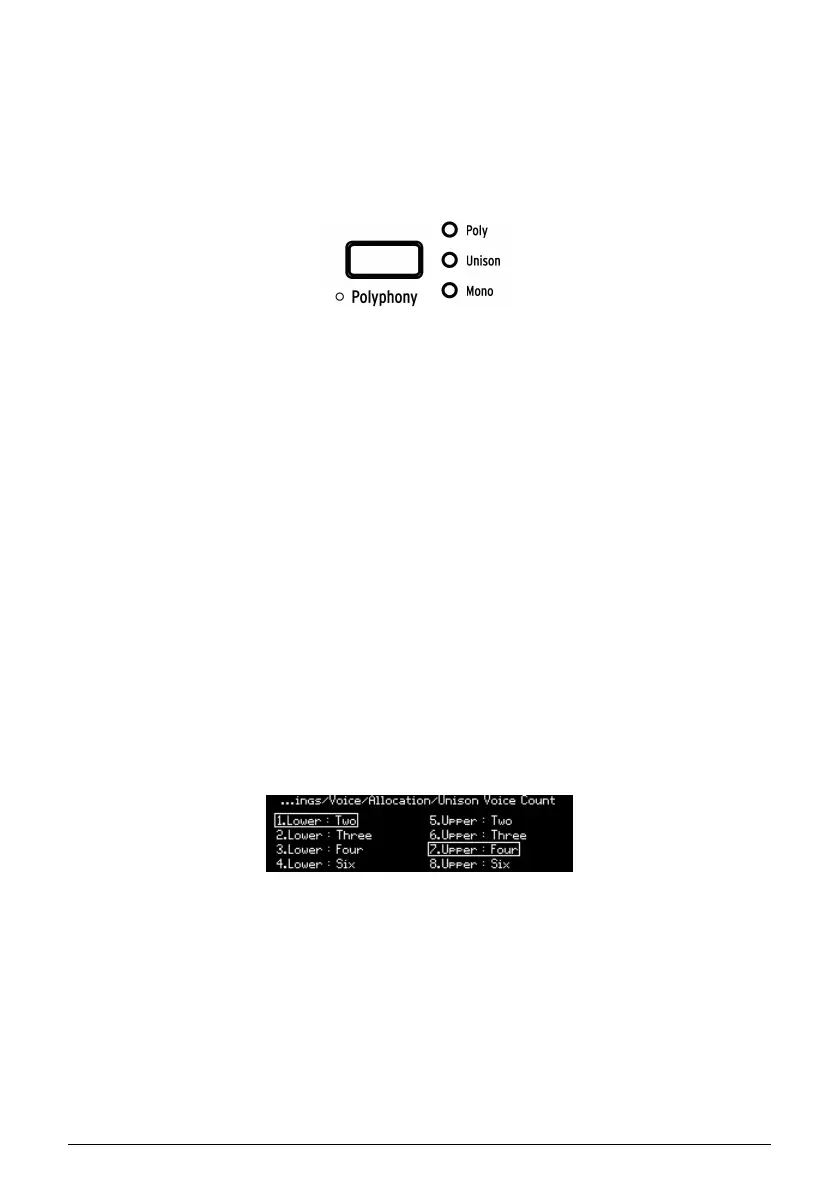
5.4.1. Polyphony
PolyBrute has three voice modes that are selected using [Polyphony].
• Poly (polyphonic) allows all six voices to be triggered independently by different
notes.
• Unison stacks multiple voices on a single key. Learn how to set voice count
number here [p.37].
• Mono (monophonic) limits the keyboard to playing only one dual-oscillator voice.
In Split mode [p.38] the upper and lower keyboard zones can have different voice modes.
• Upper: use the Polyphony button as normal.
• Lower: hold [Timbrality] and press [Polyphony] to change the voice mode for the
lower half.
The LEDs show the status of the selected half.
There are several variations of each voice mode: Cycle, Reset, Note Priority, Legato on/off,
etc. To access these options, hold [Settings] and press [Polyphony]. To access these settings
for the lower half when in Split mode, hold [Timbrality] for 1 second. The page you'll see
depends on the current mode: Poly mode takes you to the Poly Allocation page [p.43]; Unison
or Mono mode takes you to the Uni/Mono Allocation page [p.44].
5.4.1.1. Unison voice count
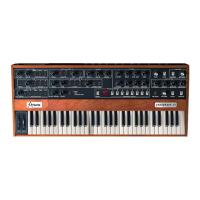
You can define the number of voices used by each zone in Unison mode. To do this, hold
[Polyphony] and play a key, or navigate to Settings/Voice/Allocation/Unison Voice Count.
Use [Assign 1-4] to set the value for the lower zone and [Assign 5-8] to set the value for the
upper zone.
Arturia - User Manual PolyBrute - Performance Controls 37



 To Next Page