Asiga MAX User Guide
Copyright ASIGA © 2017 VERSION 1.04
CHAPTER 5
Web Interface
The MAX runs an internal webpage server which is visible to web browsers on the same
network. This Web Interface presents important control screens for interacting with the
MAX.
Accessing the Web Interface
There are two ways of accessing the web interface:
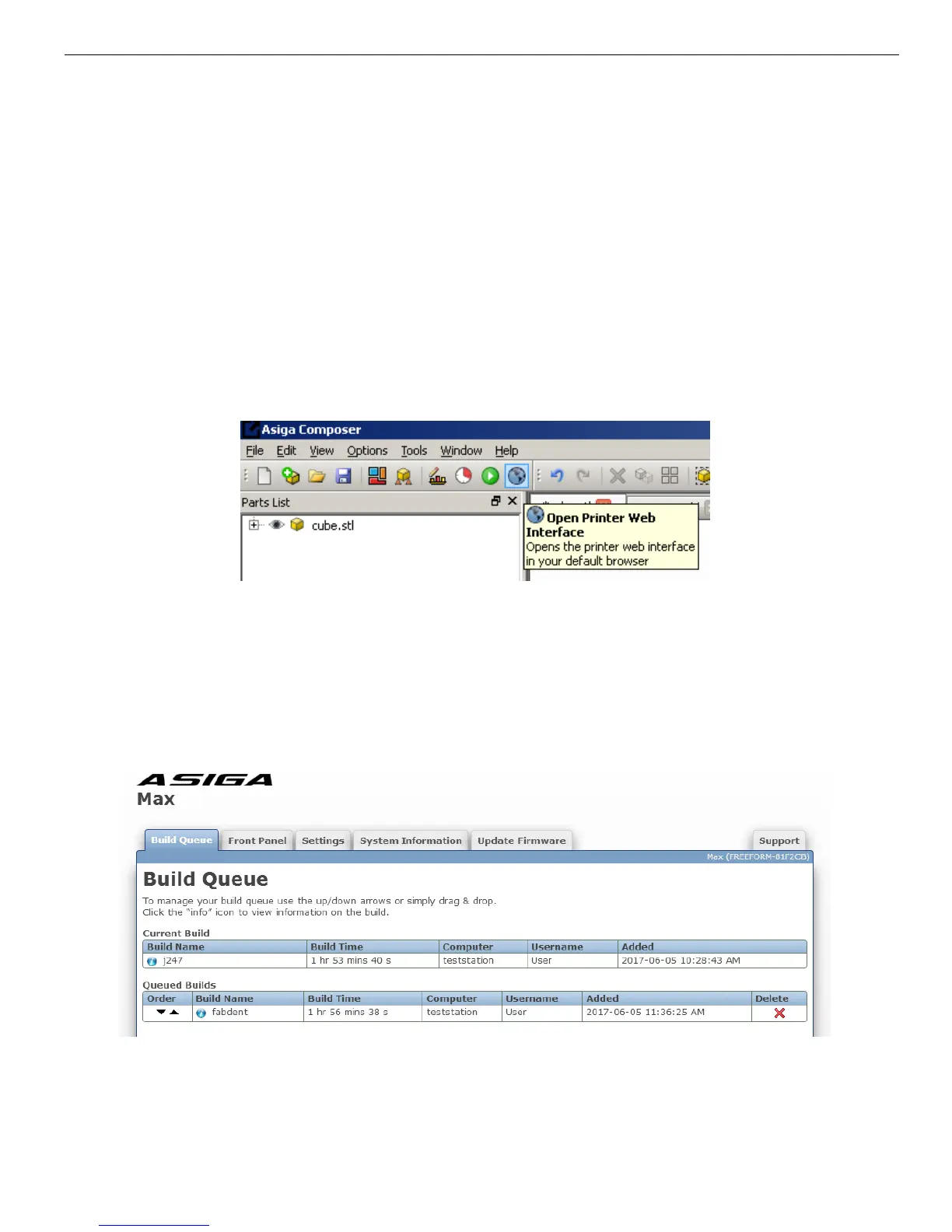
1. Click on the “Web Interface” button in the Composer toolbar.
2. Open a web browser and type into the navigation bar “//” followed by either the name
of your printer or the IP address or printer, e.g.:
a. //
FREEFORM-D06D10
b. //192.168.1.53
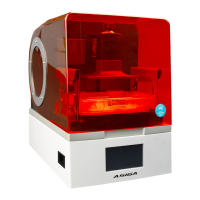
There are 6 tabs in the Web Interface: Build Queue, Front Panel, Settings, System
Information, Update Firmware and Support.
Build Queue Tab
The build queue allows you to view information about the current build and queued builds.
The Current Build field shows the last build that was started. Selecting Print > Repeat Build
will run this job again.


 To Next Page