38
Use the ENTER key to select the Arc Fail mode, then press the or key to advance
the program to another test parameter or press the EXIT key to exit from the setting mode
to the operation mode.
If the Arc Fail mode is set to ON, the program will indicate an arc failure when the arc
current is over the setting. The program will shut down the test immediately and the
ARC indicator on the front panel will light.
If the Arc Fail mode is set to OFF, the program will not indicate an arc failure when the
arc current is over the setting. The program will not shut down the test but the ARC
indicator on the front panel will light when arcing is present.
Scanner Channel setting
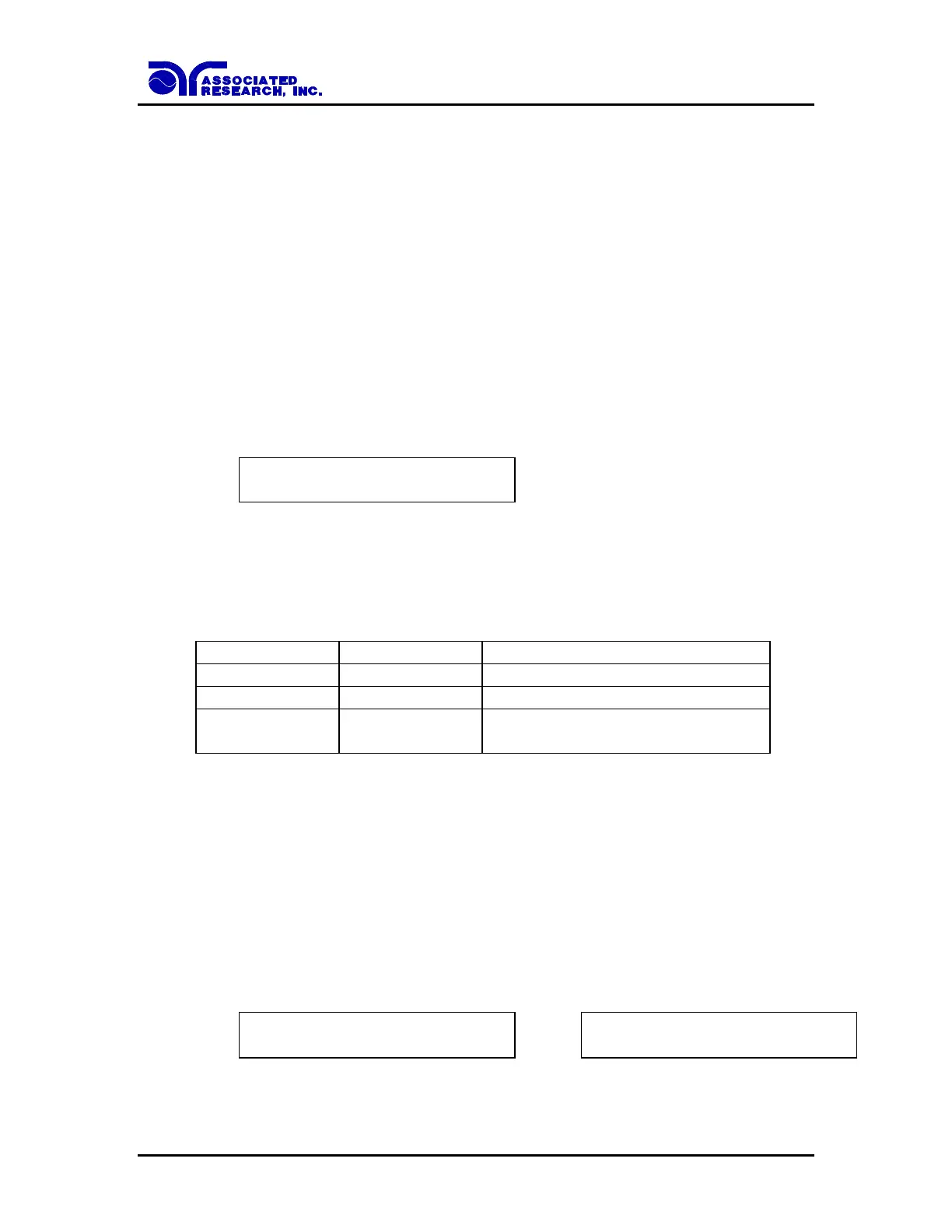
Advance the menu to the Scanner Set parameter. The display will show:
Scanner Set CH = 1 - 16
XXXXXXXXXXXXXXXX
Use the Numeric keys to enter the status of High, Open or Low for each scanner channel,
then press the ENTER key. The program will store the Scanner Channel status and
advance to the Connection setting automatically. The following table is the cross
reference of the numeric keys, which are used for the Scanner channel setting.
Connected to High Voltage Output
Not connected to High Voltage or
Return
The Channel setting will start from Channel 1 on the left end and stop at Channel 16 on
the right end. The program will set any unassigned channel(s) to OPEN automatically
after pressing the ENTER key. Therefore it is necessary to set only the channels that are
required for the test.
If the external Scanner is not connected, this setting is not necessary.
Step Connection setting
Advance the menu to the Connection parameter. The display will show:
Connect = O N
ENTER to Select
Connect = O F F
ENTER to Select



 To Next Page