FMB10 User’s Manual Edition 06/2005
___________________________________________ Page 14 _____________________________________________
Audemat-Aztec SA – Audemat-Aztec INC
WEB: www.audemat-aztec.com - e-mail: contact@audemat-aztec.com
3.2 Installation of the FMB10 encoder’s SOFTWARE (see more details in chapter 4)
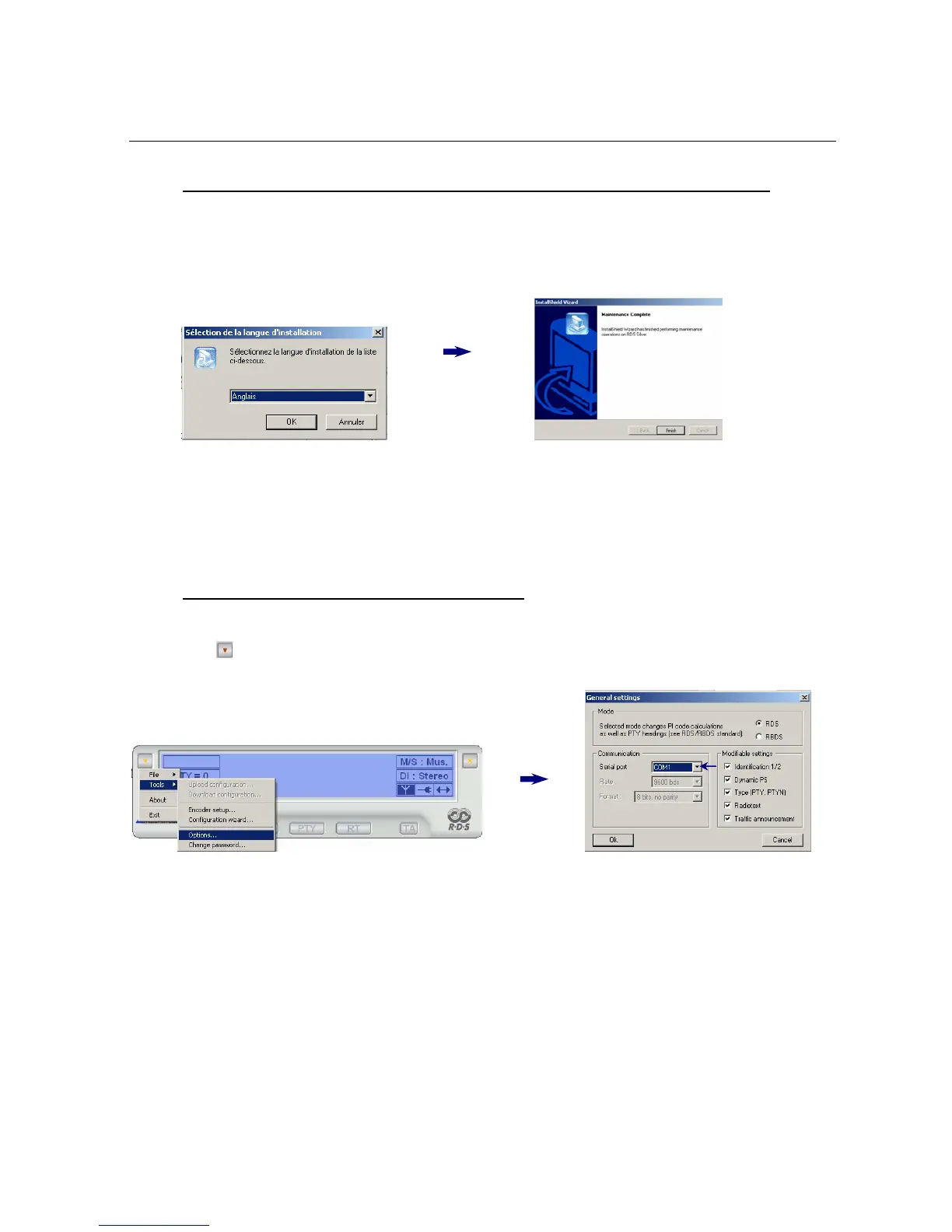
¾ Load the FMB10 encoder CD-ROM software, double-click on the icon “Audemat-Aztec” and select “FMB10
“in the combo-list to launch the installation program.
¾ Select the installation language and continue the installation assistant until the end.
Check: “Yes, I want to restart my PC now” before ticking “Finish
”.
¾ Once the PC is restarted, launch the FMB10 encoder’s software by double-clicking on the short-cut
placed on the desk:
3.3 Communication between software and FMB10
The software tries to connect automatically: if the encoder is not detected, follow this process:
In the menu ( ), click on « tools » then « options… » and select the serial port:
To select the right “Com Port” :
To find out what port number is being used (physical or virtual), click right on “my computer” to select
“properties/hardware/hardware wizard”. Then click on « Ports » to see the “com ports” installed on the PC
and select “USB
-to-serial” to see the “COM PORT” used (if it’s COM1, select COM1 in the serial port).
Click on “OK” to validate the options. The software establishes a communication by using the selected serial
port.


 To Next Page