56 Chapter 4 Autel Enterprise App
EVO Max 4T User Manual
Click " ", the zoom factor setting pops up, drag up and down or click the number on the
left to set the zoom factor according to the needs, and the object to be photographed can be
enlarged or reduced.
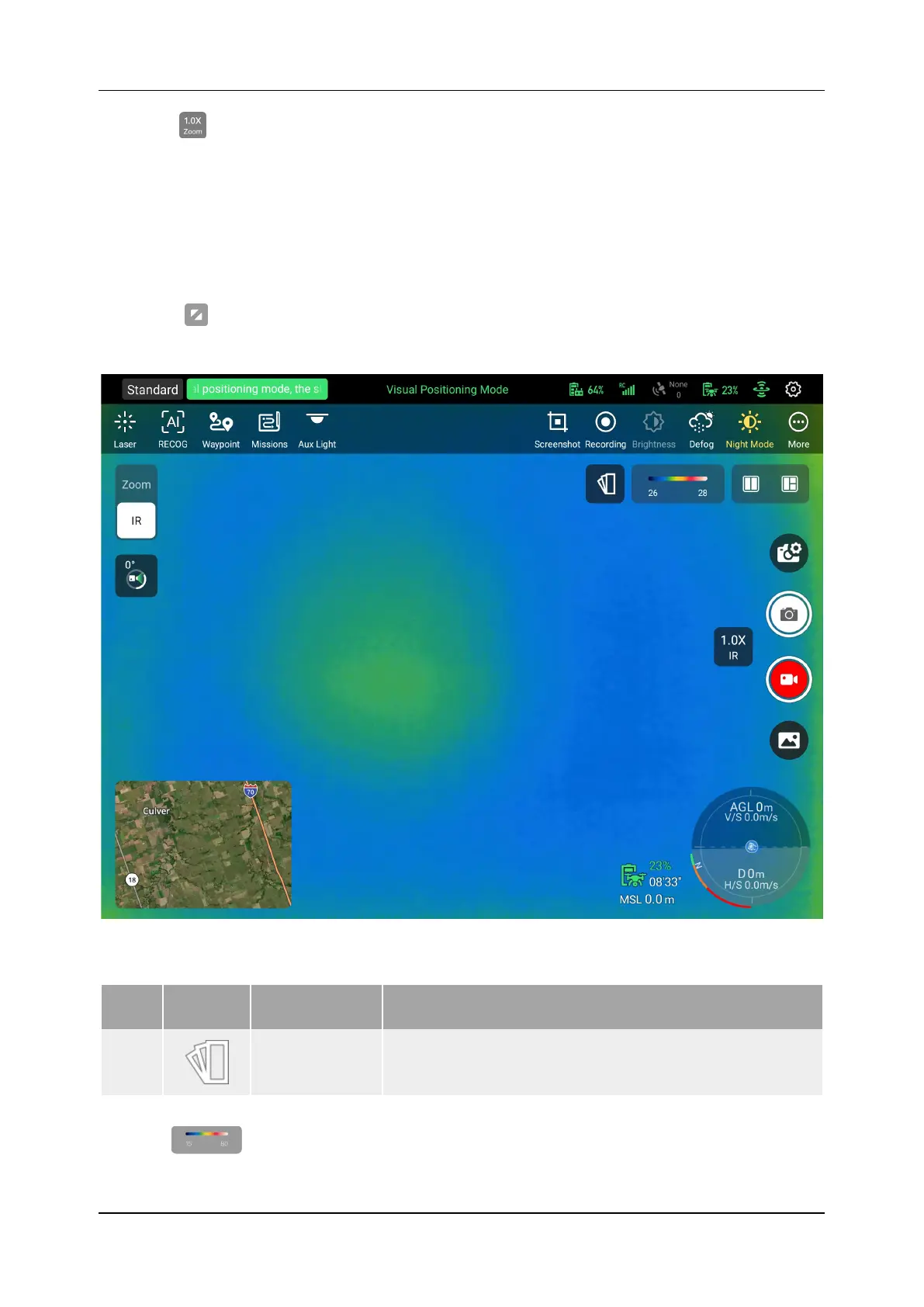
4.8 Thermal Camera Interface
In the lower right corner of the "Infrared" (IR) window preview on the main interface of the
app, click "
" to enter the Thermal Camera interface. The user can also switch the Thermal
Camera by clicking "Infrared" on the "Zoom Camera" interface, and the detailed parameters of
the thermal camera can be set as shown in Figure 4-13.
Figure 4-13 Thermal Camera
Table 4-8 Thermal Camera Setting Details
No. Icon Meaning Description
1
Click this button to open the thermal color palette
settings, allowing the user to adjust for maximum
2
Infrared
Settings
The numbers on the button indicate the minimum and
maximum values of the current Thermal Camera
radiometric measurement, click to enter the "Infrared




 To Next Page