PARTNER User Guide Page 26
- Issue 1b (22 February 2010)IP Office PARTNER Version
4.4 Forwarding Calls
All external, internal and transferred calls directed to your extension can be diverted to a different internal extension
number. You can enter the destination extension telephone number and select when calls are redirected using a
programmed button.
Before you can automatically forward calls you need to assign the feature to a button with lights. The button can then be
used to turn call forwarding on and off as required.
· Selected users may also be able to do remote call forwarding where they forward their calls to an external
number. If that is the case, consult your system administrator, you can use your personal speed dials as the
forwarding destination.
· Some users may also be able to use cell phone connect, again consult your system administrator. With cell phone
connect the call will ring at both your extension and at the remote call forwarding destination. This is sometimes
called mobile twinning.
· DID calls can be forwarded.
· Other outside calls can be forwarded if the user has been assigned as the owner of the line. See IP Office Essential
Edition - PARTNER® Version Phone Administration Guide.
· You receive a slow interrupted intercom dialling tone when call forwarding is active.
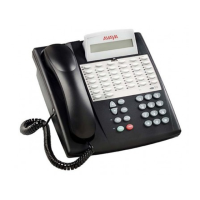
To create a call forwarding button (ETR 18D/ETR 34D Phone)
1.At the phone press Feature 00.
2.Program Extension: is shown on the display.
3.Press the button that you want to edit or enter a number between 03 to 80 to select a button. The current setting
of the button is displayed.
3.Dial FEATURE 11.
4.At the Call Coverage Orig: prompt enter the extension number for which the button is being programmed.
5.At the Call Coverage Dest: prompt enter the destination number for the call coverage calls.
· To forward to an external number, enter the personal speed dial (80 to 99) that contains the required external
number.
· To forward using cell phone connect/mobile twinning, enter * followed by the personal speed dial (80 to 99)
that contains the required external number.
6.The current setting of the button will now be set to Call Forward O <covered extension> D <destination
extension>.
· Exit programming by pressing Feature 00. You can also exit programming mode by lifting the handset, then place
it back in the cradle.
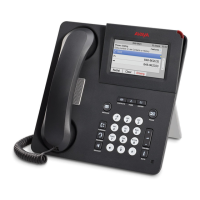
To create a call forwarding button (1408/1416 Phone)
1.At the extension press Admin.
2.Press the programmable button you want to change. Alternatively:
· Use the up or down arrows to scroll to Telephone Programming. Press Select.
· At the Button: prompt press the button to edit or enter from 03 to 80.
3.The current setting of that button is displayed.
4.Press Program and either dial #11 or use the up or down arrow buttons to scroll the display to Call
Forwarding and press Select.
5.At the Call Coverage Orig: prompt enter the extension number for which the button is being programmed.
6.At the Call Coverage Dest: prompt enter the destination extension number for the call coverage calls.
· To forward to an external number, enter the personal speed dial (80 to 99) that contains the required external
number.
· To forward using cell phone connect/mobile twinning, enter * followed by the personal speed dial (80 to 99)
that contains the required external number.
4.The current setting of the button will now be set to Call Forward O <covered extension> D <destination
extension>.
· Exit programming by pressing PHONE/EXIT. Alternatively use the Back button to move to another menu.
31



 To Next Page