PARTNER User Guide Page 32
- Issue 1b (22 February 2010)IP Office PARTNER Version
4.10 Account Codes
The Account Code Entry feature is used to enter an account code up to 6 digit for any outside call, incoming or outgoing.
An account code is typically used to identify a department, project, or client for charge-back or tracking purposes. An
account code can be either forced or optional. When an extension is set up with the forced account code feature, the user
must enter an account code before they can dial outside calls
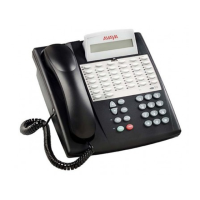
To create an account code entry button (ETR 18D/ETR 34D Phone)
1.At the phone press Feature 00.
2.Program Extension: is shown on the display.
3.Press the button that you want to edit or enter a number between 03 to 80 to select a button. The current setting
of the button is displayed.
3.Dial FEATURE 12.
4.The current setting of the button will now be set to Account Code Entry.
· Exit programming by pressing Feature 00. You can also exit programming mode by lifting the handset, then place
it back in the cradle.
To enter an account code using an account code entry button
1.After lifting the handset or while already active on an outside call, press the programmed Account Code Entry
button. If the button has lights, the green light turns on.
2.Enter an account code by dialing the account code using the telephone's dial pad. You can also use a system or
person speed dial number programmed with the account code or press an Auto Dial button programmed with the
account code.
3.Continue with the call.
To enter an account code without using a preprogrammed button
1.After lifting the handset (or while already active on an outside call), press FEATURE and dial 12.
2.Enter an account code by dialing the account code using the telephone's dial pad.
3.Continue with the call.
To create an account code entry button (ETR 18D/ETR 34D Phone)
4.At the phone press Feature 00.
5.Program Extension: is shown on the display.
6.Press the button that you want to edit or enter a number between 03 to 80 to select a button. The current setting
of the button is displayed.
4.Dial FEATURE 12.
5.The current setting of the button will now be set to Account Code Entry.
· Exit programming by pressing Feature 00. You can also exit programming mode by lifting the handset, then place
it back in the cradle.
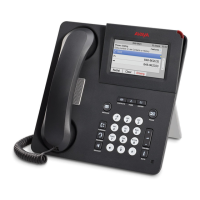
To create an account code entry button (1408/1416 Phone)
1.At the extension press Admin.
2.Press the programmable button you want to change. Alternatively:
· Use the up or down arrows to scroll to Telephone Programming. Press Select.
· At the Button: prompt press the button to edit or enter from 03 to 80.
3.The current setting of that button is displayed.
4.Press Program and either dial #12 or use the up or down arrow buttons to scroll the display to Account
Code Entry and press Select.
5.The current setting of the button will now be set to Account Code Entry.
· Exit programming by pressing PHONE/EXIT. Alternatively use the Back button to move to another menu.



 To Next Page