PARTNER User Guide Page 33
- Issue 1b (22 February 2010)IP Office PARTNER Version
Advanced Features: Account Codes
4.11 Parking Calls
Use this feature to place a call on a special type of hold where it can be retrieved from any extension in the system.
· You should park only one call at a time to ensure that you know which caller you are talking to when you retrieve
the parked call.
· If you frequently park calls and you have a system telephone, program your extension number on an Auto Dial
button, so you can park a call simply by pressing that button during the park process. See the section on Auto
Dialing .
To park a call
1.While on a call, press TRANSFER and and dial your own two-digit extension number.
2.Hang up. If the call is not picked up within three minutes, it rings back at your extension.
To retrieve a parked call
1.Press an intercom button and 6 followed by the extension number of the extension that parked the call.
4.12 Call Pickup
You can use this feature to answer any intercom, outside, or transferred call ringing at another specified extension. This
feature is useful for office colleagues who agree to answer each other’s calls.
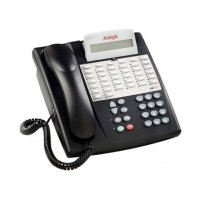
To create an call pickup button (ETR 18D/ETR 34D Phone)
1.At the phone press Feature 00.
2.Program Extension: is shown on the display.
3.Press the button that you want to edit or enter a number between 03 to 80 to select a button. The current setting
of the button is displayed.
4.Dial 6 followed by the target extension number.
5.The current setting of the button will now be Call Pickup followed by the target extension number.
· Exit programming by pressing Feature 00. You can also exit programming mode by lifting the handset, then place
it back in the cradle.
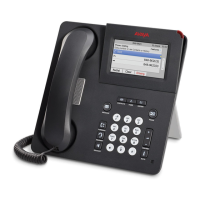
To create an call pickup button (1408/1416 Phone)
1.At the extension press Admin.
2.Press the programmable button you want to change. Alternatively:
· Use the up or down arrows to scroll to Telephone Programming. Press Select.
· At the Button: prompt press the button to edit or enter from 03 to 80.
3.The current setting of that button is displayed.
4.Press Program and either press Intercom 1 or use the up or down arrow buttons to scroll the display to
Call Pickup and press Select.
5.At the Endpoint: prompt enter 6 followed by the target extension.
6.The current setting of the button will now be Call Pickup followed by the target extension number.
· Exit programming by pressing PHONE/EXIT. Alternatively use the Back button to move to another menu.
To use a call pickup button
1.Press the Call Pickup programmed button for the specified extension number. You are connected to the call that
was ringing the specified extension.
29



 To Next Page