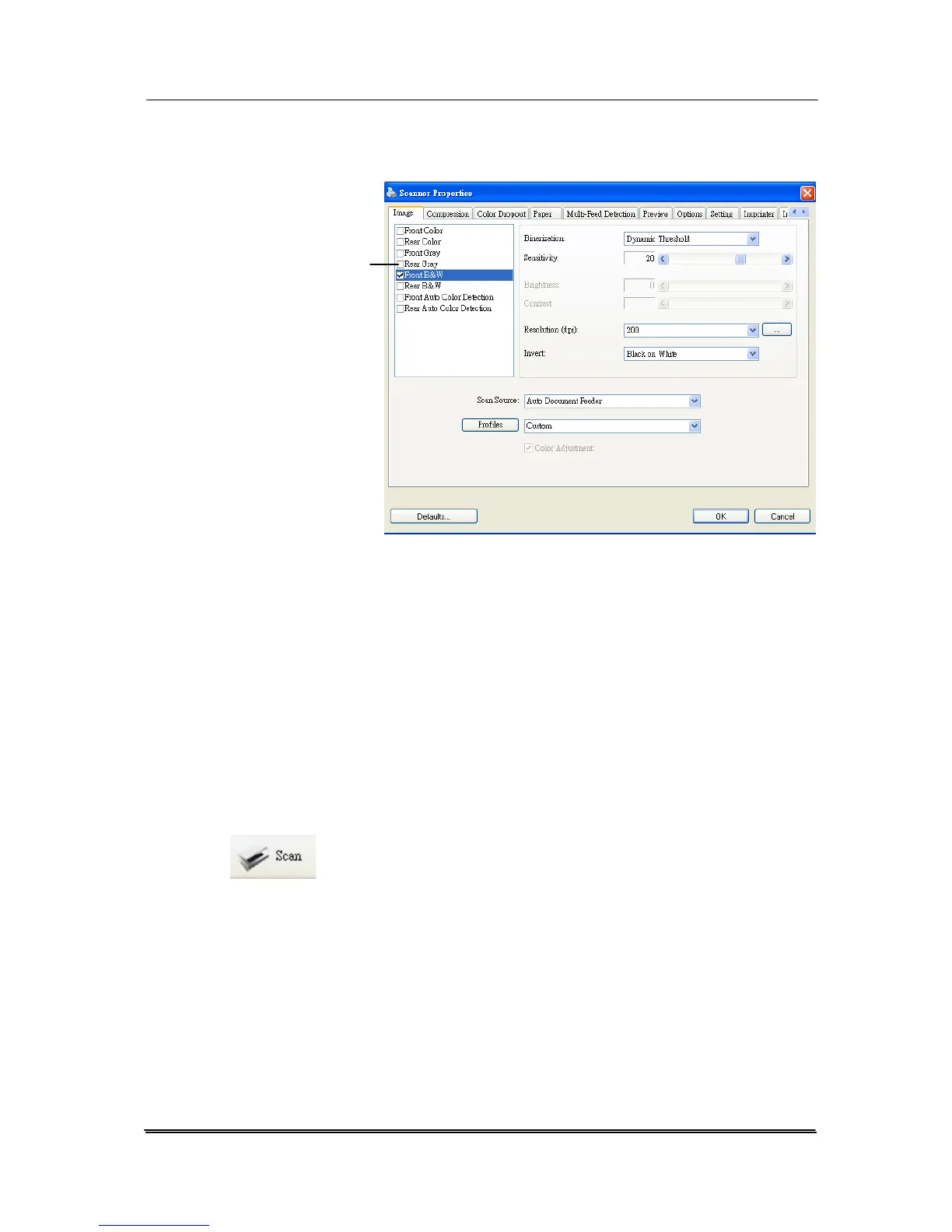
6. From the Image Selection Box, choose your desired
image type for your scanned image. (Default is Front
B&W) If you have a duplex scanner, choose Front and
Rear to scan both sides of your document.
7. Click OK to quit the Scanner Properties dialog box. (To
learn more details about the Scanner Properties dialog
box, please see the subsequent chapter, Using the
Scanner Properties Dialog Box.)
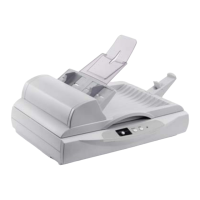
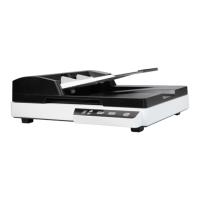
8. Place your document face down on the document glass
or face up in the auto document feeder.
9. In the Scan Validation dialog box, click the Scan button
(
) or choose Scan from the File menu.
10. The document will be scanned and displayed in the Scan
Validation screen. After the scanned images have been
displayed, your scanner installation verification is
completed.
3-6


 To Next Page