User’s Manual
7.8 Changing the IP Address of the Scanner
If you wish to change the IP address to a static IP address
instead of the IP address provided by DHCP server(default),
please first connect the scanner to your computer with a USB
cable and then follow these steps:
1. Right-click Button Manager icon (
) at the right corner
of your system tray to prompt the following menu.
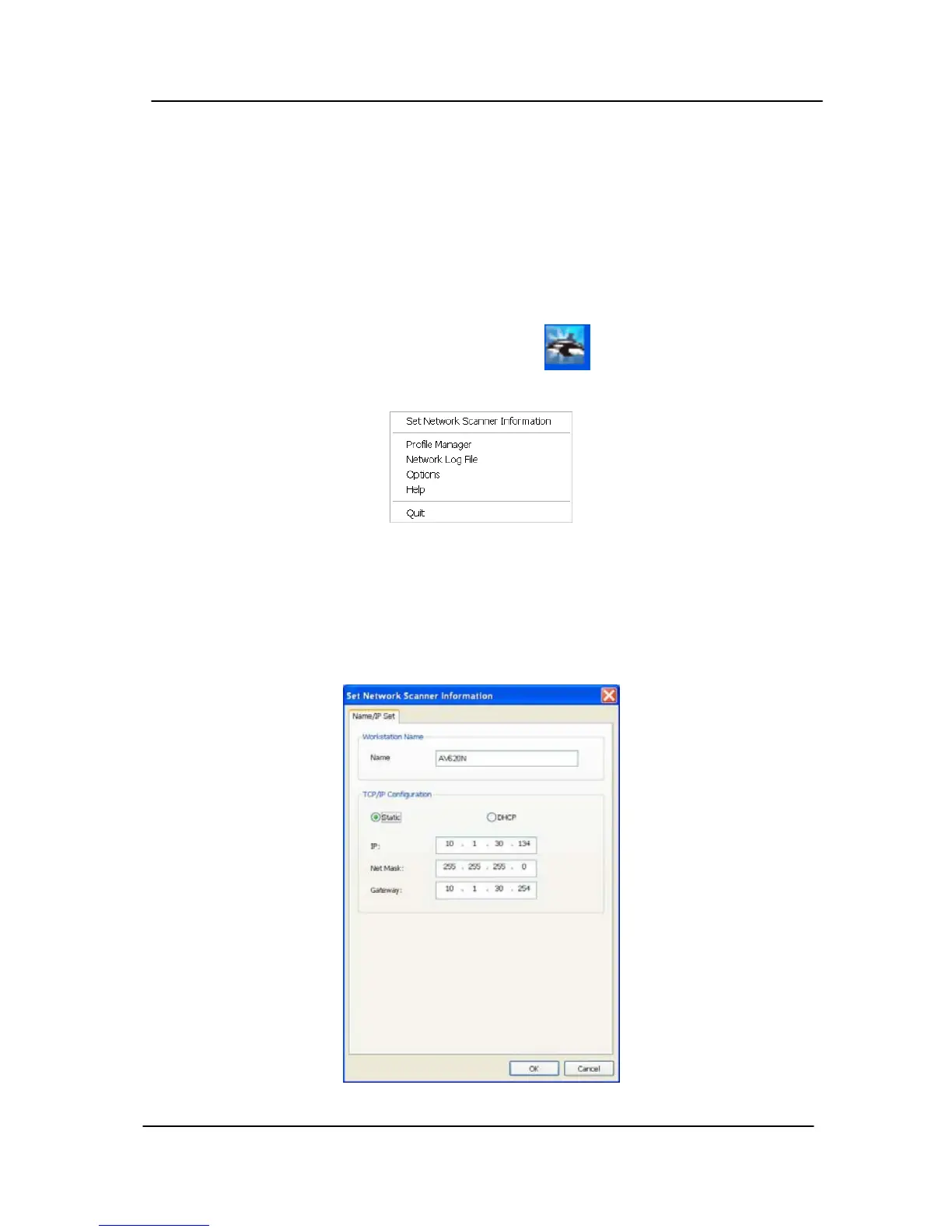
2. Choose “Set Network Scanner Information” to prompt the
“Set Network Scanner Information” dialog box.
3. Check “Static” and then enter your desired IP address, Net
mask address, and Gateway address and then click “OK”
to save your settings and leave the dialog box.
7-13


 To Next Page