7.5 Inserting Your Scanned Image to Your Application
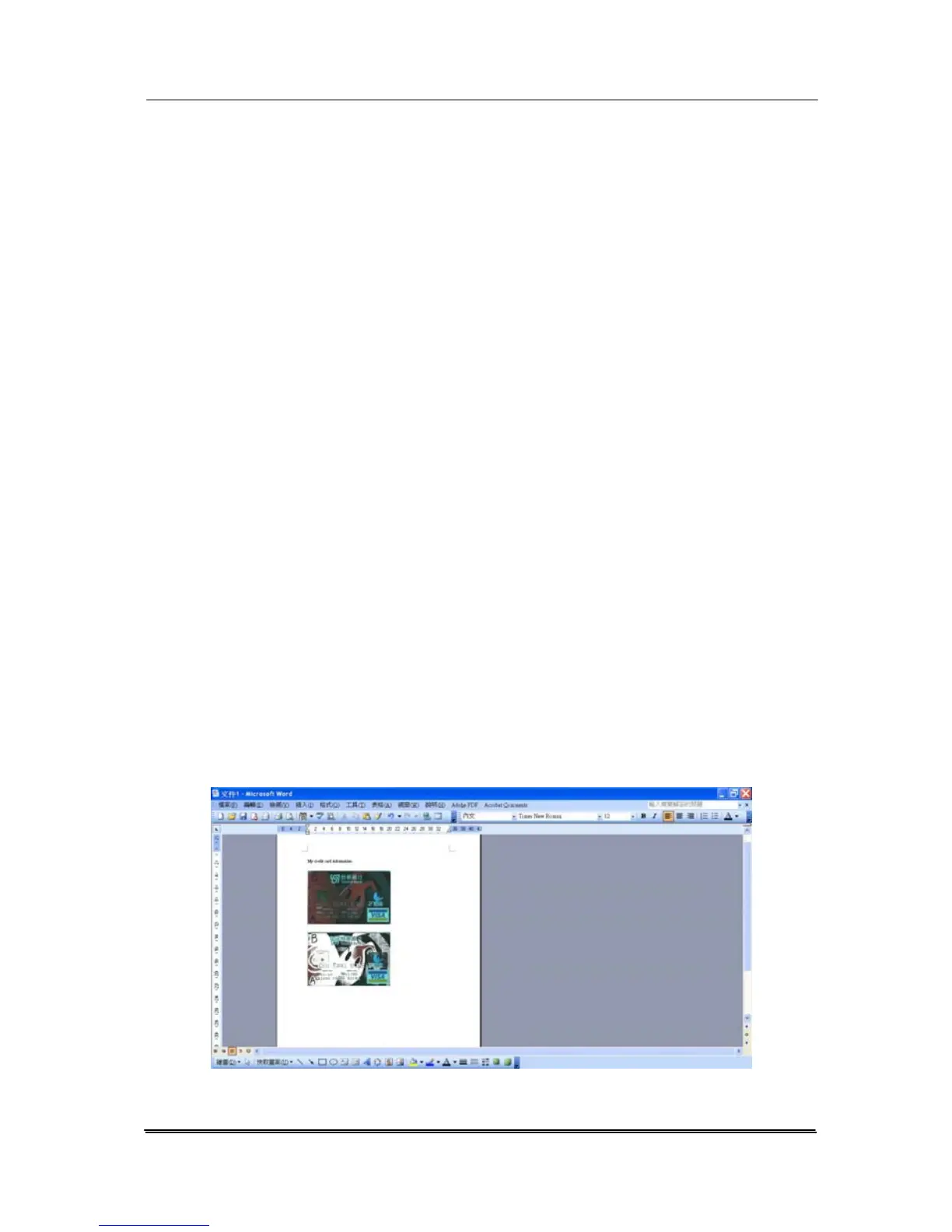
With Button Manager V2, you can insert the scanned image
directly to a software application which is already opened. For
example, when you are editing text in Microsoft Word and you
wish to insert a scanned picture, you can start a scan right
away and the scanned image will be inserted and displayed in
your Microsoft Word.
1. Open your application, such as Microsoft Word.
2. Open a new document or a current document where you
wish to insert a scanned image.
3. Use the Arrow key to select your button profile and make
sure the LCD-display shows “iScan(Image)”.
4. Press the Enter key to confirm your selection. The LCD-
display shows “Ready to scan”.
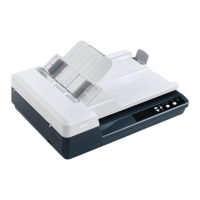
5. Place your single-page document on the flatbed or your
multi-page document in the auto document feeder.
6. Press the Scan button on the control panel. In a second,
the scan is done and the image is inserted to your
application as illustrated.
7-8


 To Next Page