6.3 Scanning From One Touch of the Buttons
1. Place your single-page document on the flatbed glass or
your multi-page document in the auto document feeder.
2. Check the button number on the LCD-display to ensure if
you are selecting the proper scan settings and destination
application. (For example, if you wish to scan with button
#3, which open Microsoft Paint and display the scanned
image in the main window of Microsoft Paint, the LCD-
display shows “Scan to App”).
3. Press the Scan button on the scanner.
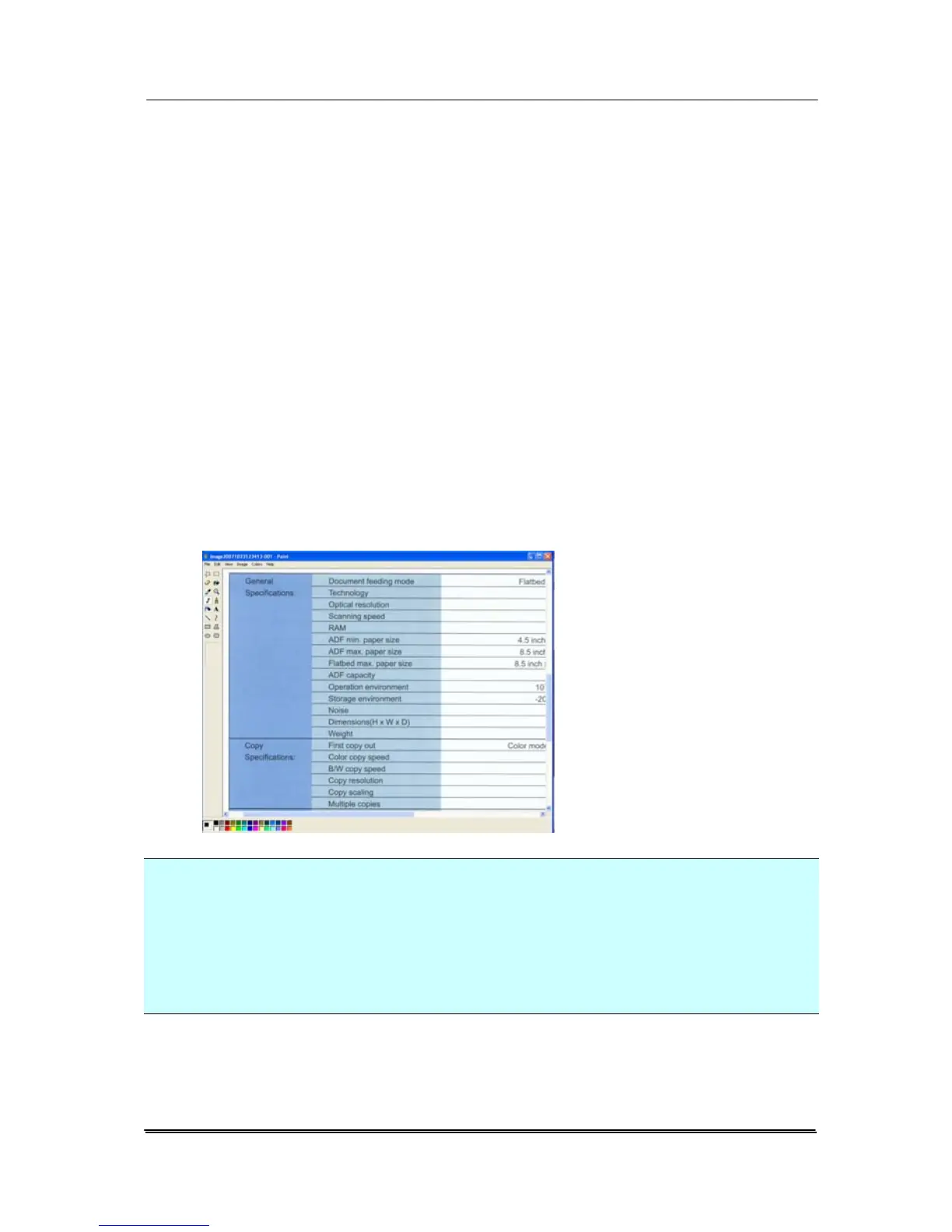
4. After the scanning is finished, the Microsoft Paint software
will be launched and the scanned image appears in the
main window of Microsoft Paint as below.
Note:
1. For details information on how to use the Button Manager
V2, please refer to the user’s manual in the supplied CD.
2. You may also using Button Manager on your desktop by
starting Button Manager from All Programs or double
clicking the Avision Scanner Utility from the Control Panel.


 To Next Page