8.2 Starting an Instant Scan
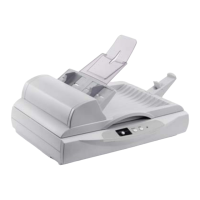
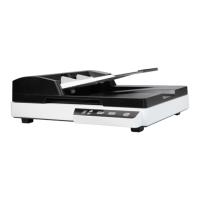
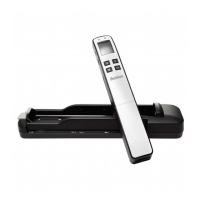
12. Make sure your scanner has been turn on and a USB flash
drive has been inserted to the scanner.
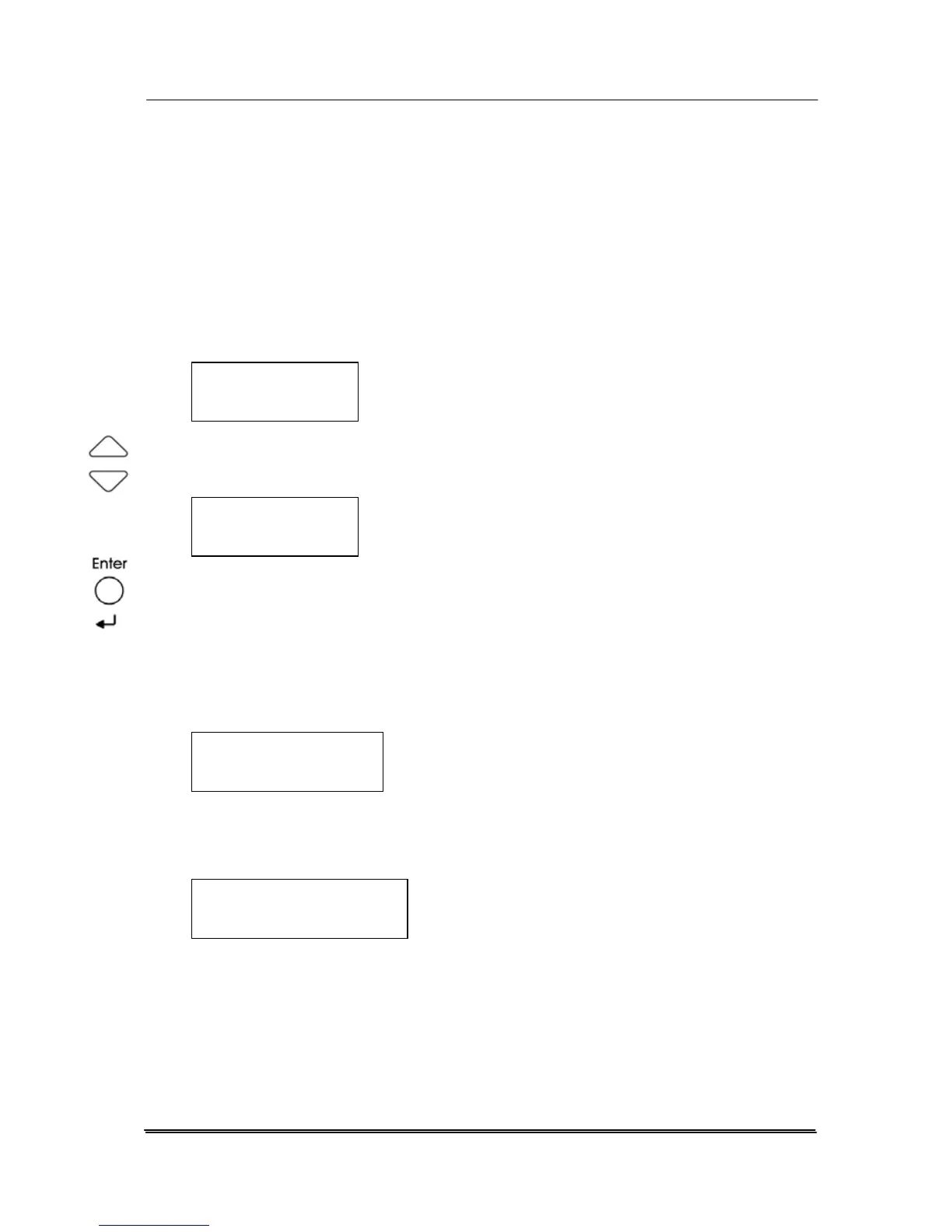
13. The LCD-display of the scanner shows “Select mode” as
illustrated in below. Choice includes PC, Network, and USB
disk.
Select mode
fPC
14. Press the Arrow key repeatedly until “USB disk” is
displayed.
Select mode
fUSB disk
15. Press the Enter key to confirm your selection. The LCD-
display shows the following profile option. Choice includes
Document, Photo, Setting. Predefined settings of
“Document” mode: 200 dpi, color, PDF, letter size; “Photo”
mode: 200 dpi, color, JPEG, 4”x6”. If you wish to scan
different size, select the “Setting” option.
Select profile
fDocument
16. Press the Enter key to confirm your selection.
17. The LCD-display shows the “Simplex/Duplex” option.
Simplex/Duplex
fSimplex
18. If you wish to scan the front and the rear page of your
document from the auto document feeder, press the
Arrow key repeatedly until “Duplex” is displayed. (If you
wish to scan only one side of your document from the
document glass, choose “Simplex”.)
8-2


 To Next Page