User’s Manual
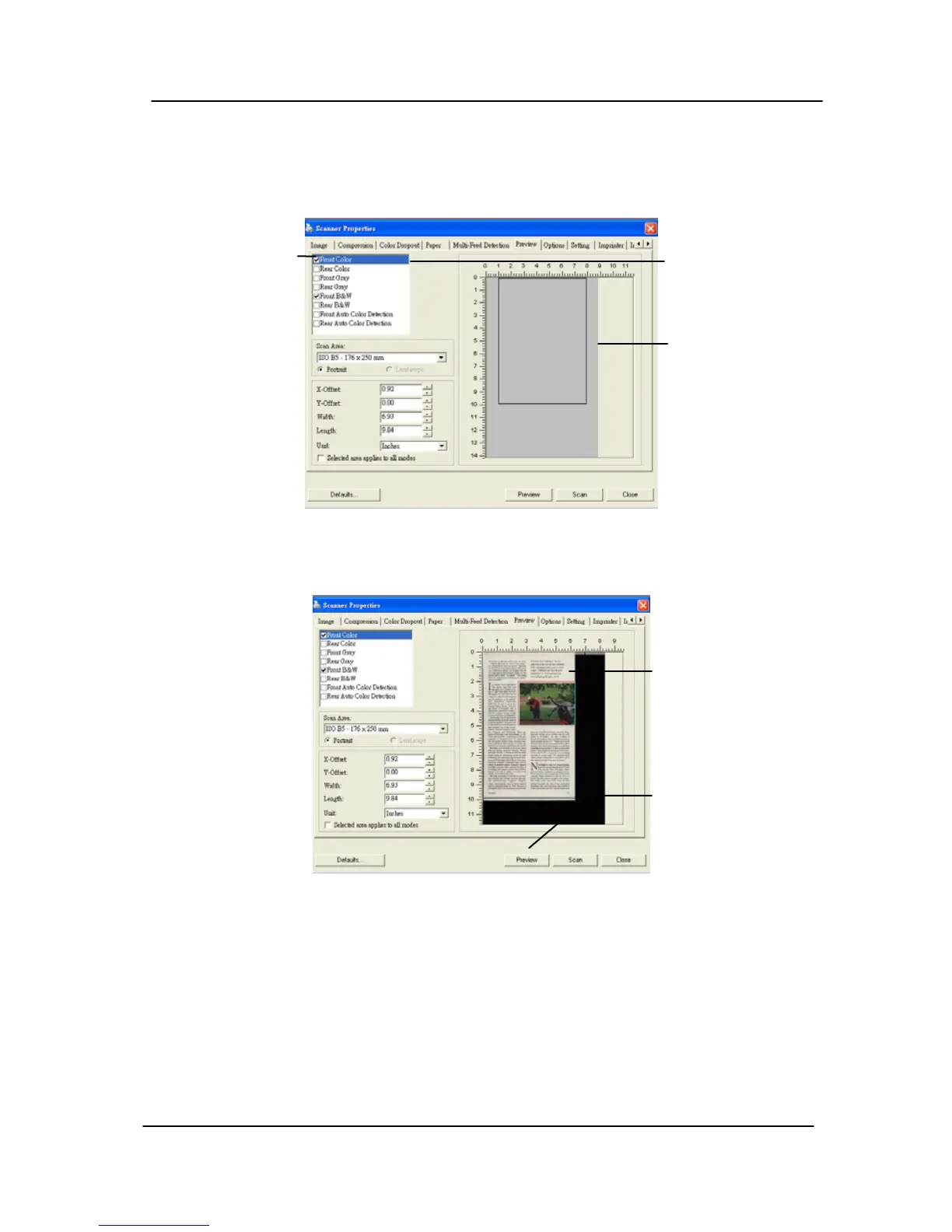
3. Click the Preview tab to display the Preview window. A
black rectangular box appears to indicate the max. scan
size your have just selected.
The Image
Selection
Box
he selected
image
A black
rectangular
box
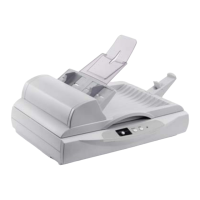
4. Click the Preview button to view the entire image in low
resolution to correctly crop your relative scan area.
he Preview
Button
5. Select image type from the Image Selection box. The
selected image will appear in highlighted color. (For
example, Front Color)
6. Place your cursor on the Preview window and click your
left mouse button. A cross sign will appear as illustrated.
Create your relative scan size diagonally by dragging the
left mouse button to your preferable size. The selected
area will appear in a red box as illustrated.
4-33


 To Next Page