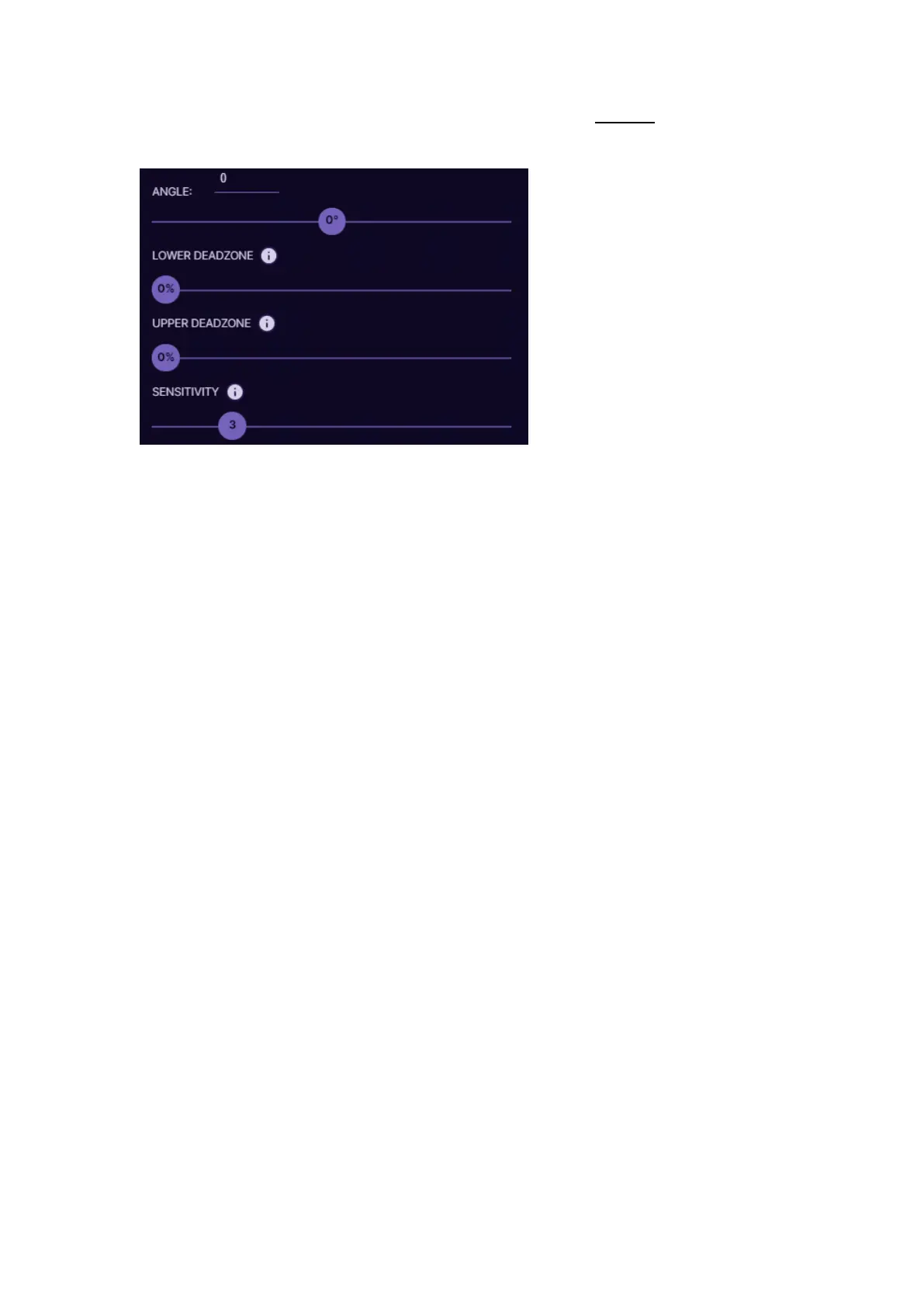
here the settings you change for the thumbstick will add up to the settings
that were applied via calibration tool.
Upper deadzone
determines how far is the
outer diameter of the
thumbstick travel zone.
The higher the value the
smaller the outer circle. So
the higher the value, the
less movement you will
need with your thumb for
your video game character
to start moving with maximum speed. For example, if you are playing a
fast paced FPS game and need extremely fast direction changes, you can
increase the upper deadzone value very high. Then even the tiniest
movement with your thumb will already register the direction change.
Using this technic together with restrictor ring is the best, because then
also the thumbstick physically doesn’t need large movements to hit the
edges, less travel.
If you are not sure what deadzone settings you should use, just go through
the Calibrate Deadzones wizard, and the software will choose the best
settings for your thumbstick. See 5.3. CALIBRATING THUMBSTICK
Sensitivity setting controls how sensitive thumbstick feels. The lower the
value the more sensitive is the thumbstick. Default value is 3.
If you are experiencing thumbstick vibration when you move it around,
you can increase the value to reduce such effect. If the max value
doesn’t help, then most likely thumbstick potentiometers are worn out
and needs replacement.
In analog mouse wheel mode, the thumbstick will work as vertical and
horizontal mouse wheel. If you move the thumbstick forward and back,
it will act as a vertical mouse wheel. If you move the thumbstick left or
right, then it will act as a horizontal mouse wheel. It also reacts on how
far the thumbstick has been moved by scrolling faster or slower.


 To Next Page