5.6.1 Profile import / export
To export them all at once, go to software Settings, find “Import/Export”
section and choose Export profiles or Import profiles. The profiles in On-
board memory will not be exported, only software profiles.
To export only one profile, right click on the profile name and choose
“Copy to Clipboard”. It will save a string of text in your clipboard. You can
paste this string in the chat to share with other people or save in Notepad
for later use. You can import the single profile by copying its text string
and clicking on at the bottom of the profile list.
5.6.2 Automatic profile switching
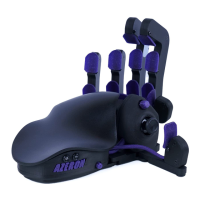
You can setup Azeron software so that it switches profiles automatically
when you open a specific software or game. To do that, right click on the
profile name, choose
“Link Settings” and
then you have 2
options. First option,
“Link Exe” will ask you
to show the location
of .exe file on your
computer for the
software or game.
Second option “Link
Process” will open a
list of processes
installed on your PC and you can choose a game or software from that list.
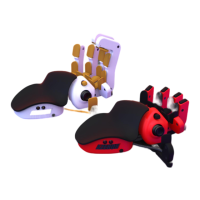
In the Settings you can turn on an option that, when launching Azeron
software, it checks what software/games are already opened.


 To Next Page