106 ImagePRO-II • User’s Guide
5. Web Remote Control Operations
Web App Interface Introduction
^Äçìí=íÜÉ=tÉÄ=^éé=fåíÉêÑ~ÅÉ
The Web App Interface presents easy-to-read buttons, menus, and graphics to help you
navigate and make selections in most ImagePRO-II menus.
Using the Web App Interface, you can:
• Adjust input format, color balance, and sizing
• Adjust output format, color effects, and color balance
• Mask an image
• Turn test patterns, raster boxes, and diagonal motion on or off
• Create an Area of Interest
• Set Pan and Zoom parameters
• Obtain EDID information from DVI-D, HD-15, and HDMI outputs
• Lock the front panel
• Freeze an image
• Transition to a stored logo or internal black
^Äçìí=íÜÉ=cêçåí=m~åÉä=bãìä~íçê
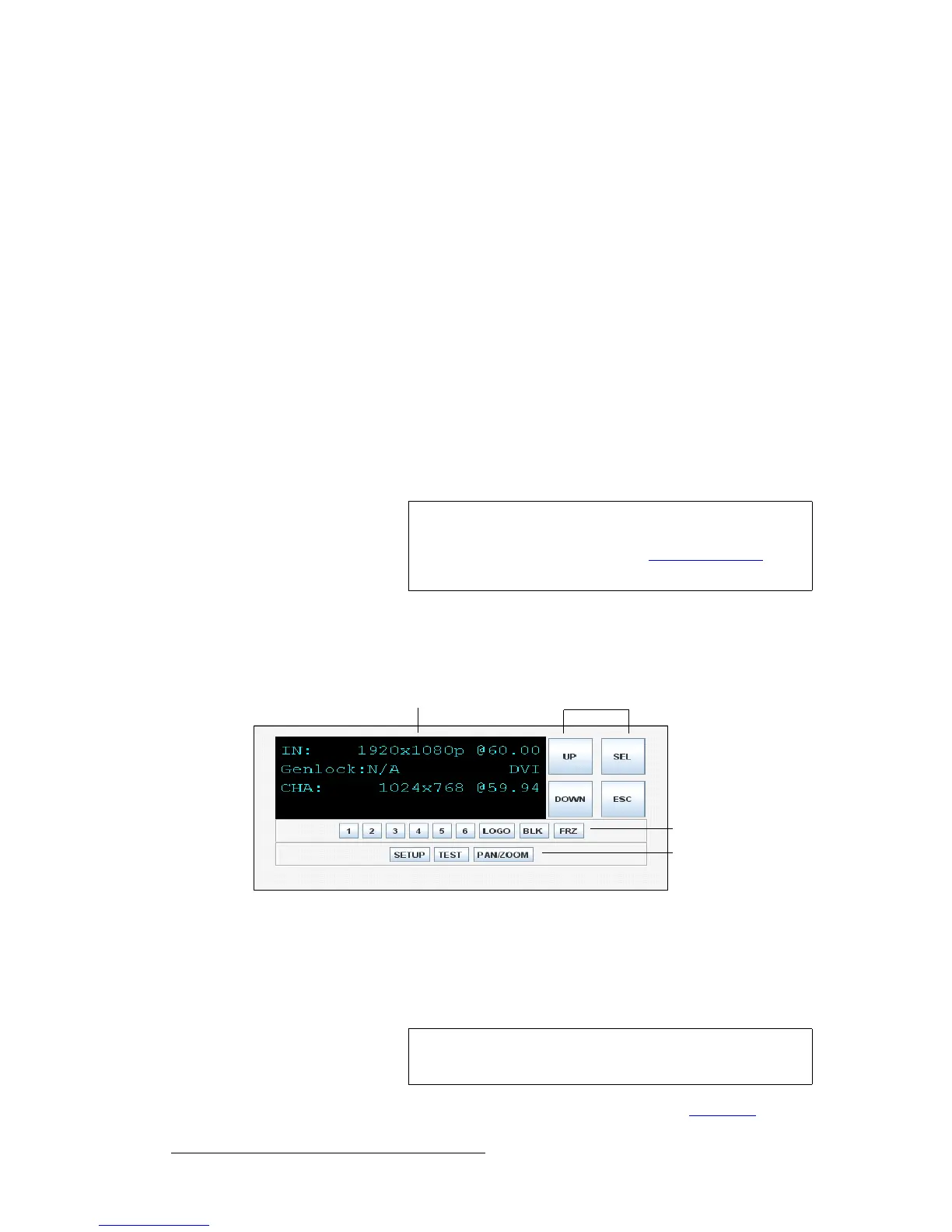
The Front Panel Emulator is a graphical representation of the ImagePRO-II front panel,
from which you can remotely control the unit.
Figure 5-5. Front Panel Emulator (sample)
All front-panel functions, including those not available from the Web App Interface, are
accessible from the Front Panel Emulator. For example, you can create custom formats
and configuration files, define a view, use preset masks, restore factory default settings,
and perform all other ImagePRO-II functions.
For detailed information about using the Front Panel Emulator, refer to Remotely
Note
This chapter assumes familiarity with ImagePRO-II features.
If you need detailed descriptions of ImagePRO-II menus and
functions, please refer to Chapter 4 Menu Orientation
, on
page 23.
Graphical Display Navigation Buttons
Input/Effects Buttons
Menu Access Buttons
Note
Because the Front Panel Emulator is a Java applet, it is not
available when using Apple devices.


 To Next Page