LC6000 Menus/Screens
Main Menu
Press the MENU key from any screen to return to the
Main Menu. Press the UP or DOWN keys to scroll
through the available menus. When the desired menu
is highlighted, press the ENTER key to access that
menu. Press the ESCAPE key or MENU key to return to
the Status screen from the Main Menu.
Status Screen
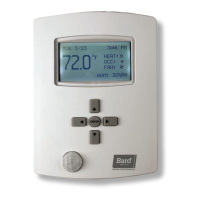
The Status screen is the default start-up screen and
also the return screen after 5 minutes of no activity.
The screen can be accessed any time by pressing the
ESCAPE button repeatedly. The LC6000 Status screen
displays the current date, time, unit displayed, zone
and system status.
Quick Menu
The Quick Menu is available on the Status screen. Use
UP or DOWN keys while on the Status screen to scroll
between the three Quick Menu options; press ENTER
key.
Alarm Log
The alarm log displays the record number, time of
alarm event, date of alarm event, description of alarm
event and whether the entry is the beginning or end
of event. The alarm log will have as many screens as
events occurred.
Info
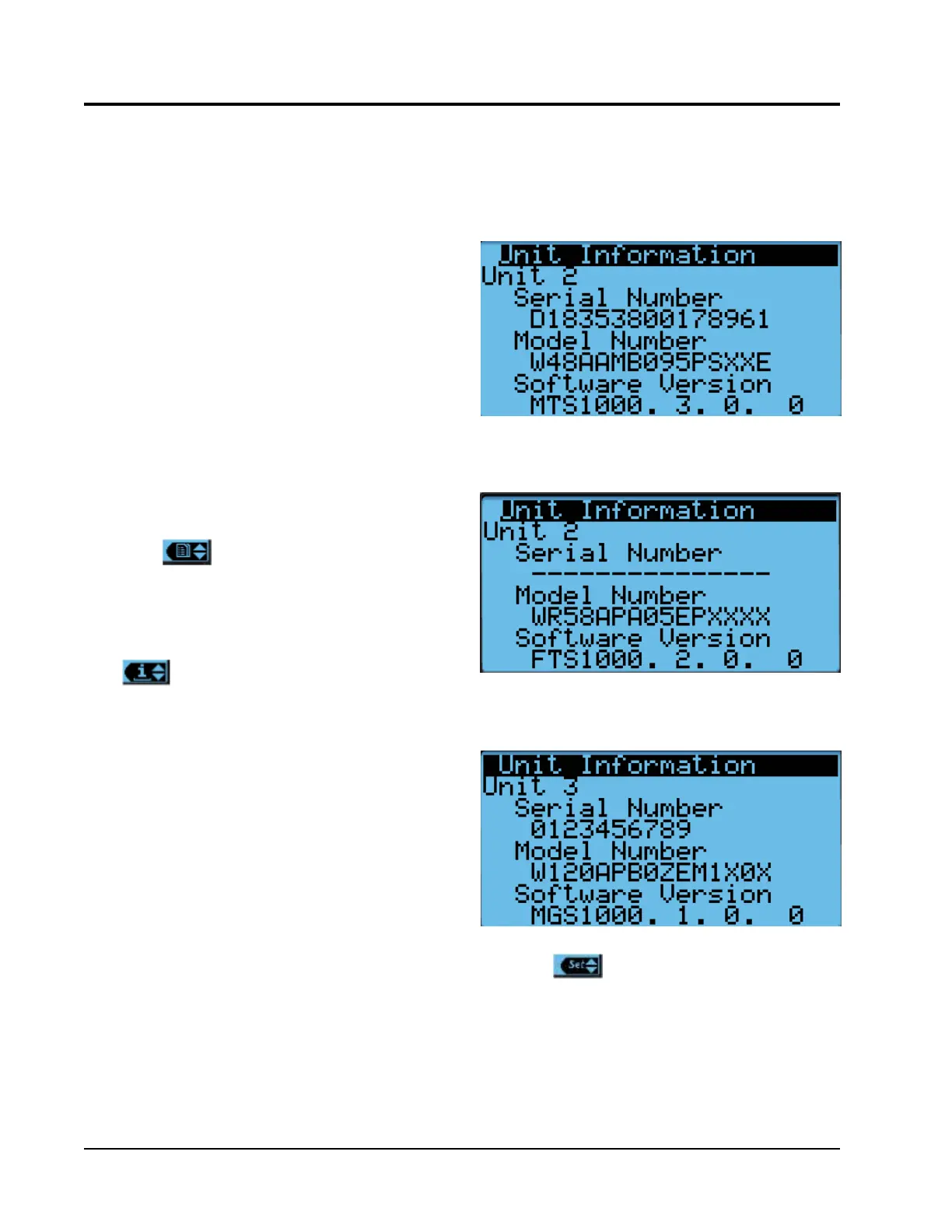
The information menu groups all information by unit
address. The LC6000 controller is capable of operating
MULTI-TEC, FUSION-TEC WR Series and MEGA-
TEC wall-mount units. The screens will automatically
show the relevant information for each unit. For
example, the FUSION-TEC WR Series and MEGA-
TEC wall-mount units are equipped with a supply air
temperature sensor while the MULTI-TEC units are not.
The supply temperature measurement will only show
when displaying information from a FUSION-TEC WR
Series or MEGA-TEC wall-mount unit. Additionally,
FUSION-TEC WR Series units are equipped with an
electronic expansion valve (EEV). When connected to
a FUSION-TEC WR Series unit, an additional screen
will show pressures and temperatures affecting the
air conditioning system. MEGA-TEC wall-mount units
are equipped with two electronic expansion valves
with additional screens that show pressures and
temperatures for each EEV.
The last of the wall-mount unit’s information screens
will display the model number, serial number and
software version of the unit (see Figures 29, 30 and
31). This information is very important and could be
ADDITIONAL INFORMATION
FIGURE 29
MULTI-TEC Unit Information Screen
FIGURE 30
FUSION-TEC WR Series Unit Information Screen
needed when referencing technical documentation
online or contacting Bard Technical Services.
FIGURE 31
MEGA-TEC Unit Information Screen
Setpoints
Setpoints allows setting and enabling of comfort mode.
Manual 2100-669F
Page 26 of 37



 To Next Page