User Manual
44
3. Select the type of events you would like to search for from the dropdown next to Log Type, or
select All to see the entire system log for the selected time period.
4. Click Search.
5. Browse system log events from your search period:
Video events can be played back instantly by clicking in the Playback column. Right-click to return
to your search results.
Use the / buttons in the bottom-right corner of the menu to move between pages of
system log events.
6. Click Backup to create a backup of the system log for your search period. Please make sure your
flash drive has been connected to the USB port.
7. The backup drive menu appears. Navigate to the folder you want the backup file to be saved in,
then click OK to begin.
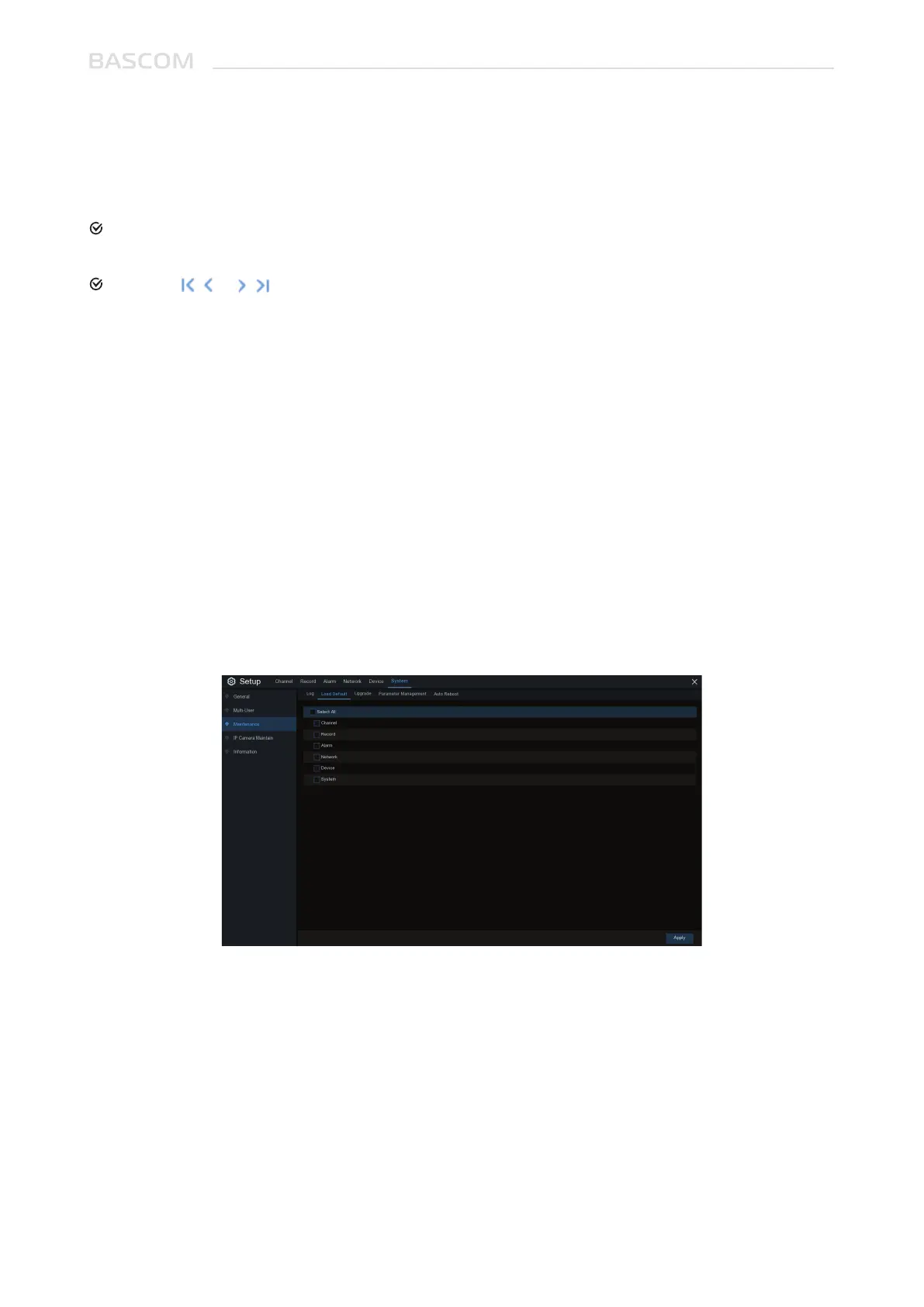
Reset the systems settings to its out-of-box state. You can choose to reset all settings at once, or just
settings on specific menus. Restoring default settings will not delete recordings and snapshots saved
to the hard drive.
Check the items you want restore, or check Select All to choose all items. Click Apply to load default
settings of your chosen items.
3.6.4.2 Load Default


 To Next Page