User Manual
50
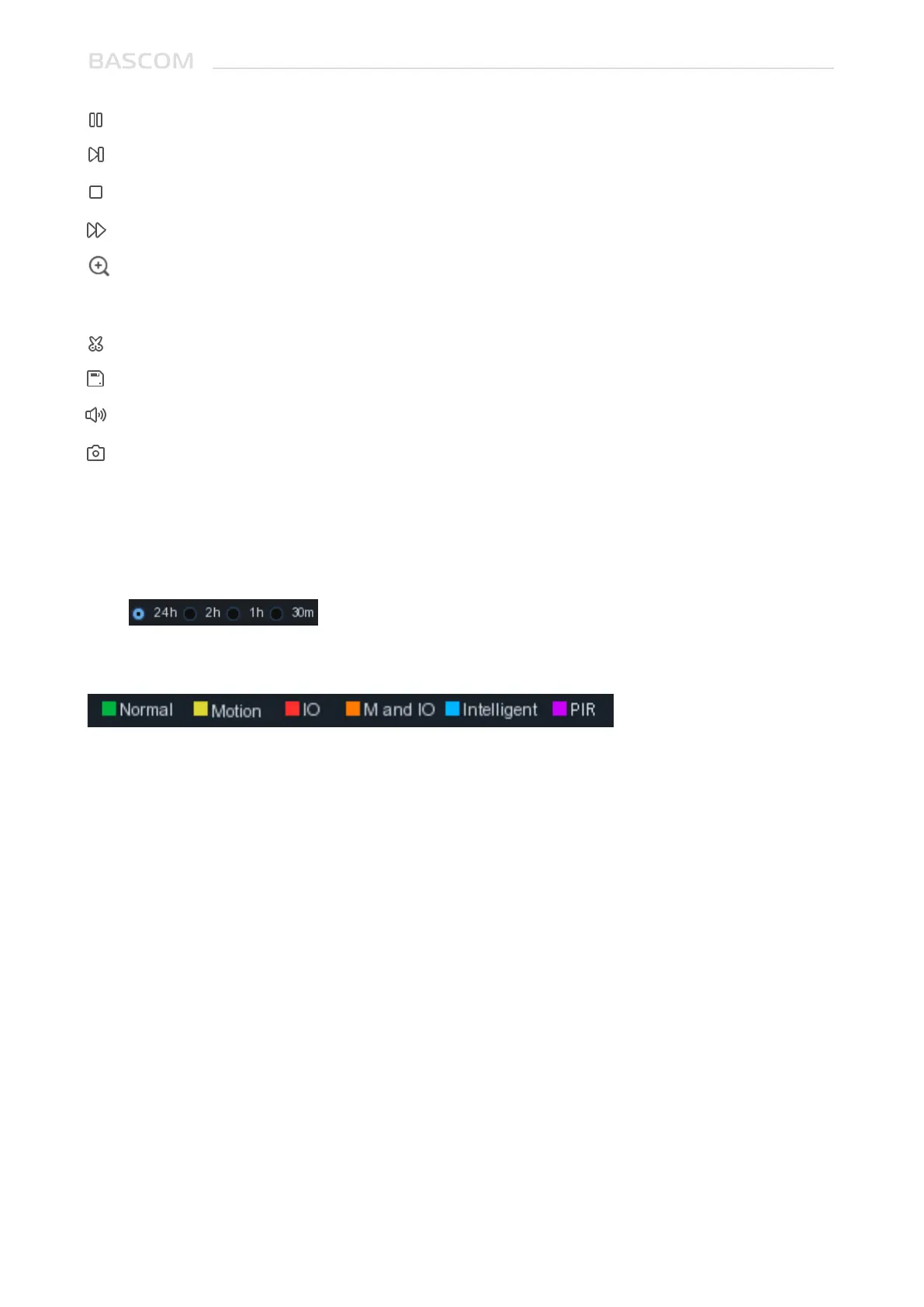
Pause
Play frame by frame. Click once to play a frame of the video
Stop
Fast Forward, x2, x4, x8 and x16
Digital Zoom: Click to zoom in then click-and-drag on a camera image during playback to zoom in
on the selected area. Right-click to return to regular playback.
Video Clip. Quickly save a section of video to a USB flash drive.
Save Video Clip.
Volume Control: scroll the slider bar to increase or decrease volume.
Snapshots: to capture a snapshot image to your USB flash drive. If the video playback is in
split-screen view, move the mouse cursor to the channel you want to capture, and then click the
icon to save the snapshot.
6. Timeline: Continuous recordings are shown with colored bars to represent different types of
recording (legend shown in the bottom-right corner of the display). Use the timeframe options
( ) to view a smaller or larger time period.
Different types of recording shown in different colors:
Continuous Recording in Green color;
Motion Recording in Yellow color;
I/O Recording in Red color;
Motion & I/O Recording in Orange color;
7. Playback Status: display the video play status


 To Next Page