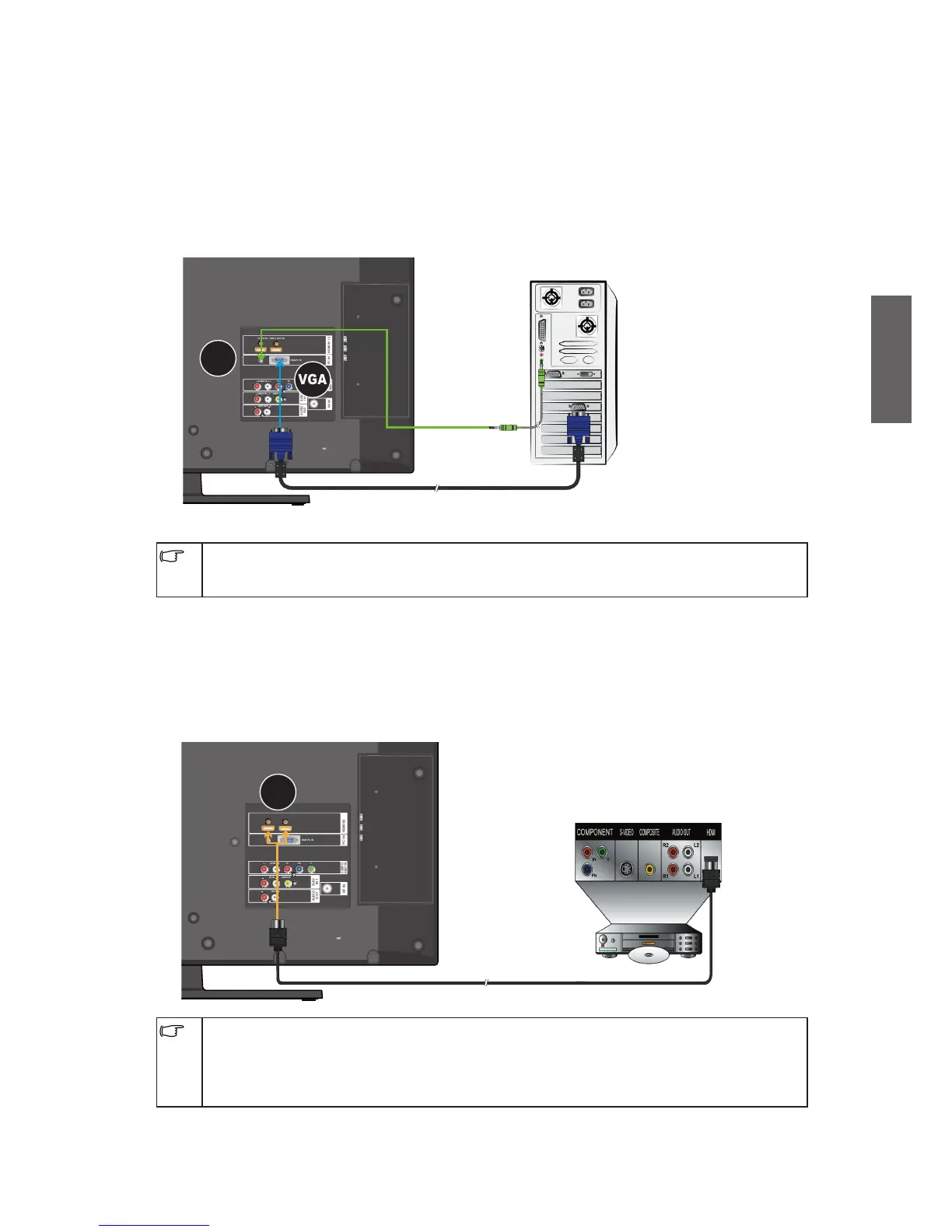
Connect to a PC-Dub input
1. Connect the VGA output jack on your PC to the VGA jack on the TV using a Mini D-Sub
(15-pin) cable (not provided).
2. Connect the audio output jack on your PC to the PC/DVI AUDIO IN jack using an
appropriate 3.5mm Mini-jack audio cable (not provided).
If you want to watch the PC input, press the INPUT button on the remote control and
then press
/
button,
or
repeatedly press the INPUT button to select PC as the input,
and then press OK button on the remote control to confirm.
HDMI IN 1 2PC IN
AUDIO
OUT
S/AV
IN 1
RF IN
COMPO-
NENT IN
AUDIO INR
L
VIDEO IN
Pr
Pb
Y
HDMI 1 (DVI) INHDMI 2 (DVI) IN
RGB PC IN
PC
AUDIO IN
AUDIO INR
L
AUDIO OUTR
L
PC
PC/DVI
AUDIO IN
VGA
Audio
cable
Mini D-Sub cable
See "Supported PC/DVI input signal modes" on page 38 for more about the resolution
options. For more information on how to connect your video devices, please refer to the
manuals supplied with the devices.
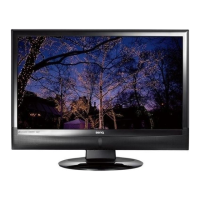
Connect to a HDMI input
Connect the HDMI output jack on your video device to the HDMI jack on the TV using a
HDMI cable (not provided).
If you want to watch the DVI input (PC), press the INPUT button on the remote control
and then press
/
button,
or
repeatedly press the INPUT button to select HDMI1/2 as
the input, and then press OK button on the remote control to confirm.
HDMI IN 1 2PC IN
AUDIO
OUT
S/AV
IN 1
RF IN
COMPO-
NENT IN
AUDIO INR
L
VIDEO IN
Pr
Pb
Y
HDMI 1 (DVI) INHDMI 2 (DVI) IN
RGB PC IN
PC
AUDIO IN
AUDIO INR
L
AUDIO OUTR
L
HDMI (High-Definition Multimedia Interface) is an all-digital audio/video interface capable
of transmitting uncompressed streams. HDMI provides an interface between any audio/
video source, such as a set-top box, DVD player
or
A/V receiver over a single cable. See
"Supported Component Video/HDMI input signal modes" on page 38-39 for more about the
resolution options.


 To Next Page