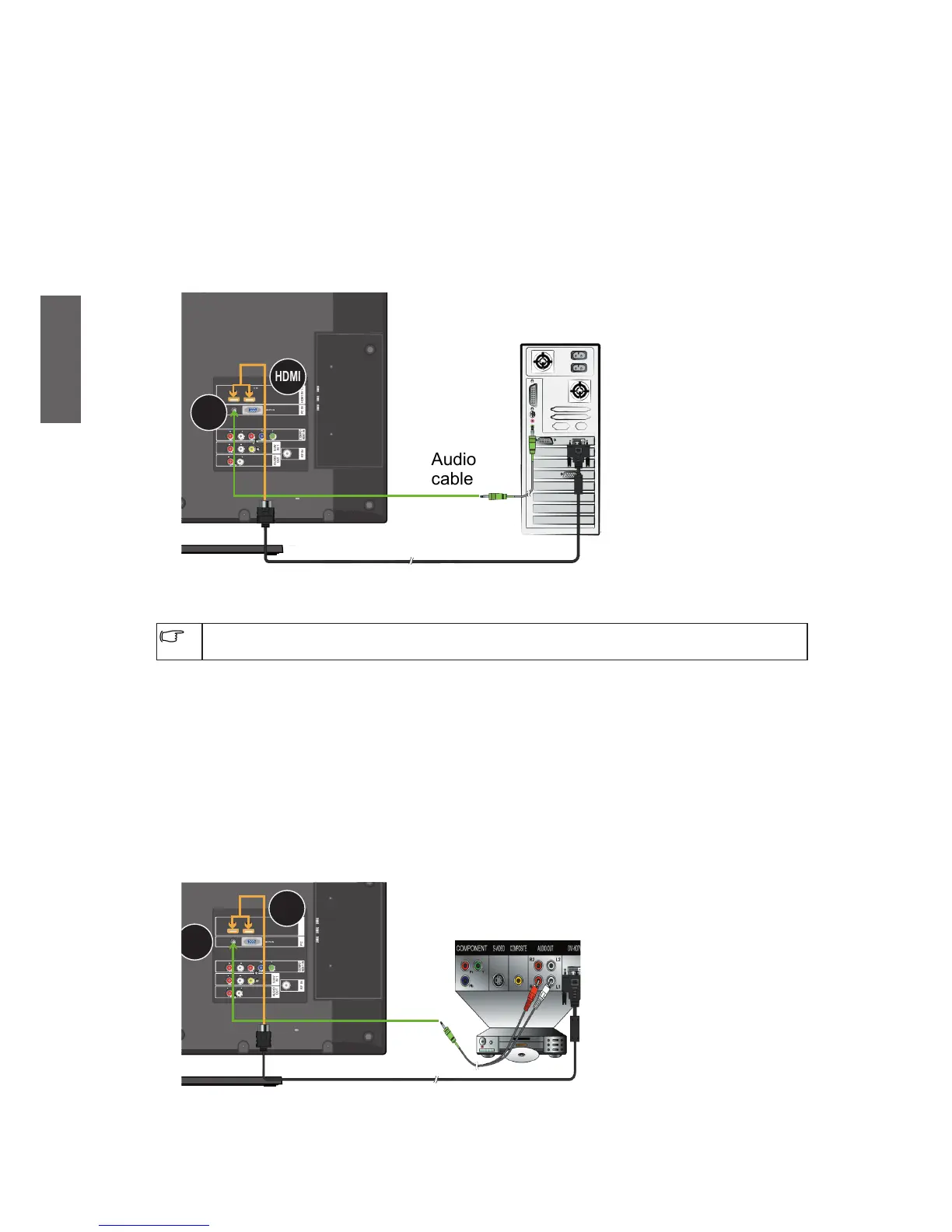
Connect to a PC DVI input
1. Connect the DVI output jack on the video device to the HDMI jack on your TV using
a DVI to HDMI convert cable (not supplied).
2. Connect the DVI audio output jack on the PC to the PC/DVI AUDIO IN input jacks
using a suitable audio cable (not supplied).
If you want to watch the DVI input (Video devices), press the INPUT button on the
remote control and then press
/
button,
or
repeatedly press the INPUT button
to select HDMI 1/2 as the input, and then press OK button on the remote control to
confirm.
HDMI IN 1 2PC IN
AUDIO
OUT
S/AV
IN 1
RF IN
COMPO-
NENT IN
AUDIO INR
L
VIDEO IN
Pr
Pb
Y
HDMI 1 (DVI) INHDMI 2 (DVI) IN
RGB PC IN
PC
AUDIO IN
AUDIO INR
L
AUDIO OUTR
L
PC
PC/DVI
AUDIO IN
HDMI
Audio
cable
DVI-to-HDMI convert cable
See "Supported PC/DVI input signal mode" on page 38 for more about the resolution
options.
Connect to a DVI input (Video devices)
1. Connect the DVI output jack on the digital device to the HDMI jack on your TV using
a DVI to HDMI convert cable (not supplied).
2. Connect the DVI audio output jack on the PC to the PC/DVI AUDIO IN input jacks
using a suitable audio cable (not supplied).
If you want to watch the DVI input (Video devices), press the INPUT button on the
remote control and then press
/
button,
or
repeatedly press the INPUT button to
select HDMI as the input, and then press OK button on the remote control to confirm.
DVI-to-HDMI convert cable
HDMI IN 1 2PC IN
AUDIO
OUT
S/AV
IN 1
RF IN
COMPO-
NENT IN
AUDIO INR
L
VIDEO IN
Pr
Pb
Y
HDMI 1 (DVI) INHDMI 2 (DVI) IN
RGB PC IN
PC
AUDIO IN
AUDIO INR
L
AUDIO OUTR
L
DVD player
HDMI
Audio cable
HDMI
PC/DVI
AUDIO IN


 To Next Page