III. SPECIFICATIONS, CONNECTIONS & USER INTERFACE cont’d.
16
1616
16
D
DD
D-
--
- DISPLAY IN
DISPLAY IN DISPLAY IN
DISPLAY INTERFACE AND MENUS
TERFACE AND MENUSTERFACE AND MENUS
TERFACE AND MENUS
1
11
1-
--
- DISPLAY OVERVIEW
DISPLAY OVERVIEW DISPLAY OVERVIEW
DISPLAY OVERVIEW
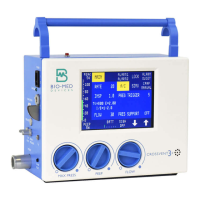
Careful attention has been paid to the human interface of the
CROSSVENT. Its Graphic LCD, with touchscreen keypad, makes it
the most user-friendly ventilator for today and tomorrow. Several
menus are available on the LCD. These include: Main functions,
Primary Alarms, Secondary Alarms and a Setup menu.
NOTE: When first turned on, the unit
displays “Bio-Med Devices,
Inc
.” until the initialization process is complete. If this does not clear,
submit the unit for service.
SELECT AND ADJUST A FUNCTION
SELECT AND ADJUST A FUNCTIONSELECT AND ADJUST A FUNCTION
SELECT AND ADJUST A FUNCTION
A menu or parameter is selected by simply pressing the
corresponding key on the display. In this manual, when references
are made to keys, this is an area of the display containing text or values. There may not always be a “key”
depicted graphically. When instructed to press a key, it implies to press on the touchscreen over the word
or value you want to select. When a function is selected, the function will be highlighted in yellow.
Once a parameter is selected it may be adjusted using the UP and DOWN Arrow keys. The parameter key
may be pressed again to deselect it. If the arrow keys are not pressed for 30 sec., the highlighted key will
automatically deactivate. The following are exceptions to the procedure for setting functions:
• Arrows are not required to select a menu or mode. These are selected simply by pressing the desired
key, i.e. ASSIST CONTROL.
• Flow is displayed in the Flow key, but may only be changed with the FLOW Control Knob.
• I, E, I/E ratio is a display key only. I, E, I/E are set indirectly by setting Rate, Tidal Volume and
Flow.
The display is graphically laid out for simplicity and ease of use. The left side of the display indicates
Airway Pressure information. The top and bottom rows of keys are always available to the user unless Setup
is pressed. The top row allows the user to move between menus as well as lock the display and quiet the
alarms. The bottom row provides information on what type of breath is being delivered, power conditions
as well as allowing for sigh and entering SETUP. SETUP is replaced by the ARROW keys by pressing any
key other than the ALARM QUIET or BATTERY key or if no key is pressed within 30 seconds of powering
on the unit.. The center section of the display is what is considered the “menu” and is the part that changes
when a menu key is pressed.
What follows will describe in detail the function of each key.
2
22
2-
--
- BACKLIGHT& PRESSURE BAR GRAPH
BACKLIGHT& PRESSURE BAR GRAPH BACKLIGHT& PRESSURE BAR GRAPH
BACKLIGHT& PRESSURE BAR GRAPH
A
AA
AIRWAY PRESSURE BAR G
IRWAY PRESSURE BAR GIRWAY PRESSURE BAR G
IRWAY PRESSURE BAR GRAPH
RAPHRAPH
RAPH
Displayed on the left side of the display is an analog readout of proximal airway pressure from -5 to +115
cmH
2
O. As the airway pressure increase, a green bar rises to reflect the pressure. If the pressure exceeds
the setting of the Peak High Pressure limit in the Alarm 1 menu, then the portion of this bar above the limit
will be red. When the pressure bar goes below zero, it will be yellow. Above and below the bar graph are
numerical values for PEAK and PEEP/CPAP pressures respectively. The PEAK display at the top should
be used for readings when the pressure exceeds the range of the bar graph.
BACKLIGHT
BACKLIGHTBACKLIGHT
BACKLIGHT
The LCD display requires a backlight in order to be visible. Therefore, the default setting for the backlight
is that it is always on. There may be circumstances in which the user may desire the backlight to be off (ie.,
to extend the running time while in battery mode). However, be aware that turning off the backlight means
there is no visible display. It will be completely blank. To turn off the display, press and hold the Pressure
Bar Graph for 3 seconds until it beeps a second time. The backlight will remain off until an alarm condition
occurs or the display is touched. When the unit is powered off, it will revert to the default of always being
on.
3
33
3-
--
- MAIN MENU
MAIN MENU MAIN MENU
MAIN MENU
Pressing the MAIN key displays the Main menu. When in the Main menu, ventilation modalities, Assist
Control, SIMV, or CPAP, may be selected. The selected mode will be highlighted and it becomes
immediately operative.
FIG. 5- SETUP KEY
A/C
OFF


 To Next Page