Define Instrument Settings| 23
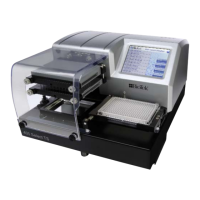
Using the LHC Using the Touch screen
1. Select Tools>Instrument
Utilities.
2. Under General Settings, increase
the Vacuum Dissipate Delay to
match your waste container: 1
second per liter.
3. Click Send to download this new
setting to the instrument.
4. Click Exit to return to the main
screen.
1. Press Instrument>Options
2. Touch the Advanced Settings link.
3. Touch the number field to set the
Vacuum Dissipate setting to
match your waste container: 1
second per liter.
4. Press the previous button and
then Home button.
Setting the Time and Date
Set the time and date to permit the 405 Touch to record "last modified" and "last run"
data for each protocol. Only one time and date format is available: DD Month YY. An
internal battery keeps the time and date valid when the instrument is turned off.
1. Select Instrument from the Home screen, press Next and then, Other.
2. Select Set Time and Date.
3. Update the time zone, date, and time:
l Time Zone: Touch the Select Time Zone button and select the option that
matches your location. GMT = Greenwich Mean Time.
l Time: Touch the time field to open a number pad. Enter the current hour and
minutes to set the 24 hour clock.
l Date: Touch today's date on the calendar to select it. Press the previous or next
arrows next to the month to scroll to the correct month.
4. Press Save.
Remember to update the time in accordance with annual time shifts, like Daylight Savings
Time, if applicable.
Define Startup Preferences (LHC users only)
You can save enormous time creating protocols by following these steps to define a
New Protocol template and use it at startup.
BioTek Instruments, Inc.


 To Next Page