48 | 405 TS Getting Started Guide
LHC: Touch screen:
1. Select Tools> BioStack
Utilities.
2. Use the Alignment Utility.
Click the Help button for
detailed instructions.
1. At the Home screen, select
Instrument>Next>BioStack.
2. Fill the BioStack installed checkbox.
3. Press BioStack Alignment to launch
this utility.
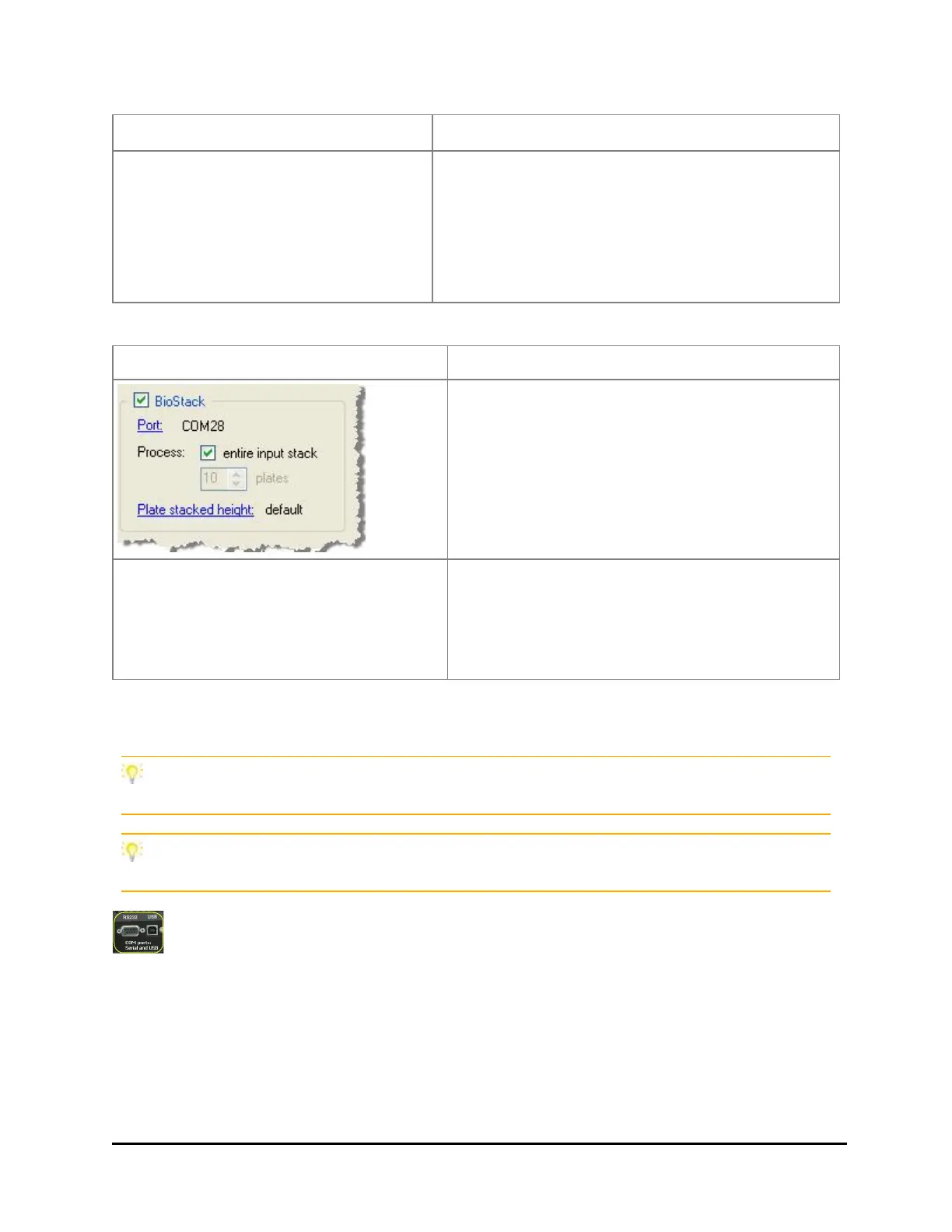
3. Set the BioStack operating mode:
LHC:
When controlling the BioStack with the
instrument, you can choose to run the
whole stack or a specific number of plates
at runtime: use the BioStack controls on
the run screen.
Fill the BioStack checkbox in the main
view to enable the BioStack action
buttons and use them to design a
protocol that delivers and retrieves
plates.
5. Verify the setup: perform a protocol with 1 or 2 plates.See How to define a
BioStack protocol on the facing page.
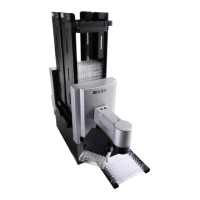
At the start of the day, power up the BioStack first, and then the 405 TS. BIOSTACK2WR:
Lift the BioStack’s gripper before turning it on.
Robotics integrators: CAD drawings of the physical dimensions of the 405 TS are
available upon request. Contact BioTek customer service.
Technical Note: Only one of the two communication ports (COM port) on the
instrument can be used at a time. They cannot be used simultaneously. You
can use USB to connect the 405 TS to the computer or the RS232 serial port to
connect to a BioStack or similar robotic device. But you cannot use both ports
simultaneously, i.e. make sure only one cable is plugged in at a time.
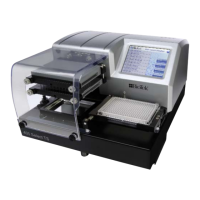
405™ TS Microplate Washer


 To Next Page