Enigma™ M4 Manual - Rev A Page 26 (c) 2020 Blizzard Lighting, LLC
7.3.2 Run Mode of Cue
• Mode=Time — Enable both HTP and LTP times. If the times are set to 0, the value of the HTP channel depends on
the fader position.
• Mode=Fader — Disables any set times. The values of HTP and LTP channels depend on the fader position.
7.3.3 Save Cue
1. Select the xtures.
2. Adjust the attributes to create a scene or eect.
3. Press the Save to Cue key in LIVE SHOW.
4. Select a record mode, and a run mode that you want. Then select [Playback type=Cue].
5. Press a playback fader key, or the Fixed key to record.
7.4 Cue-list Playback
The Cue-list playback has two modes: Cue-lists and Chase. Cue-lists can set dierent times for
each step, while Chase has the same time for every step.
7.4.1 Create a Cue-list Playback
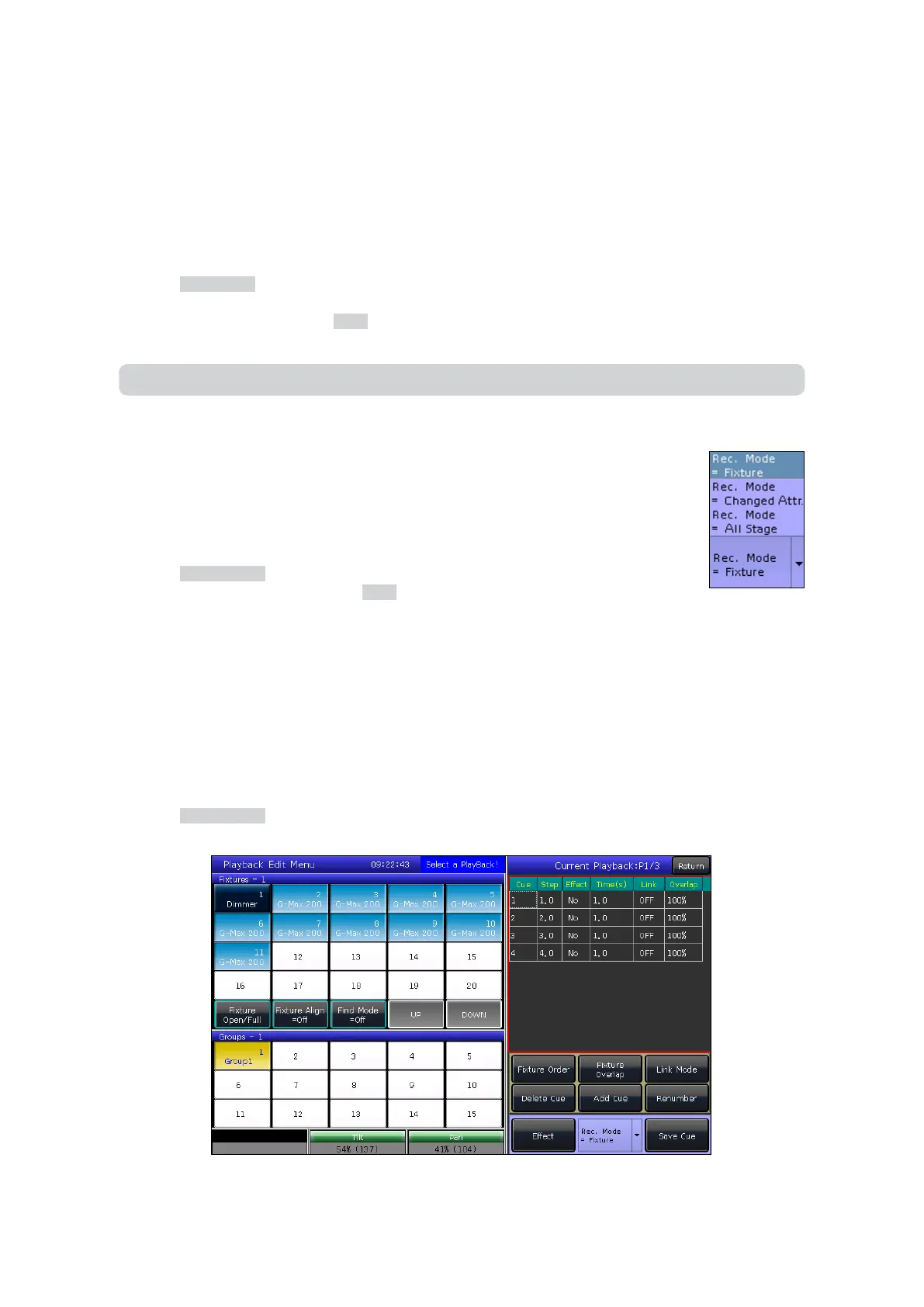
1. Press the Edit Playback key in LIVE SHOW.
2. Press a playback fader key (or a key in Fixed).
3. Select the xtures.
4. Set a scene using the attribute keys and wheels.
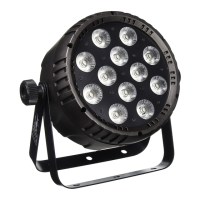
5. The record mode default is “Changed Attr.” Press [Rec. Mode] if you want to record using other mode.
• Rec. Mode = Fixture — All attributes of selected xtures will be saved.
• Rec. Mode = Changed Attr. — Only the changed attributes of xtures will be saved. This function allows xtures
with dierent attributes to be run synchronously.
• Rec. Mode = All Stage — All xtures on stage will be saved whether they are currently selected, or not.
6. Press the blinking playback key to save the step, or press [Save Cue].
7. Repeat steps from 3 to 6 until nished.
8. Press the Edit Playback key to exit.
Note: If a fader is already programmed, you will have the option to: Replace, Merge or Save to Last Step.


 To Next Page