Enigma™ M4 Manual - Rev A Page 33 (c) 2020 Blizzard Lighting, LLC
7.7 Advanced Playback Settings
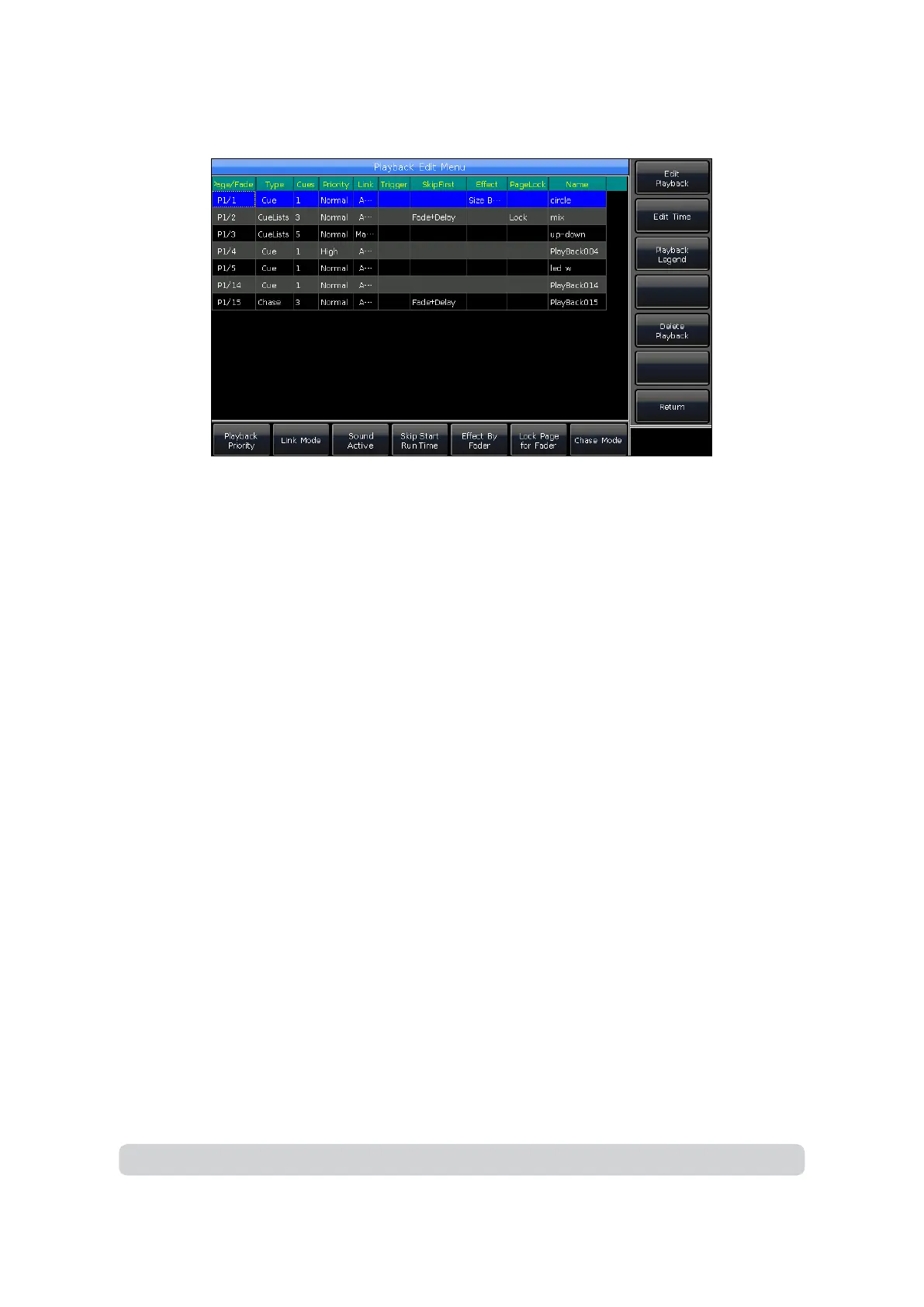
There are many options for you to edit playback parameters for each playback in the Playback Edit Menu.
7.7.1 Playback Priority
The [Playback Priority] option allows you to set the running priority level of dierent playbacks. The option can be set as
options such as very low, low, normal, high and very high. Each new playback defaults as normal.
This function is very useful while performing. When some xtures are running a playback, running a new playback with
the same xtures will change the old one if the new one is in the same or higher priority. However, if the priority of the
new playback is lower than the rst one, the rst playback will not be changed.
7.7.2 Set Link Mode for Cue-lists
Pressing the [Link Mode] soft key can switch the Cue-list link mode between Auto, Manual, or Normal.
7.7.3 Sound Active
The [Sound Active] option allows you to run Cue-lists that follow a bass rhythm.
7.7.4 Playback Start Time
Start time may aect the beginning rst step if the running time on Cue-lists is set. For example, if you set a delay in or
fade in time, xtures will use this time to move from the last position to the rst step, and start to run Cue-lists each time.
You can skip the time by pressing the option [Skip Start Run Time] for Fade, Delay, or Fade+Delay.
7.7.5 Set Eect of Fader
If there is a Cue saved with shape eects, you can set a fader trigger using the options under [Eect By Fader]. These
options include: Size By Fader, Speed by Fader, or Size+Speed by Fader.
7.7.6 Locking Faders
You can lock playback with the option [Lock Page for Fader]. Once this option is selected, playback will be locked on the
page where it is, although you can still run the program in other pages.
Note: Once a playback is locked, playbacks on the same fader in other pages will be unavailable.


 To Next Page