Need help?
Do you have a question about the Blizzard Lighting ENIGMA M4 and is the answer not in the manual?
Explains the purpose and conventions used within the manual.
Instructions for unpacking the unit and checking for damage.
Guidance on how to safely power on the lighting controller.
Information on how to contact support for assistance.
Important safety guidelines for installation, usage, and maintenance of the product.
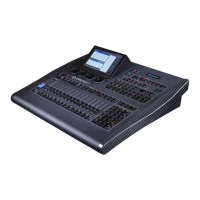
Diagram illustrating the front panel layout and key components of the controller.
Details the various controls and features on the front panel, including keys, faders, and displays.
Describes the 7-inch TFT-LCD touch screen and its interactive functions.
Details the USB port for backups, libraries, and system upgrades.
Overview of the rear panel connections and ports.
Explains DMX signal output via DMX outputs (A/B).
Details Art-Net interface for DMX signal output via network cable.
Explains MIDI control capabilities for the unit.
Describes the 1/4" mono audio input and its function.
Information on power supply compatibility and fuse replacement.
Procedure for clearing all data from the controller before use.
Instructions for backing up and loading show files to the internal disk or USB drive.
Steps for creating and naming custom show backup files.
Initial steps for patching fixtures and assigning DMX addresses.
Process for patching intelligent fixtures and dimmer channels.
Detailed procedure for patching intelligent fixtures using system or user libraries.
Verifying and adjusting DMX addresses and fixture settings.
How to remove unwanted fixtures from the patch setup.
Adjusting Pan/Tilt inversion and dimmer channel inversion for moving lights.
Various methods for selecting fixtures for manual control.
How to control fixture attributes like lighting, pan, and tilt.
Advanced attribute control, including color mixing and range tables.
Selecting and controlling fixtures one by one.
Additional locate functions like 'Locate without Pan/Tilt' and 'Running Macros'.
Creating and applying fan effects to fixture attributes like Pan/Tilt and Color Mix.
How to clear manually operated fixture data.
Organizing fixtures into groups for quick selection and control.
Step-by-step guide to creating and saving fixture groups.
Editing, renaming, deleting, and managing the order of fixtures within groups.
Methods for selecting created groups for control.
Steps to create and save custom presets, including save modes and preset modes.
Renaming, setting fade times, and managing existing presets.
Various methods for recalling presets and their effect on fixture attributes.
Introduction to shape effects and their application to fixture attributes.
Step-by-step guide to applying effects using the effect generator interface.
Adjusting parameters like size, speed, spread, groups, offset, and direction for effects.
Understanding the different running modes for effects (Rel(Center), Rel(Up), Rel(Down), Absolute).
Realigning fixture running order for effects.
Removing unused effects from the system.
Saving and managing custom effects for future use.
Steps to save system effects as custom user effects.
Procedures for deleting saved user effects.
Overview of playbacks, pages, faders, and their capacities.
Accessing and understanding the playback editing interface.
Saving and running individual cues.
Different modes for saving cues (Fixture, Changed Attr., All Stage).
Setting run modes for cues (Time or Fader).
Steps to save a cue with selected fixtures and desired modes.
Creating and running sequences of cues (Cue-lists and Chases).
Step-by-step guide to creating a cue-list playback.
Editing individual cues within a cue-list.
Modifying specific cues within a cue-list playback.
Adjusting effects saved as part of a playback.
Adding new steps into an existing cue-list playback.
Using fixture overlap to create chase effects in one step.
Setting the order of fixtures for cue-lists with overlap or effects.
Removing a specific step from a cue-list playback.
Setting global and attribute timing for playbacks.
Configuring global delay and fade times for cue-list and cue playbacks.
Adjusting delay and fade times for specific fixture attributes.
Setting times for cue-lists when operating in chase mode.
Controlling when instant channels occur within a cue fade.
Adjusting cue-list speed manually using Wheel D.
Setting link modes (Internal, Auto, Manual) for cue-list steps.
Accessing and modifying advanced playback parameters.
Setting priority levels for playbacks to manage fixture control.
Switching cue-list link modes.
Enabling cue-lists to follow a bass rhythm.
Managing start times and skipping initial delay/fade for cue-lists.
Using faders to trigger shape effect parameters.
Locking playbacks to prevent accidental changes.
Renaming playbacks for easier identification.
Steps for running playbacks and controlling their execution.
Editing playback parameters, including reloading cues.
Loading attribute values from playbacks into the current program.
Additional playback parameter options such as release mode and direction.
Turning off effects, fixtures, or releasing playbacks.
Copying groups, presets, and playbacks to different targets.
Deleting data such as all data, presets, playbacks, or groups.
Moving groups, presets, or playbacks to new locations.
Password protecting the controller to prevent unauthorized access.
Recording and replaying sequences using time codes.
Recording macro shows using external MIDI time code.
Recording macro shows using the controller's internal clock.
Modifying existing macro show recordings.
Renaming options on the touch screen, such as fixtures, groups, and presets.
Setting user-specific options for console management and behavior.
Managing console settings like playback GO+/GO-, palette, and brightness.
Choosing the display language between English and Chinese.
Configuring miscellaneous settings like date, time, and network.
Setting the local date and time displayed on the touch screen.
Configuring network settings and DMX network protocols.
Configuring MIDI channels, modes, and commands for external control.
Managing system files, libraries, and software.
Upgrading system or library files via USB driver.
Creating, editing, and managing fixture profiles in the library.
Adding new fixture profiles to the library.
Removing custom user libraries from the system.
Importing and adjusting libraries from the system.
Exporting user libraries to a USB drive.
Importing user or R20 library files from a USB drive.
Setting default window views and accessing MacroShows.
Saving screen captures of the touch screen view.
List of the primary features and capabilities of the controller.
Information on obtaining system and library updates.
Detailed technical specifications including dimensions, power, and connectivity.
 General
| Brand | Blizzard Lighting |
|---|---|
| Model | ENIGMA M4 |
| Category | DJ Equipment |
| Language | English |

 To Next Page