Enigma™ M4 Manual - Rev A Page 32 (c) 2020 Blizzard Lighting, LLC
1. 2. 3.
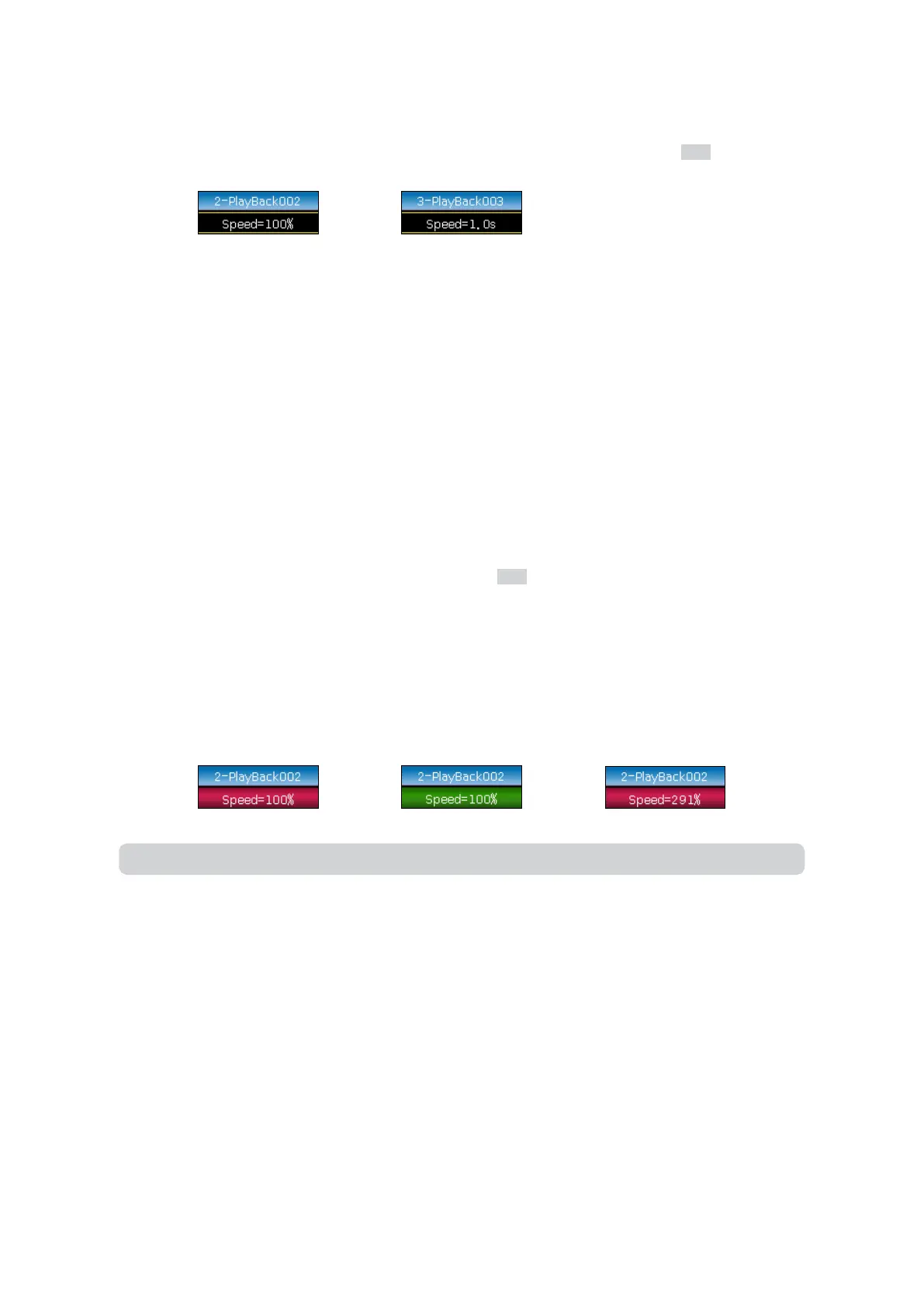
Note: The speed of Cue-lists in chase mode shows in seconds instead of a percentage.
7.6 Link Mode of Cue-lists
You can set the link state of each Cue-list step. When set to Link=ON, it means it will go on running after the end of the
step. However, when Link=OFF is set, the step will stop until the next running instruction.
There are 3 link modes for Cue-lists: Internal, Auto, and Manual.
• Normal — Cue-lists steps run by the link settings of each step.
• Auto — No matter what the link setting is, Cue-list steps will keep running automatically.
• Manual — No matter what the link setting is, Cue-lists will pause on each step until getting next instructions.
If link mode is Manual or Normal with Link=OFF, the key under the playback fader can be used as a GOTO function after
the playback has faded in. Pressing it once means to run one step.
7.5.3 Time for Cue-lists in Chase Mode
Global and attribute times are unavailable for Cue-lists in chase mode.
The times for chase mode can only be set by using Wheel D, while crossfade is set by using the Shift key with Wheel D.
• Cross=100% means steps will use the time to fade in the next step.
• Cross=0% means steps will not have a fade in time. The time is used as delay in for each step.
Speed=1.0s means every step in the chase runs in 1.0 second.
7.5.4 Snap Percentage
[Snap Percent] allows you to control when instant channels should occur. It defaults in 0%.
• If snap percent is 0% the channel occurs at the beginning of the cue fade in.
• If snap percent is 100% the channel occurs at the end of the cue.
• If snap percent is 50% the channel occurs in the middle of the cue.
7.5.5 Manually Control the Speed of Cue-lists
You can also set the speed when running Cue-lists. When fading in a Cue-list, you can use Wheel D to directly adjust the
speed. To adjust other Cue-list speeds, you need to hold down the Shift key and press the desired playback key.
1. Roll Wheel D to set the speed percentage of the Cue-lists, on the bottom right corner it will displays as:
Speed=100% (adjust range from 10%~500%).
2. Input a value using the numeric keys and press the speed frame to set the value.
3. Press the speed frame to make it turn red, then press Wheel D to make it turn green (this is the starting mark).
Press Wheel D again, and the frame will turn red again (this is the ending mark). Then the system will calculate a
speed by the time slot between the start and end marks.
4. Press the speed frame to exit.
1. 2.


 To Next Page