Enigma™ M4 Manual - Rev A Page 34 (c) 2020 Blizzard Lighting, LLC
7.7.7 Rename the Playback
After selecting a playback in the list, you can rename the playback using the option [Playback Legend]. The name of the
playback will be displayed on the bottom right corner when fading in the playback.
7.8 Run Playback
It’s easy to run a playback. Select the playback page, and fade in the playback. When running several playbacks, the
bottom right corner of the touch screen will display the latest faded in playback. You can switch the running playback by
pressing Shift along with the key of the playback fader, or the Fixed key. The velocity of the Cue-lists in its present state
can be adjusted by Wheel D.
The keys above or under the playback faders have dierent functions for running playbacks.
1. Keys above playback faders can be used to prelocate or pause.
These keys can be used as a prelocate function before the playback is faded in. Press the key above the fader. All LTP
channels of xtures will be set to the value on rst scene of playback with the lamp o. Once you fade in the playback, the
program will start to run immediately.
You may also hold these keys to fade in a playback. The program will start to run with the lamp o. Once you release the
key, the xtures will lamp on immediately. If you faded in a playback, the key above can be used as a pause function. The
xtures will stop at the present position when pressed.
2. Keys under playback faders can be used as ash or manual control.
The keys under playback faders can be used as a ash if the playback is not faded in. Pressing and holding the key will
keep the playback running the same as a fully faded in fader. Once the key is released, the playback will stop.
If there is a Cue-list playback faded in, these keys can be used for manual control. Pressing the key once means to run one
step of the Cue-list.
Note: In order to use the manual control function, the settings of Playback GO+/GO- in Controller Manage
should be [Enable], and the Cue-list steps should be set as Normal with Link O or Manual.
7.9 Playback Parameters
In LIVE SHOW, you can also edit the playback with the option [Playback Parameters].
7.9.1 Reload a Cue
This controller will allow you to reload attribute values of xtures from one of the playbacks. Needed attribute values can
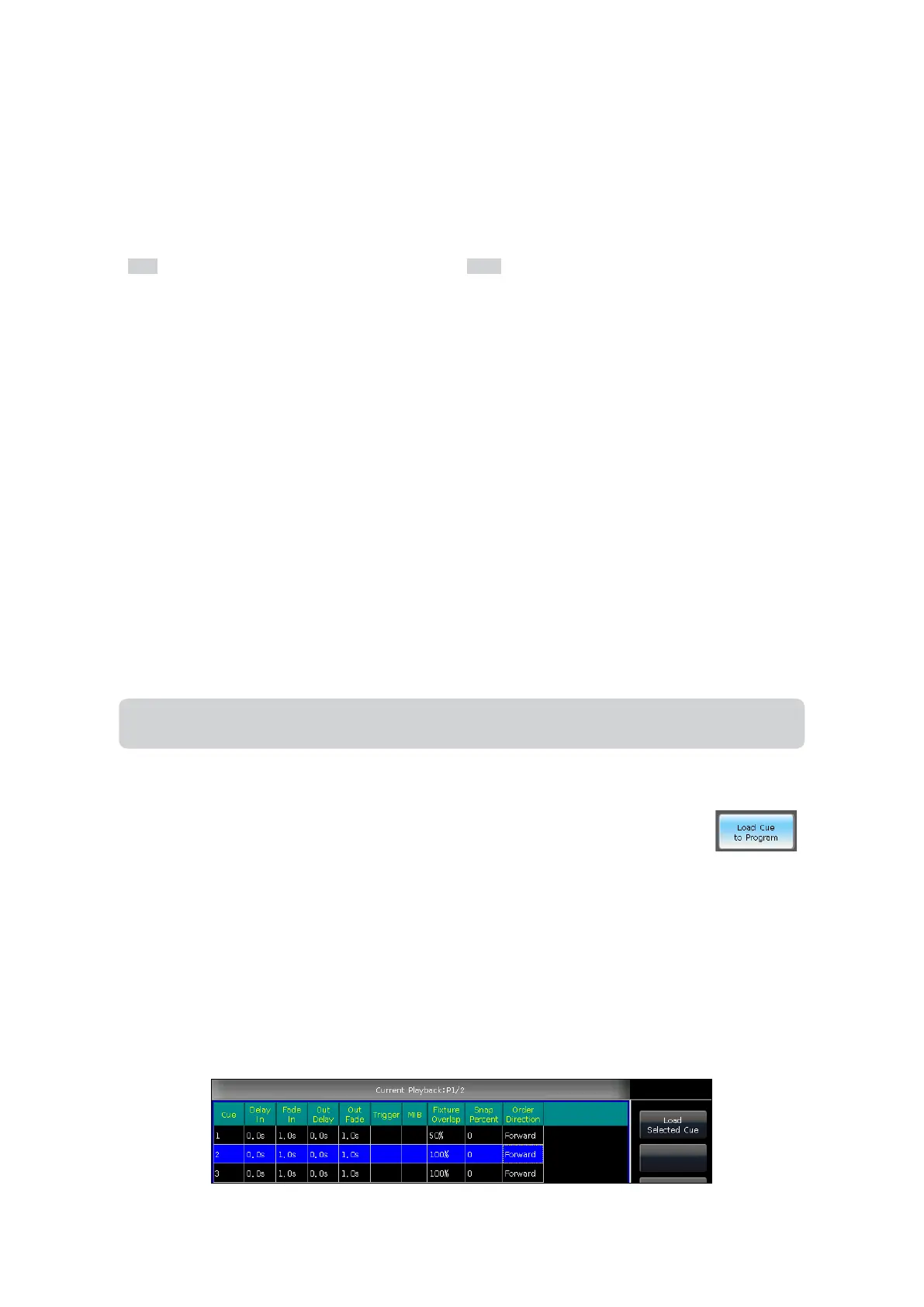
be loaded from cues with [Load Cue to Program] after selecting [Playback Parameters].
At this time, you may nd that all of the LED indicators of the attribute keys are on. You can press the attribute keys to
cancel any selected, so that the non-selected attributes will not be loaded in. You can also select the playback that needs
to be reloaded. If there is a Cue playback, xtures included in the cue will be selected automatically. If there is a Cue-list
playback, you may select one of the cues from the Cue-list and select [Load Selected Cue]. It will return to LIVE SHOW,
and xtures included in the cue will be selected automatically.


 To Next Page