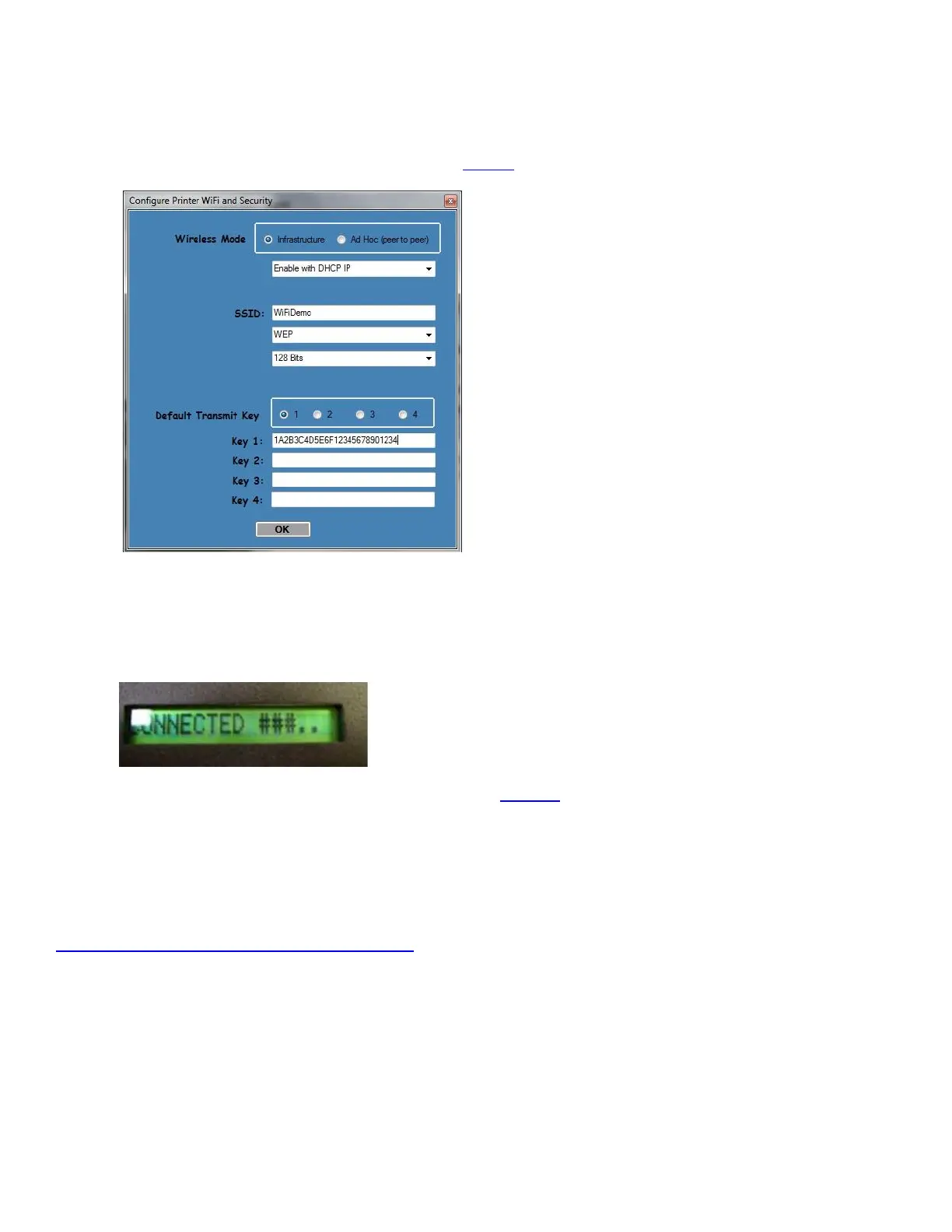
8. WEP Security Mode – Allows the user to communicate through the network using WEP wireless encryption.
With WEP one can select 64 bit or 128-bit encryption. When the security encryption mode is chosen it will be
required to enter the “Key” for the local wireless network. Please note the key is case sensitive. Some
networks also enforce the use of a default transmit key. If needed select one, else leave it set to “1”. Next the
four security key values will have to be entered to match those of the local network. Finally click on OK to have
these values transmitted to the printer (through the cable). The printer will reset and upon re-initialization it will
establish wireless communication with the local network. The handshaking involved in establishing wireless
communication can take up to 30 seconds. Go to step #9.
9. The printer will reset. Depending on your operating system, this rest may happen less than 60 seconds or as
long as 5 minutes. Upon re-initialization it will establish wireless communication with the local network.
Depending on your network, a connection can be established in less than 60 seconds or as long as 5 minutes.
Messages will be displayed on the LCD display when the printer is connecting. When it is connected the display
will show pound signs (#####) representing signal strength (see image below). At this point the printer is
connected to your Wi-Fi router.
If it fails or displays IDLE then there is a problem. See item #13 on the Troubleshooting Guide.
10. Press the TEST button to print out a self-test ticket. This ticket will show the IP address that was acquired by
the printer. You may use the configuration and test program to test this interface connection. You would run the
program like you are connecting to an Ethernet printer and enter in the IP address that is shown on the self-test
ticket.
Please go to the link below if you need assistance in configuring your Wi-Fi connection.
www.bocasystems.com/onlinesupportform.html
If your printer has an options Ethernet port then this port will be disable while the printer is in Wi-Fi mode. The
printer is not able to run both Ethernet and Wi-Fi at the same time. If you need to go back to using the
Ethernet port then the Wi-Fi needs to be disable. This may be done by repeating the above procedure but at
step # 4 choosing Disable Wireless.
The RJ12 serial port will not work with a printer that has optional Wi-Fi interface.



 To Next Page