Multi-DM™ User Manual Section 6 - BMC SDK Software Installation
BMC Document Number: DOC-0009 Rev. 5.2 Page 18
6.1 BMC SDK Software Installation Instructions
The BMC SDK software consists of hardware and software drivers, GUI and
command line applications to control the DM, and a full set of documentation.
For a full description of the contents of the SDK software see Section 5.4,
SDK and Demonstration Software.
To install the BMC SDK Software:
1. Verify the computer meets the minimum hardware and software requirements.
For the detailed requirements see Section 4.4, System Requirements.
2. Verify there is no existing installation of the BMC SDK software.
To do this check in Control Panel, Programs and Features.
If there is an existing installation, continue with this procedure.
You will be presented with an option screen where you can select Remove.
3. Insert the supplied USB Flash Drive into an available USB Port.
4. On the Desktop open My Computer, or Click Start then My Computer.
5. Browse to the USB Flash Drive which may appear in the Navigation Pane
as either USB DISK or Removable Disk.
6. In the file window locate the file DMSDK-Setup- <version number>.exe,
then double-click on the file name.
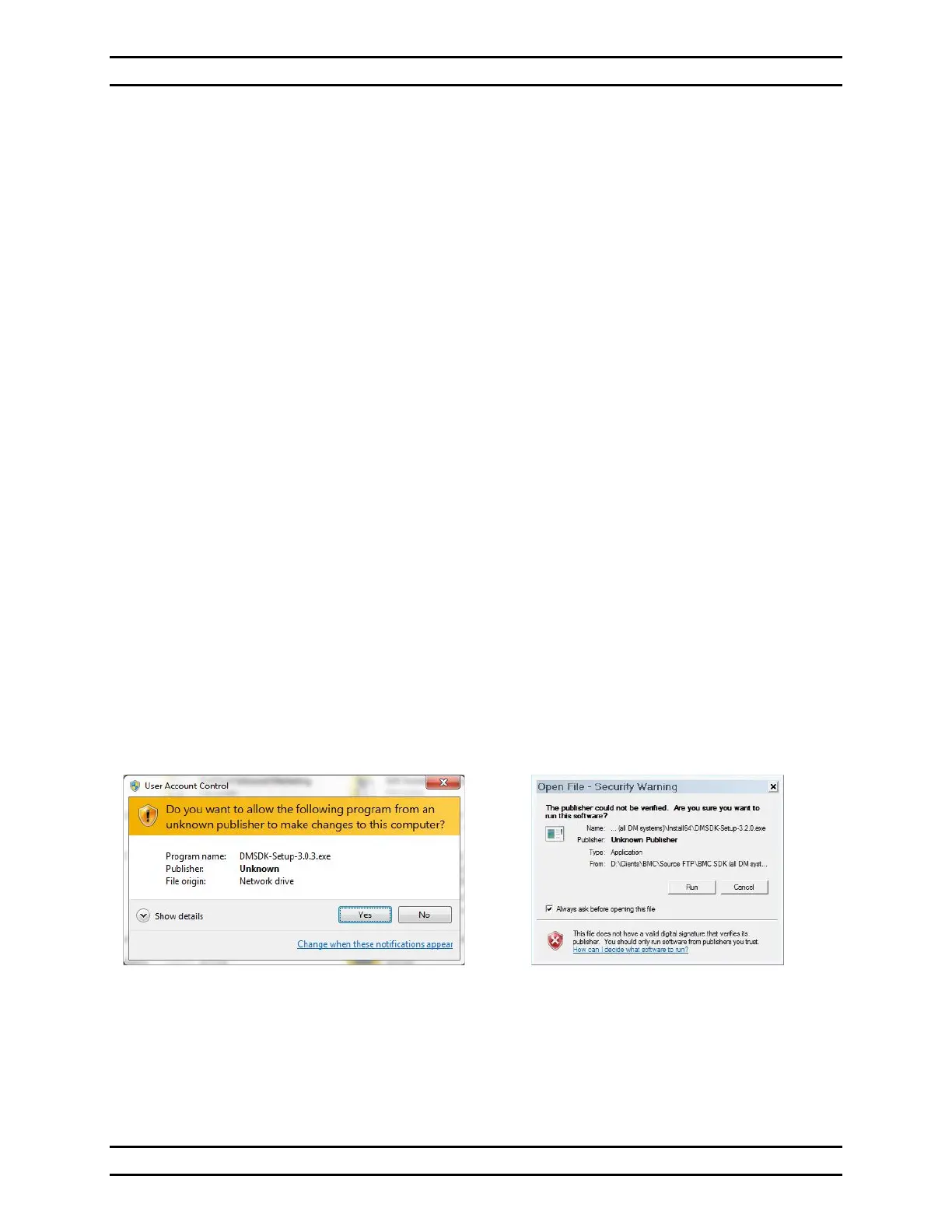
• In Windows 10 the User Account Control dialog will appear.
• In Windows 7 the Open File - Security Warning dialog will appear.
Windows 10
User Account Control dialog
Windows 7
Open File - Security Warning dialog
This dialog is to confirm that you want to allow a program
from an unknown publisher to make changes to the computer.


 To Next Page