BowFlex Treadmill 10 & 22 - CHECK FIRMWARE VERSION
"Procedure 2"
Applicable for the Treadmill 10 & 22 only
Follow these steps to check the firmware version
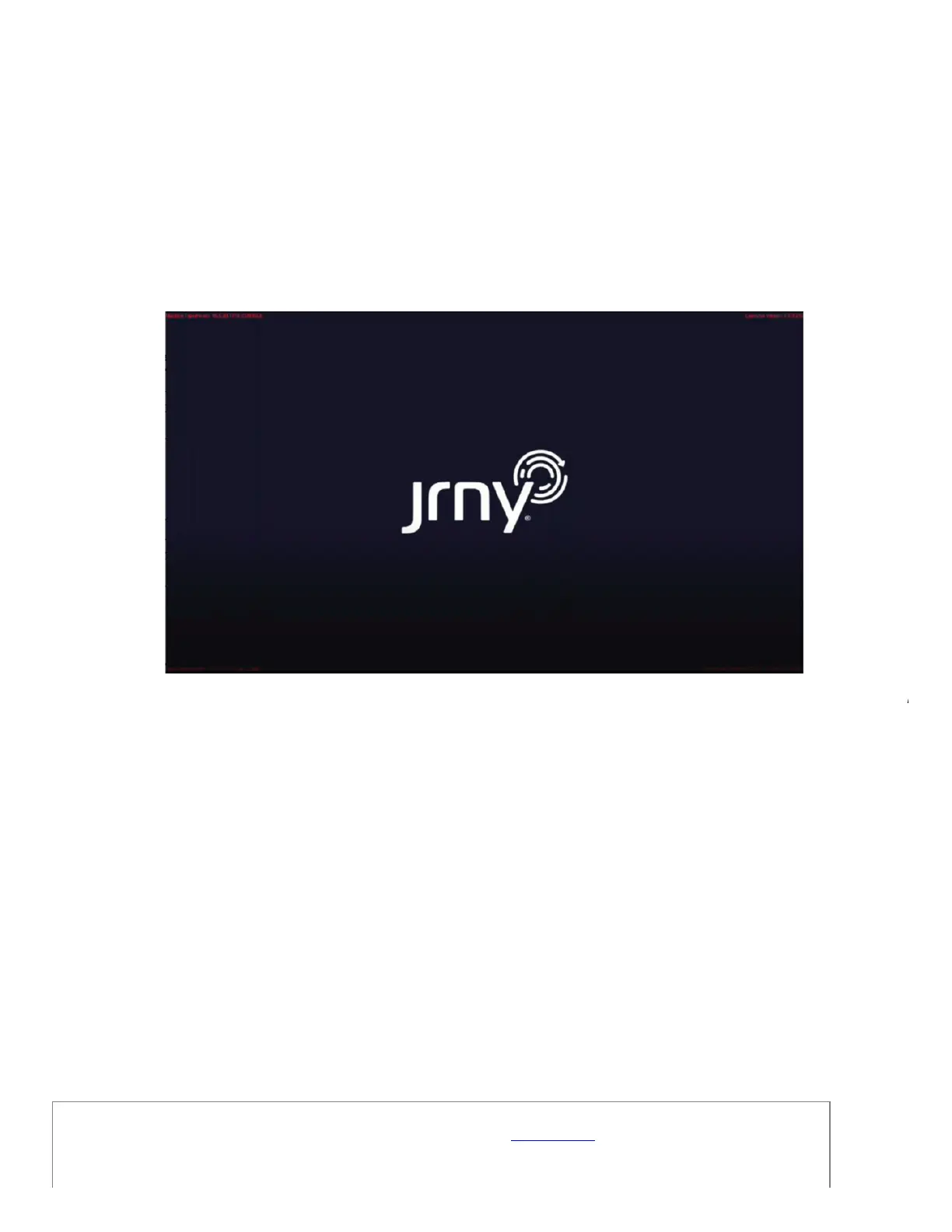
1. From the Boot-Up screen with red text in the corners (reference 1), tap on the upper-left corner of the Console
Display 10 times. The Console will display the “Select Action” menu.
(Reference 1)
The boot-up screen appears for 4 seconds at the beginning of the powering on process. This screen shows the JRNY logo and red text in each
corner with the firmware version, console serial number, base serial number, and the machine type.
2. Tap on “Manufacturing App”.
3. From the “Manufacturing App” menu, tap the INDIVIDUAL TESTS button. The Console will display a list of tests.
4. Tap on TEST-CONSOLE_VERSION. The Console will display the Firmware Version.
5. Record the Console Firmware Version as shown.
6. Tap EXIT in the upper-right corner of the Display to exit.
Need additional assistance?
Please contact Customer Care at 1-800-605-3369 for additional help or to order replacement parts.
Some replacement parts may also be available for purchase online here.
A list of part numbers referenced within this guide can be located at the bottom of this page.
ID:13535.2


 To Next Page