25
5.3 ADD YOUR CONSOLE TO WSLINK
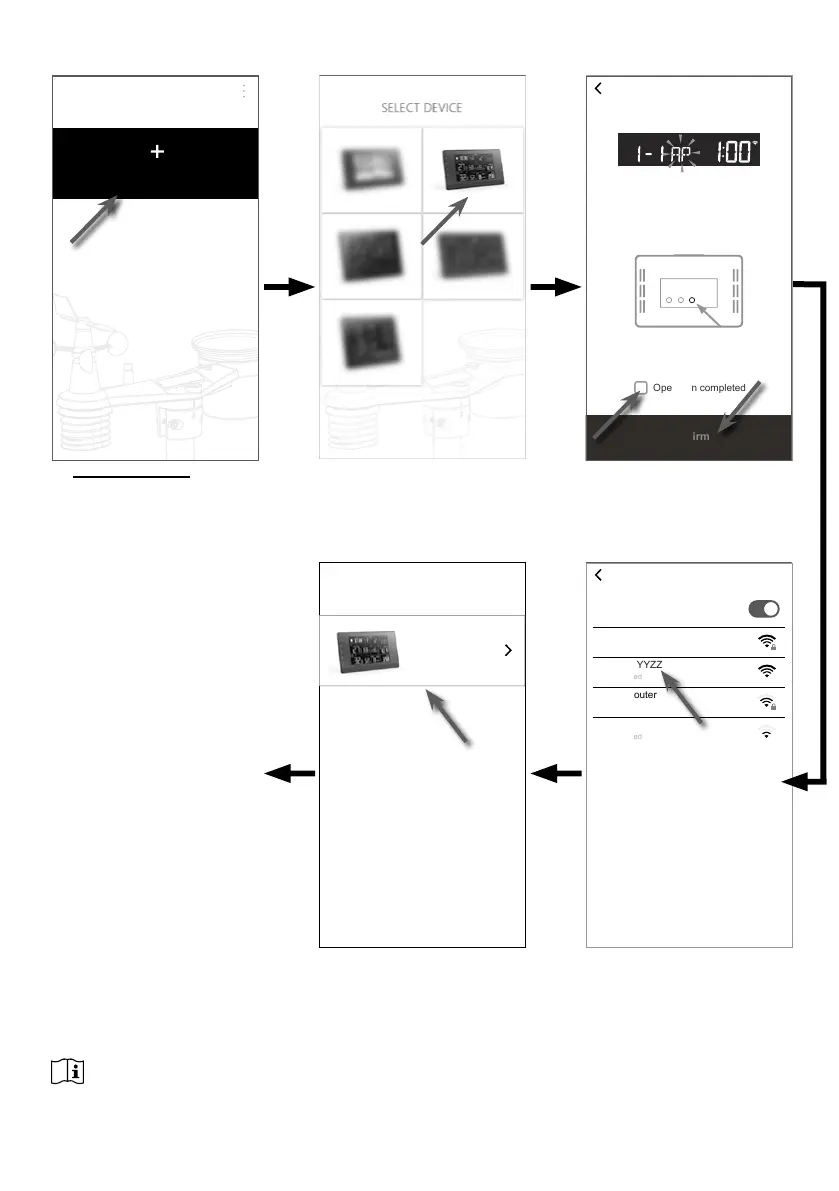
Open the WSLink app and follow the steps below to add your console to WSLink.
PWS-XXYYZZ
Add Device
YOUR DEVICE
DEVICE ADDED
(e) Once the console is added
to WSLink, the console icon will
appear on your device list. Tap it
to continue the setup.
(a) Your Device page
Tap "Add Device" icon.
Section 5.4
Setup new console with WSLink
(c) Ensure the console is in AP
mode and check the "Operation
completed" box, then tap "Conrm"
to go to system WI-FI network page
of your smart phone.
(b) Select your device.
(d) Select the console WI-FI network
name (the name always begin with PWS-
) to connect your smart phone to the
console. Then tap back to WSLink app.
Wi-Fi
Wi-Fi
Room Router
Encrypted
My Router
Connected
PWS-XXYYZZ
No encrypted
John
No encrypted
Confirm
ADD DEVICE
Operation completed
Press & hold WI-FI button for 6 sec
to enter AP mode
Check if the console is in AP mode
(AP icon flashing)
OTHERWISE
NOTE :
- For the rst time connection, you need to select "No Internet connection" when connect to this device.
- If your smart phone cannot connect to the console, please turn o the mobile data / network in you smart
phone and try again.



 To Next Page