26
5.4 SETUP NEW CONSOLE WITH WSLINK
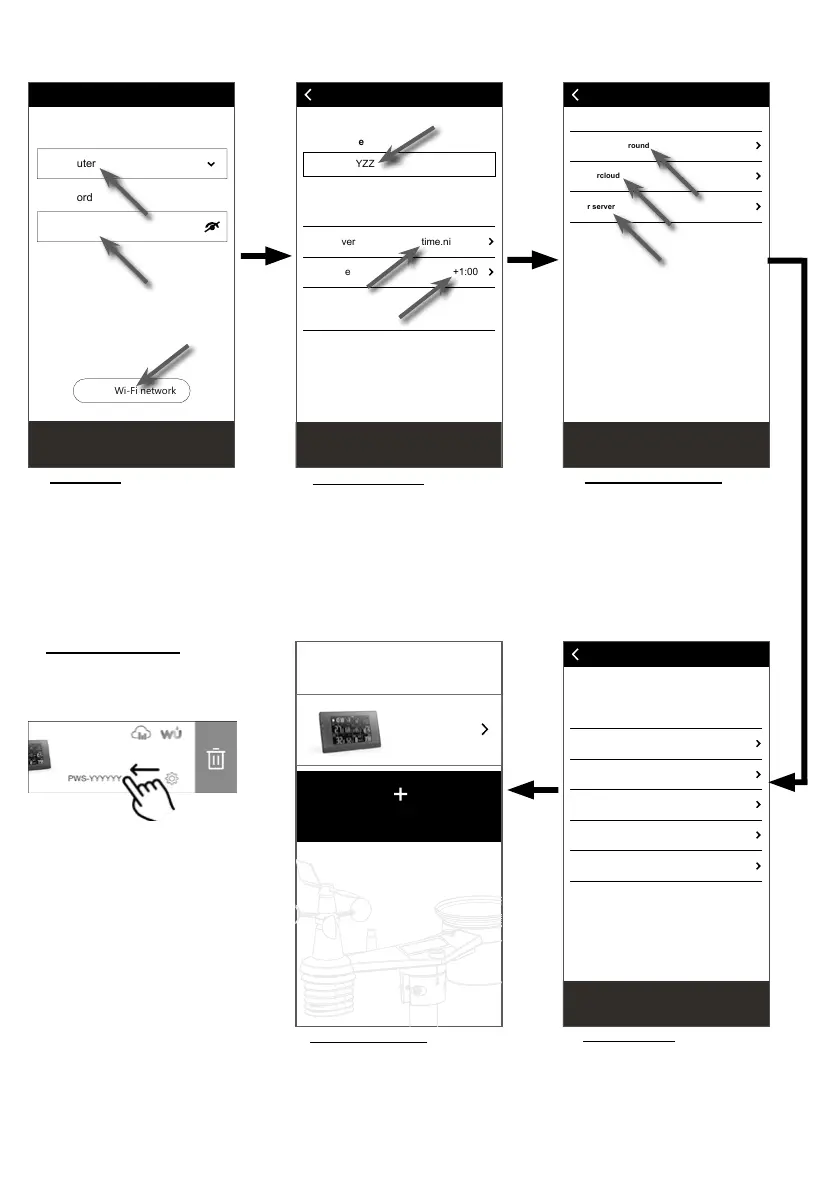
The app will follow the steps below to guide you through the setup.
Edit device
Device name
PWS-XXYYZZ
Next
me server time.nist.gov
AA:11:BB:XX:YY:ZZ
me Zone +1:00
me setting
MAC address
Ti
Ti
Ti
Wi-Fi
Calibration
Weather server
Edit device
Firmware
Settings
Confirm & Exit
Wi-Fi
Other Wi-Fi network
Password
Network
Next
My Router
Weather server
Weather Underground
Weathercloud
Other server
Next
(e) Wi-Fi page
Network: select WI-FI network
(router SSID) for connection.
Password: enter WI-FI password.
Other WI-FI network: setup to
hidden WI-FI network.
Next: go to "Edit Device" page.
(f) Edit device page
Device name: Create a name
for your device.
Time server: select time server
Time Zone: select the time zone
of your location.
Next: go to "Weather server"
page.
(g) Weather server page
Weather Underground: please
refer to section 5.5 (c1).
Weathercloud: please refer to
section 5.5 (c2).
Other server: please refer to
section 5.5 (c3).
Next: go to "Settings" page.
(h) Settings page
This is main page of the console,
you can enter dierent setup
page to setup your console.
Once you complete the setup, tap
"Conrm & Exit" to exit AP mode.
(i) Your Device page
Your setup is now completed.
You can tap the console icon
and follow the procedure to do
the console settings anytime if
necessary.
Add Device
YOUR DEVICE
(j) Delete your console
To remove device from the app,
swipe the console icon left and
tap the bin.
PWS-XXYYZZ



 To Next Page