75
Resetting the printer
RESETTING & MAINTENANCE
RESETTING & MAINTENANCE
You can reset the internal memory of your printer to clear all saved label files, or if the printer
is not operating correctly.
Resetting the Data to Factory Settings Using the printer Keyboard
To reset all the labels and customised settings
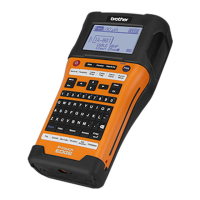
Turn off the printer. Press and hold the Shift and Backspace keys, press the Power key
once, and then release the Shift and Backspace keys.
To reset the customised settings
Turn off the printer. Press and hold the Shift and R keys, press the Power key once, and
then release the Shift and R keys.
Resetting the Data Using the Menu Key
Press the Menu key, select “Reset” using the or key, and then press the OK or Enter
key. Select the resetting method using the or key and press the OK or Enter key.
Resetting the printer
All text, format settings, option settings and stored label files are cleared when you reset the
printer. Language and unit settings will also be cleared.
Value Details
Reset All Settings
Transferred data (templates, databases, and user-defined
characters) and the contents in the file memory are NOT cleared.
Other data is cleared and all settings except the Wi-Fi settings are
reset to the factory settings.
Erase All Content
Transferred data (templates, databases, and user-defined
characters) and the contents in the file memory are cleared.
Other data is NOT cleared and settings are NOT reset.
Factory Default
All labels, customised settings, and the Wi-Fi settings are reset
to the factory settings.
Reset Wi-Fi Settings All Wi-Fi settings are reset to the factory settings.












 To Next Page
