Chapter3 NAS Navigator 2
LinkStation User Manual 114
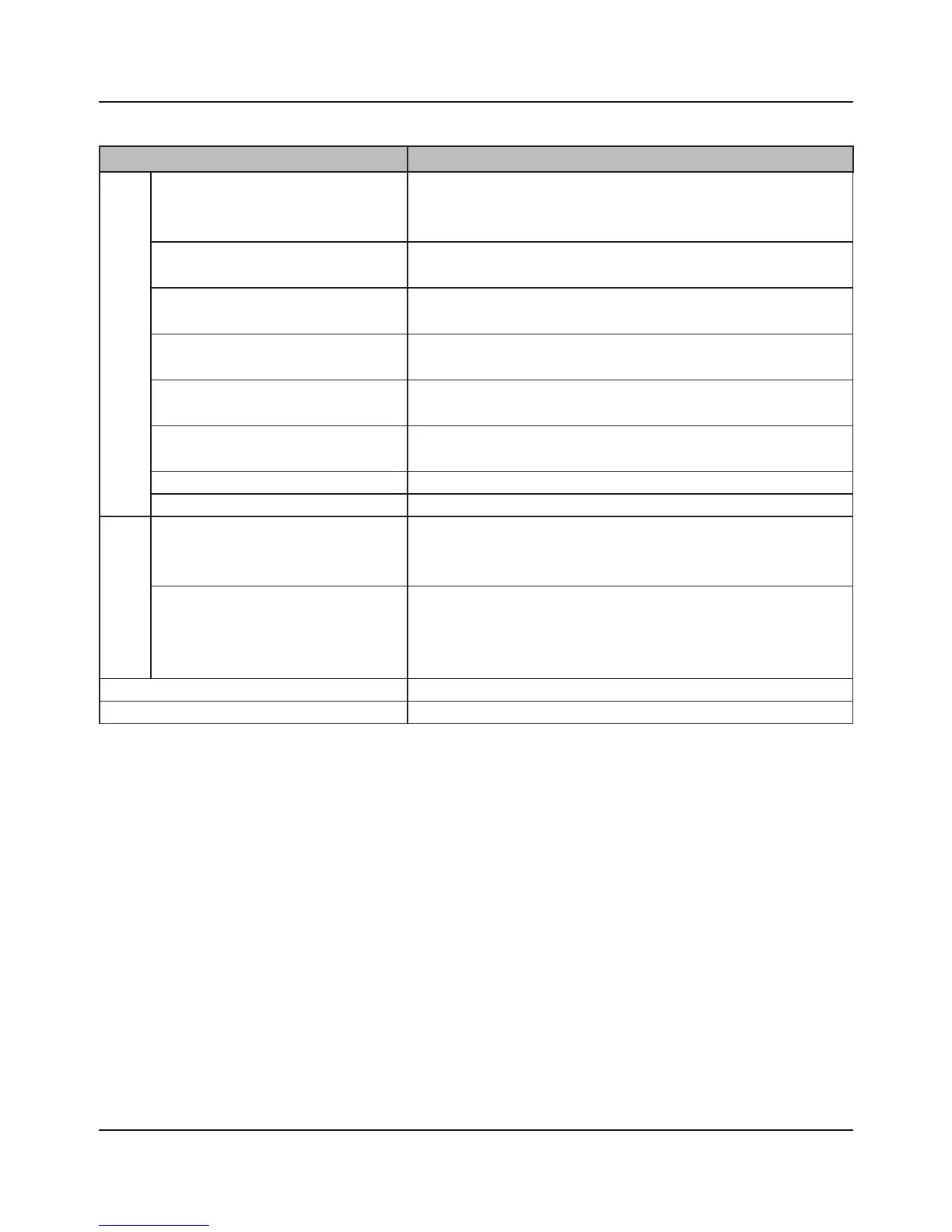
Name Descriptions
Menu
Map remote default share to
drive letter (*)
Assigns the LinkStation's shared folder as a network drive.
Disconnect mapped drive letter
(*)
Removes the network drive mapping.
Map all remote shares to drive
letters
Assigns all the LinkStation's shared folders as network
drives.
Create desktop shortcut for Tera/
LinkStation (*)
Creates a shortcut to the LinkStation's shared folder (share).
Launch NAS Navigator2 on
startup
Launches NAS Navigator2 in the task tray when Windows
boots.
Display the error information If an error occurs, an error message will pop up from the
NAS Navigator2 icon in the task tray.
Properties (*) Opens the selected LinkStation's Properties window.
Close Closes NAS Navigator2.
View
View [Icon]: Displays icon for ease.
[Details]: Displays Name, Product Name, Workgroup, IP
Address, Subnet Mask, and Default Gateway.
Sort by Selects the sort order from following to display when
multiple LinkStations are found:
Host name, Product Name, Workgroup, IP Address,
Subnet Mask, Default Gateway
Browse(*) Opens the LinkStation’s shared folder.
Refresh Searches for NAS devices on the network again.
* not displayed unless the LinkStation's icon is clicked.














 To Next Page