Chapter1 Setup
LinkStation User Manual 7
Notes: If you are using Windows 7 or Vista, the autoplay screen may appear. Click [Run LSNavi.
exe].
If “Do you want to allow the following program to make changes to this computer?” is
displayed in Windows 7, please click [Yes].
If “A program needs your permission to continue” is displayed in Windows Vista,
please click [Continue].
For OS X, double-click on the LinkNavigator icon in the utility CD.
If you have problems installing, temporarily disable your anti-virus software and
software rewall. After setup is complete, re-enable the software.
If your computer does not have a CD drive, you may download the LinkNavigator
software from www.bualotech.com.
5
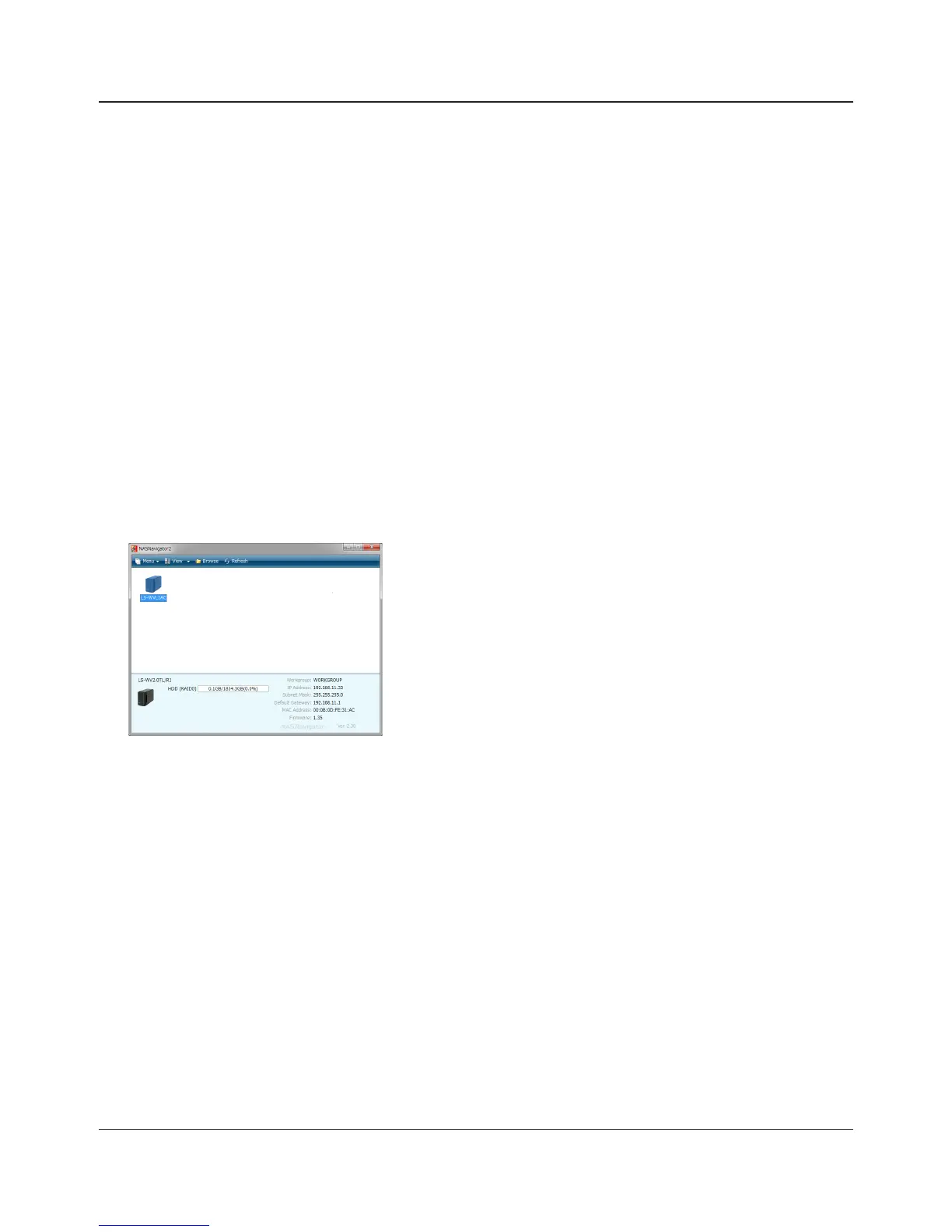
Click [Finish] or [Complete]. NAS Navigator2 starts automatically.
6
7
The LinkStation’s shared folder opens. You can now use the LinkStation’s shared folder to save
les just like any other hard drive.
Note: With Mac OS, the LinkStation is mounted as a drive icon on the desktop, or it is displayed in
the sidebar of the Finder.
Setup is now complete.
In NAS Navigator2, double-click your LinkStation’s icon.














 To Next Page