135
3 Setting the White BalanceN
Custom white balance enables you to manually set the white balance
for a specific light source for better accuracy. Perform this procedure
under the actual light source to be used.
1
Shoot a white object.
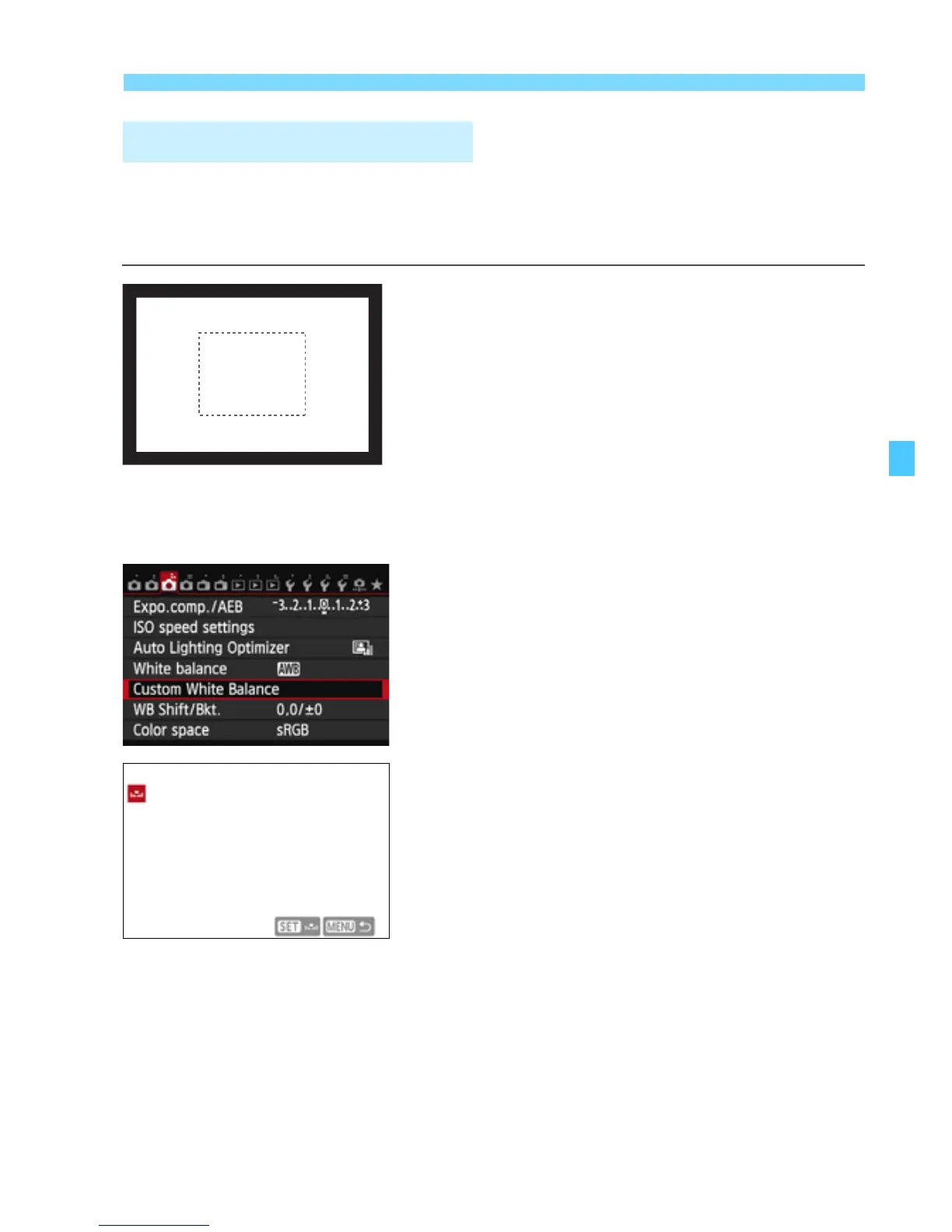
Look through the viewfinder and aim
the entire dotted line box (shown in
the illustration) over a plain, white
object.
Focus manually and set the standard
exposure for the white object.
You can use any white balance
setting.
2
Select [Custom White Balance].
Under the [z3] tab, select [Custom
White Balance], then press <0>.
X The custom white balance selection
screen will appear.
3
Import the white balance data.
Turn the <5> dial to select the
image captured in step 1, then press
<0>.
X On the dialog screen that appears,
select [OK] and the data will be
imported.
O Custom White Balance


 To Next Page