41
Advanced
Functions
E
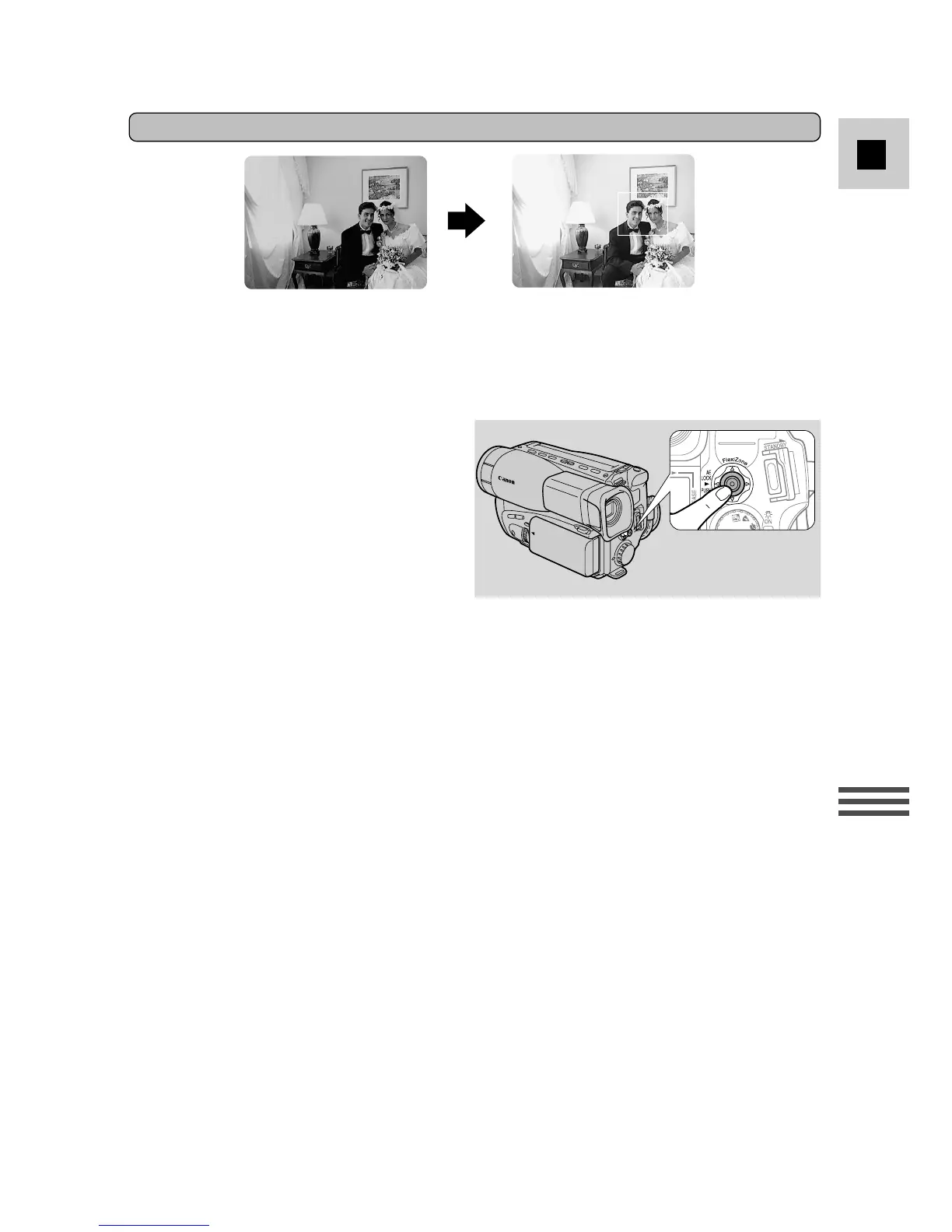
The camera usually adjusts the exposure so that it is suitable for the whole scene,
and especially for the area in the centre of the viewfinder. FlexiZone AE allows
you to choose any part of the scene, so that even if your subject is towards the
edge of the screen, or if it is very bright or very dark, it will still be properly
exposed.
FlexiZone AE
EXP.LOCK
1. Turn the program selector to
w
FlexiZone Recording Program.
• The FlexiZone control frame
appears in the viewfinder.
2. Use the FlexiZone controller to
move the frame over the subject.
• The controller can be moved in
any direction.
3. Press the centre of the FlexiZone controller in straight.
• The camera adjusts the exposure to suit the area that is currently inside the
frame. You can move the frame to focus on something else, but the exposure
area will not move with it.
• EXP.LOCK appears in the viewfinder.
4. Press the controller in straight again when you want to cancel
FlexiZone AE.
• The exposure is now adjusted to suit the centre of the screen again.
• Press the controller once more if you want to adjust the exposure for the
frame’s new position.
• When you zoom into the digital range, the FlexiZone frame becomes locked
in the centre of the screen and you are unable to use AE Lock. Zoom back
out from digital to optical, and the frame blinks twice, signaling that you are
again free to move the frame around the screen.


 To Next Page