WebCAM user manual -57-
Chapter 6: MultiMonitor
Image Recording
Click “Start Recording when Motion Detected” to enable the
feature. Click the “Details..” button for the following options;
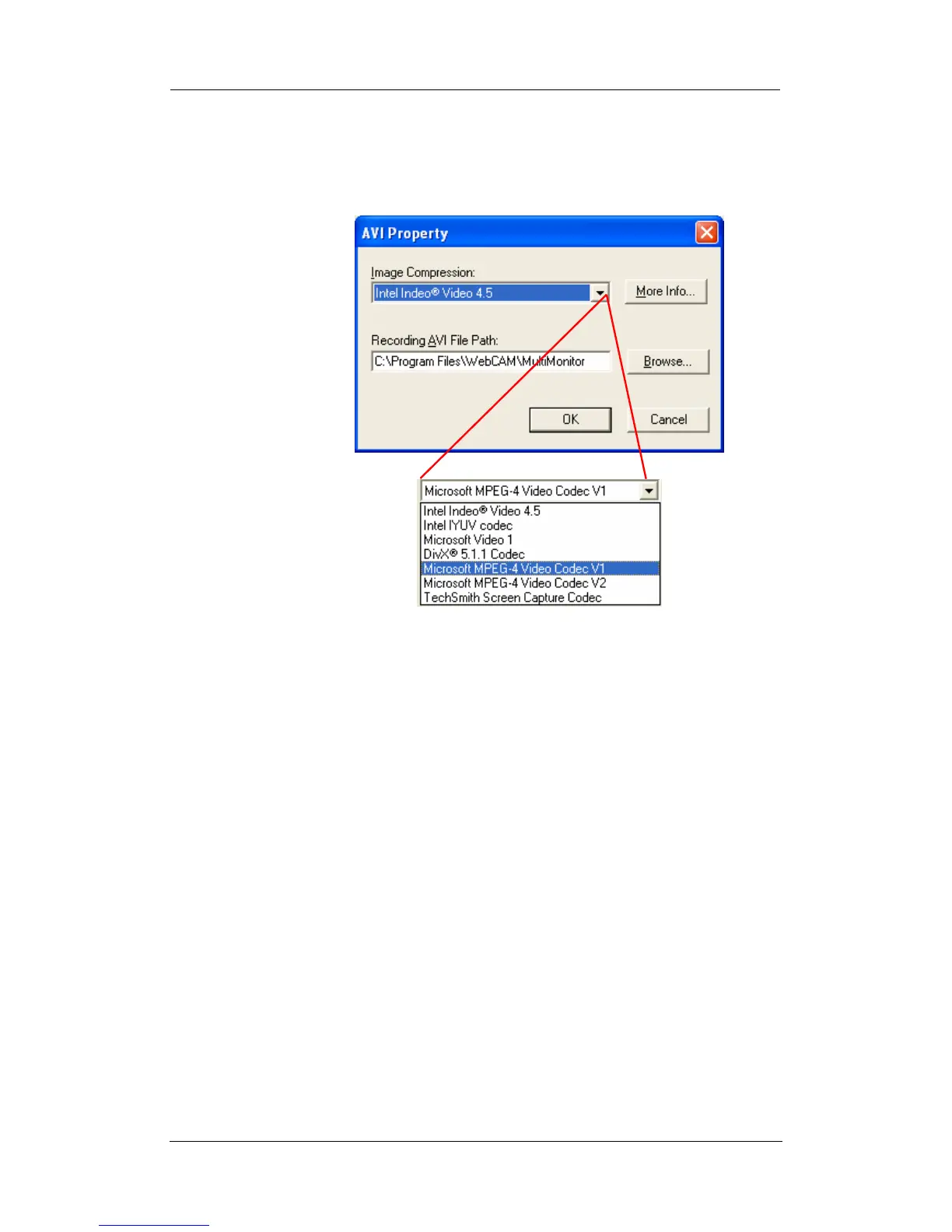
Image
Compression:
Choose from the list of available
compressions.
Note: This list is dependent on the Codec
that is available or already installed on the
local PC. To record in MPEC-4, make sure
you install or upgrade to Windows Media
Player v10.
Recording AVI File
Path
Location where the file will be recorded to.
By default, it is recorded to C:\Program
Files\WebCAM\Multi/Monitor.
Click “Browse” to change the file location.
Recorded files are save using the following file extension;
avifile[three digit numerical sequence].
Note: Use the “Detail View” to check the record stop time. You can
change the display view or add a new folder here.
Stop after idle for: Set the value between 1 to 100 seconds
Send AVI file
Notification by
Email:
Send an AVI file via email in the event any
motion is detected.




 To Next Page