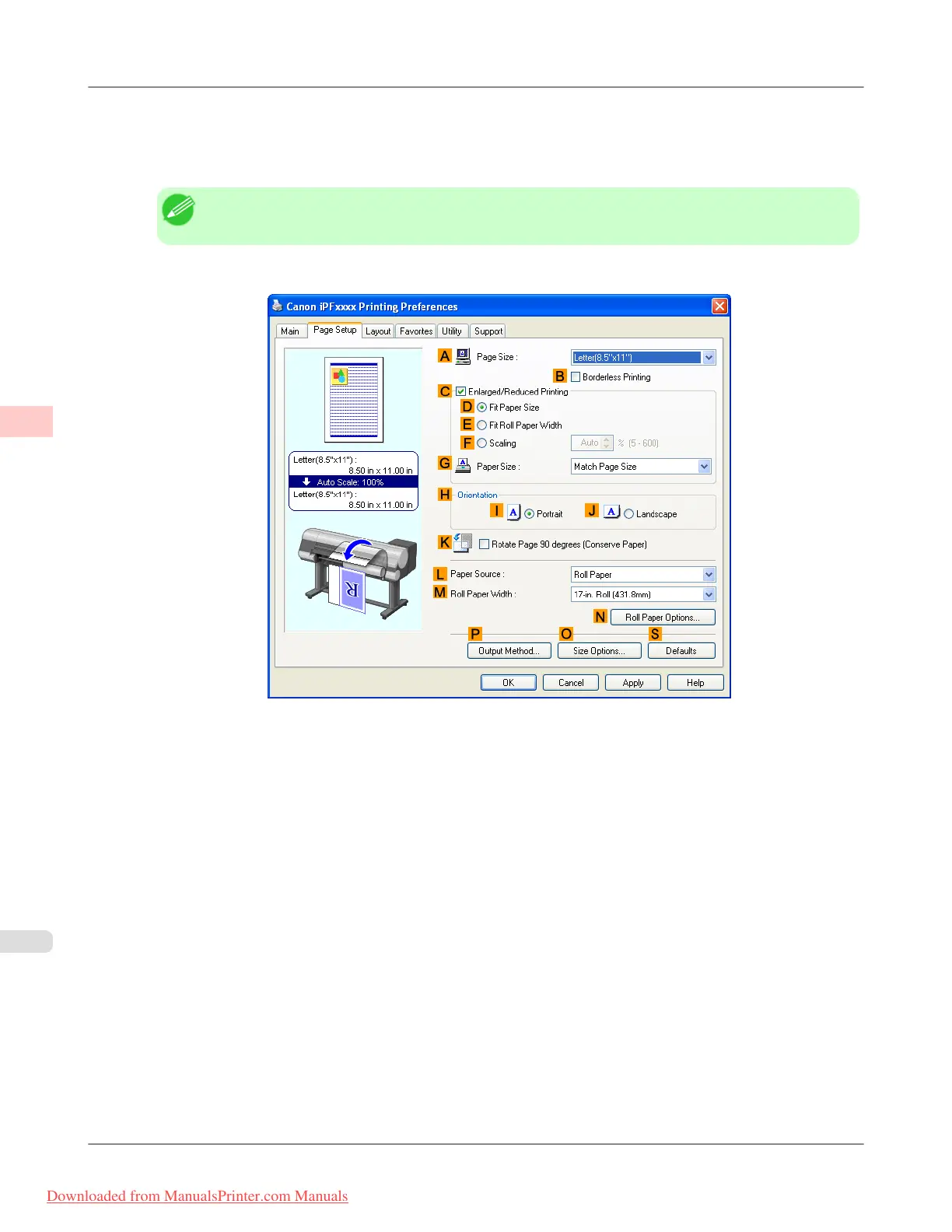
4. In the A Media Type list, select the type of paper that is loaded. In this case, click Plain Paper.
5. Make your selection in the E Print Target list.
Note
• You can check the settings values selected in the E Print Target list by clicking G View Settings.
6. Click the Page Setup tab to display the Page Setup sheet.
7. In A Page Size, click the size of the original as specified in the application software. In this case, click ISO A2.
8. Select and click a roll paper in the L Paper Source list.
9. Select the width of the loaded roll in the M Roll Paper Width list—in this case, ISO A2/A3 Roll (420.0mm).
Enhanced Printing Options
>
Other useful settings
>
Printing with Watermarks— COPY, FILE COPY, and so on (Windows) iPF815
3
188
Downloaded from ManualsPrinter.com Manuals












 To Next Page