2. You can manage queued jobs as follows.
•
Deleting queued jobs
1. Press ▲ or ▼ to select Job Mgmt Menu, and then press the OK button.
2. Press ▲ or ▼ to select Print Job, and then press the ▶ button.
3. Press ▲ or ▼ to select the print job to delete, and then press the ▶ button.
4. Press ▲ or ▼ to select Delete, and then press the OK button.
•
Changing the order of printing
1. Press ▲ or ▼ to select Job Mgmt Menu, and then press the OK button.
2. Press ▲ or ▼ to select Print Job, and then press the ▶ button.
3. Press ▲ or ▼ to select the job to print first, and then press the ▶ button.
4. Press ▲ or ▼ to select Preempt Jobs, and then press the OK button.
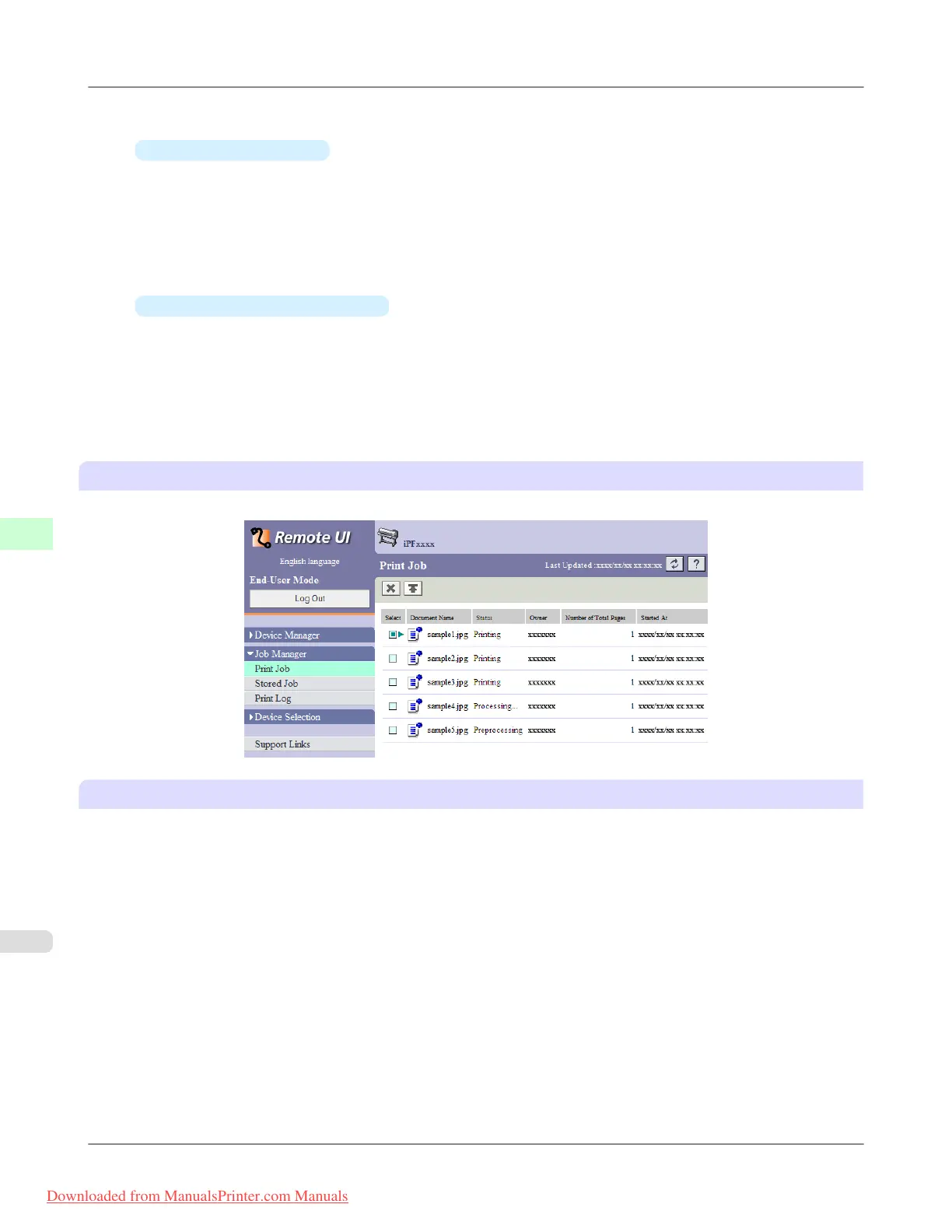
Using RemoteUI
On the Print Job page, select the job to manage and how to manage it. For details, refer to the RemoteUI help.
Using imagePROGRAF Status Monitor (Windows)
On the Job sheet, select the job and the desired function. The following functions are available.
• Preempting other jobs
• Pausing printing
• Resuming printing
• Canceling print jobs
Print Jobs
>
Basic Print Job Operations
>
Managing Queued Jobs (Deleting or Preempting Other Jobs) iPF815
6
570
Downloaded from ManualsPrinter.com Manuals




 To Next Page