Chapter 10 Maintenance 103
Checking the ink level
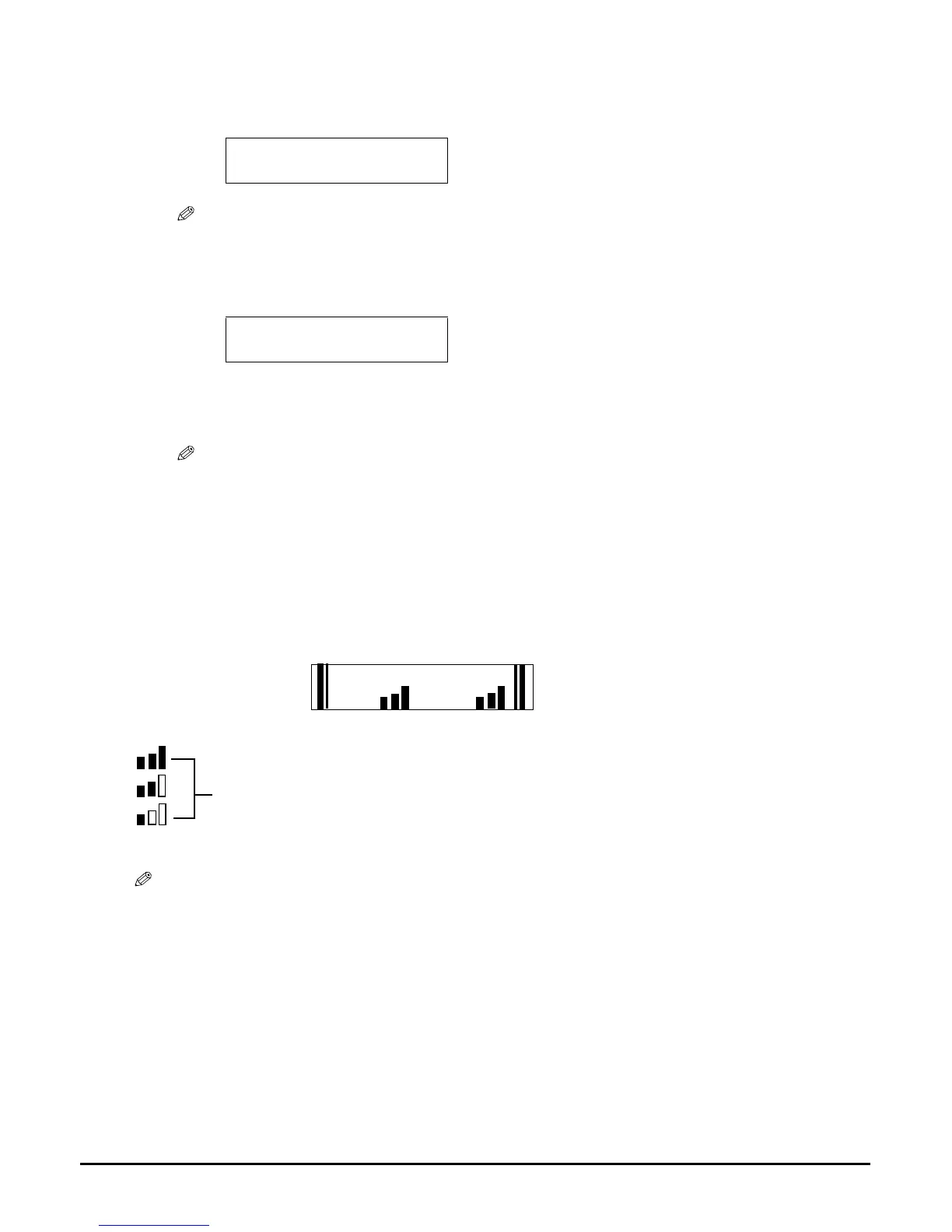
If you reset the ink counter when you installed/replaced the ink tanks, you can check the current
ink level of the ink tanks at any time.
To check the current ink level of the ink tanks, press [COPY], [SCAN], or [PHOTO].
The LCD will display the ink level for approx. three seconds.
Indicates the remaining ink volume at three levels.
? Indicates the ink counter was not reset after replacing the ink tanks.
NOTE
• The LCD will not display the ink level when <LOW INK WARNING> is set to <OFF>.
5 Press [OK/Set].
• The LCD displays a message asking if you replaced the black ink tank.
NOTE
• Do not press any keys other than [
] or [
].
6 If you replaced the black ink tank, press [
]. If you did not, press [
].
• The LCD displays a message asking if you replaced the colour ink tank.
7 If you replaced the colour ink tank, press [
]. If you did not, press [
].
• The ink counter is now reset.
NOTE
• Press [Stop/Reset] to switch the machine to standby mode.
BLACK INK CHANGED?
- YES NO +
colour INK CHANGED?
- YES NO +
Ex:
COPY MODE
COL BLK








 To Next Page